

iOS Publishing (Cloud)
Draftbit supports publishing your app to the Apple App Store. In order to do this, you’ll need to complete a few setup steps and provide us with some information. This guide details those steps.
App Settings
Section titled “App Settings”Before you start the publishing process, make sure your app’s configuration properties are up to date in Settings. At a minimum, we recommend you review and update:
- App Name: The name shown on the device home screen after install
- Slug: A URL-friendly identifier used in publishing/build processes
- URL Scheme: URL scheme for deep linking into your app (e.g., myapp:// would use ‘myapp’).
- Description: A short description of your app
- App Icon: Your app’s icon (we recommend uploading a 1024×1024 PNG)
- Splash Screen: The launch screen users see while your app loads
For more details (and the full list of available properties), see App Configuration.
Apple Developer Account
Section titled “Apple Developer Account”First, in order to publish to the Apple App Store, you’ll need an Apple account and a Developer membership.
- Create an Apple Account if you don’t already have one
- Enroll in the Apple Developer Program
- Pay the $99/year fee
- Provide the required information
- Verify your account by providing a government-issued photo ID that matches the information you provided on sign-up if required.
See this guide for more information on how to sign up.
Create a Bundle Identifier
Section titled “Create a Bundle Identifier”Next, you’ll need to create a Bundle Identifier (ID) for your app. This is unique to your app which identifies it inside of Apple’s system.
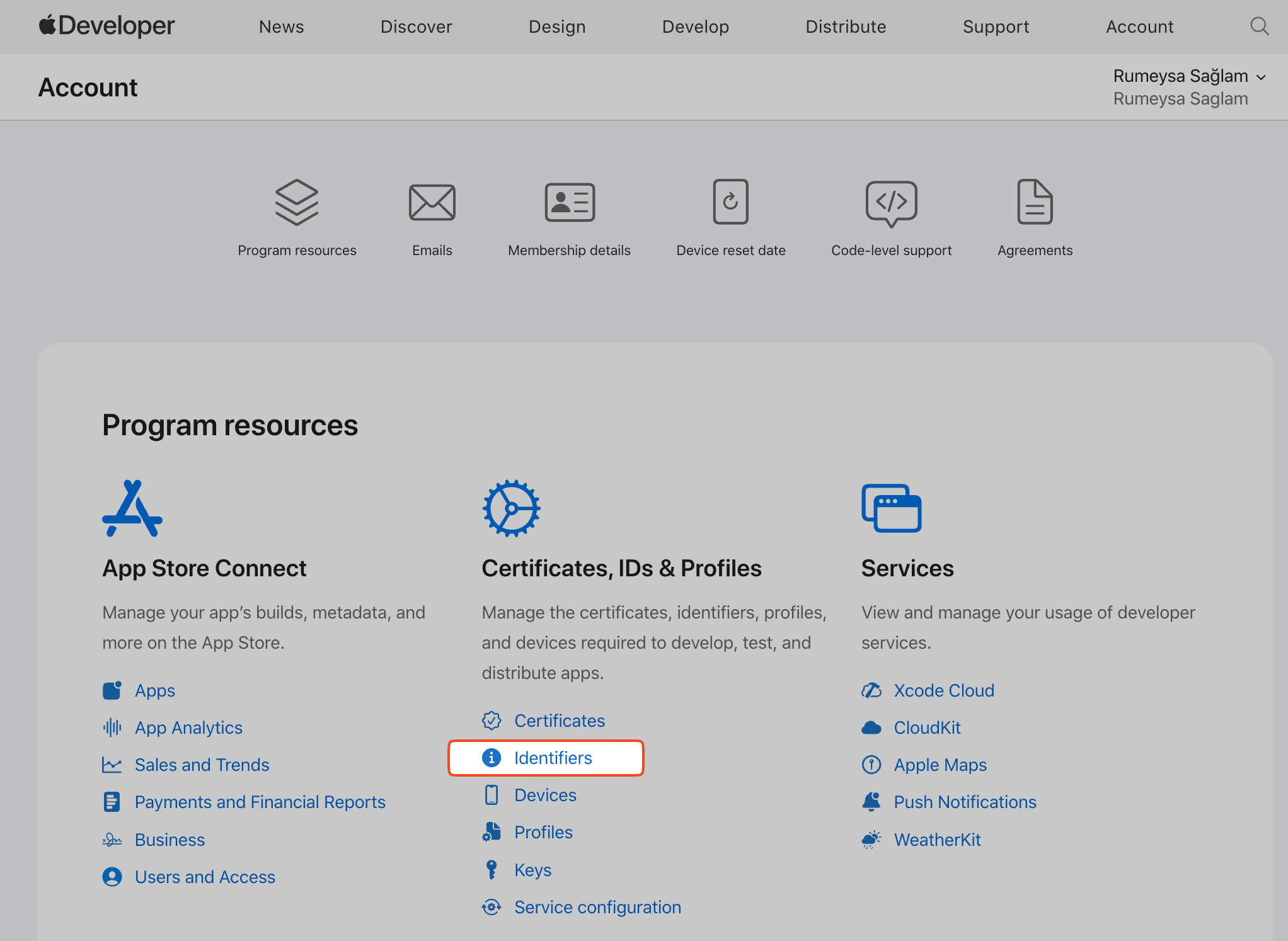
Log in to your Apple Developer account and select Identifiers from Certificates, IDs & Profiles section.
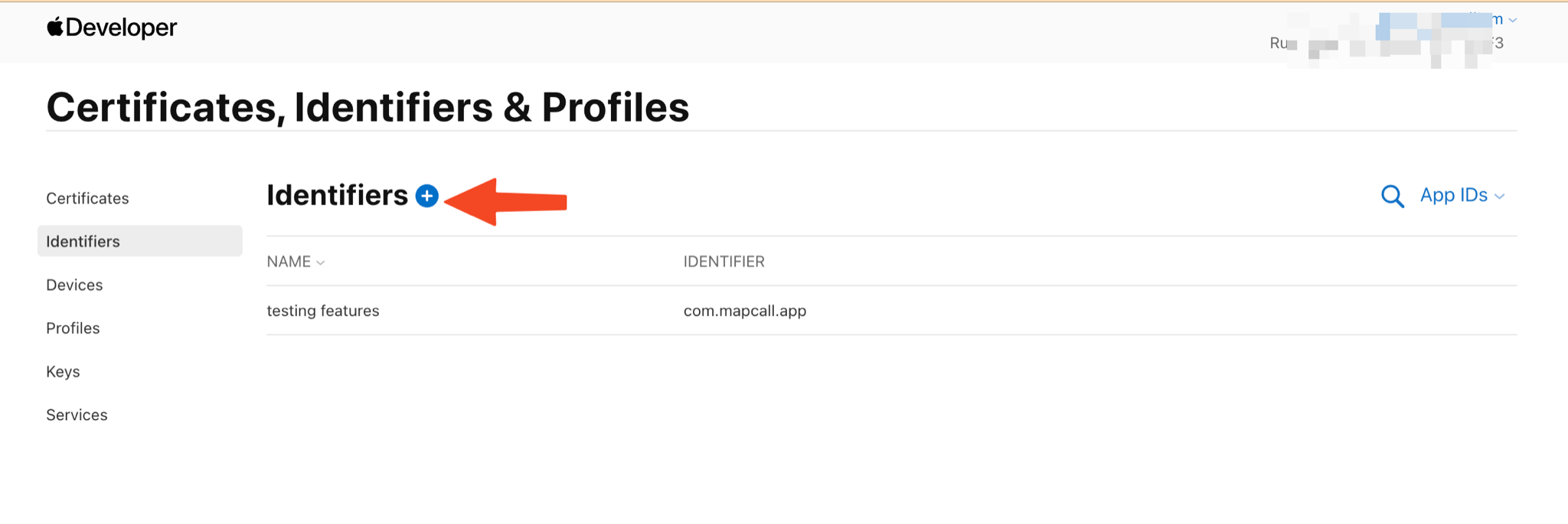
Click on the Add button (+).
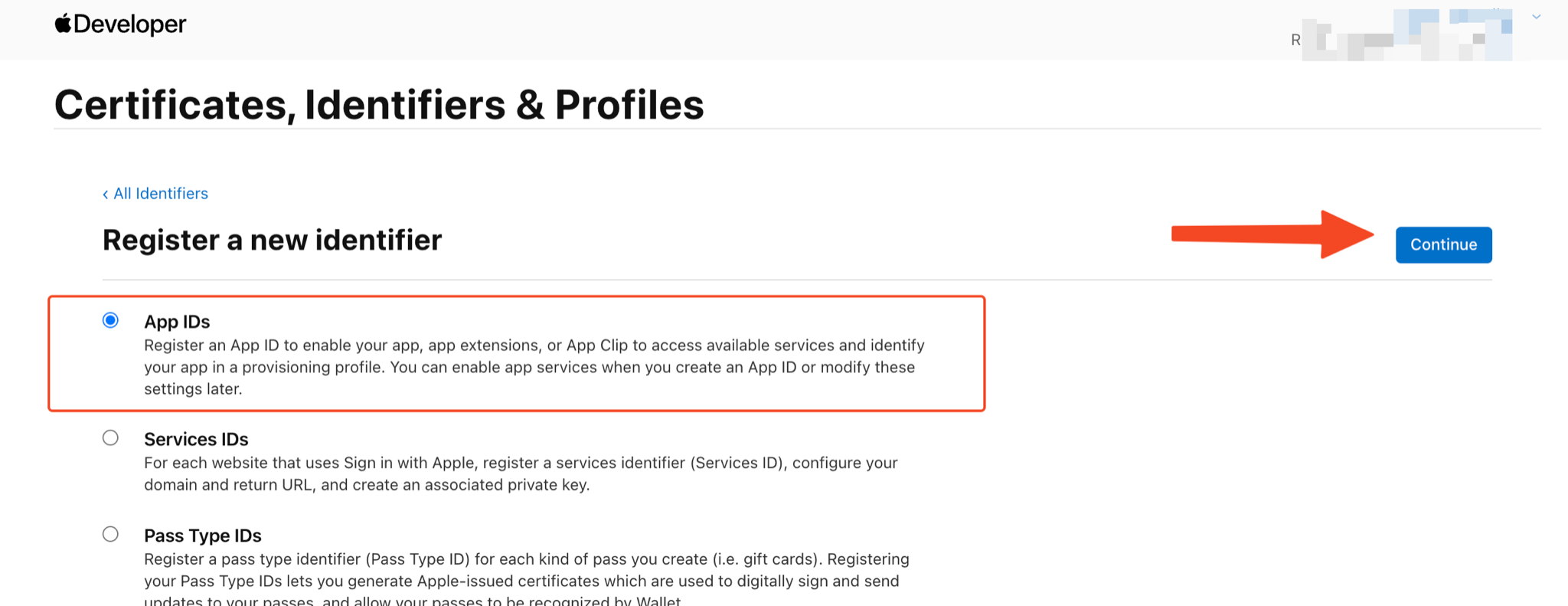
The Register a new identifier page will open. Select App IDs and then select Continue.
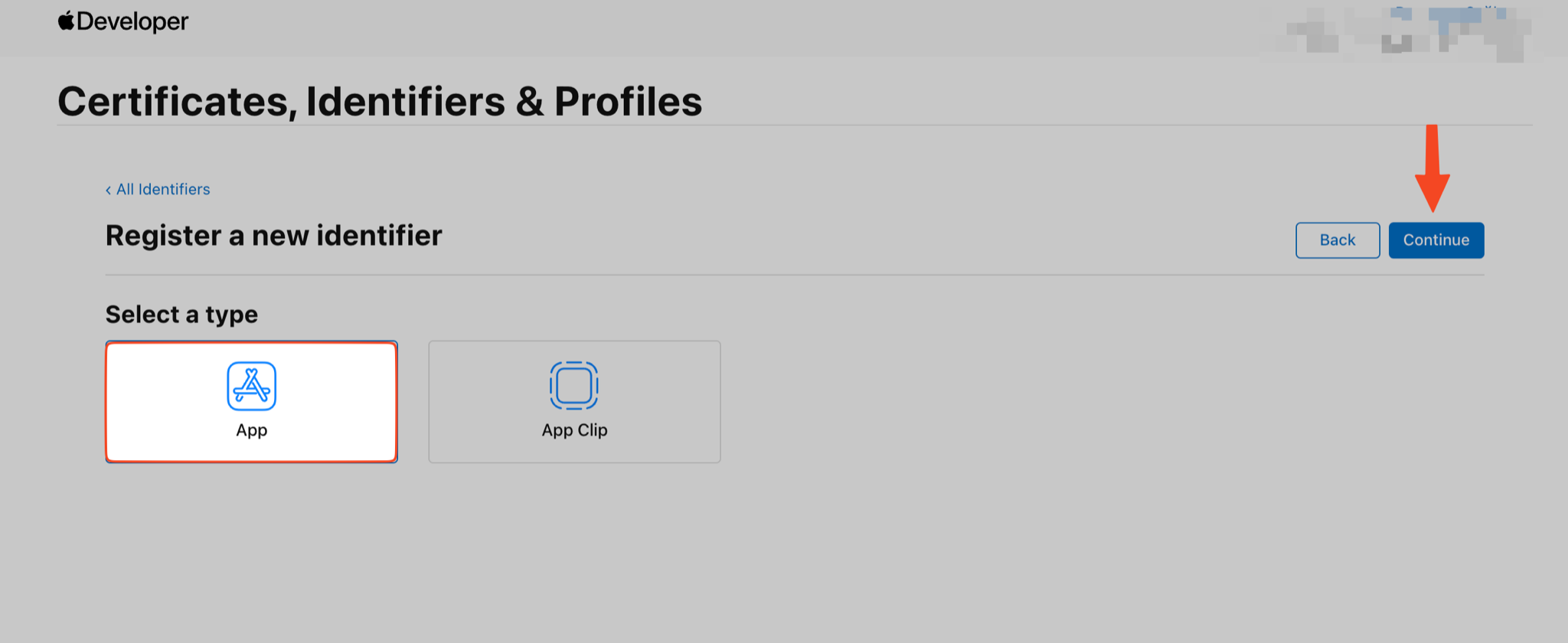
Select App and then click Continue.
Enter the Apple Bundle information:
- Bundle ID: Enter the Bundle Identifier you created in the previous step into this field.
- Description: Enter a short description for your Bundle
- Capabilities: Scroll down and select the capabilities that are required for your app.
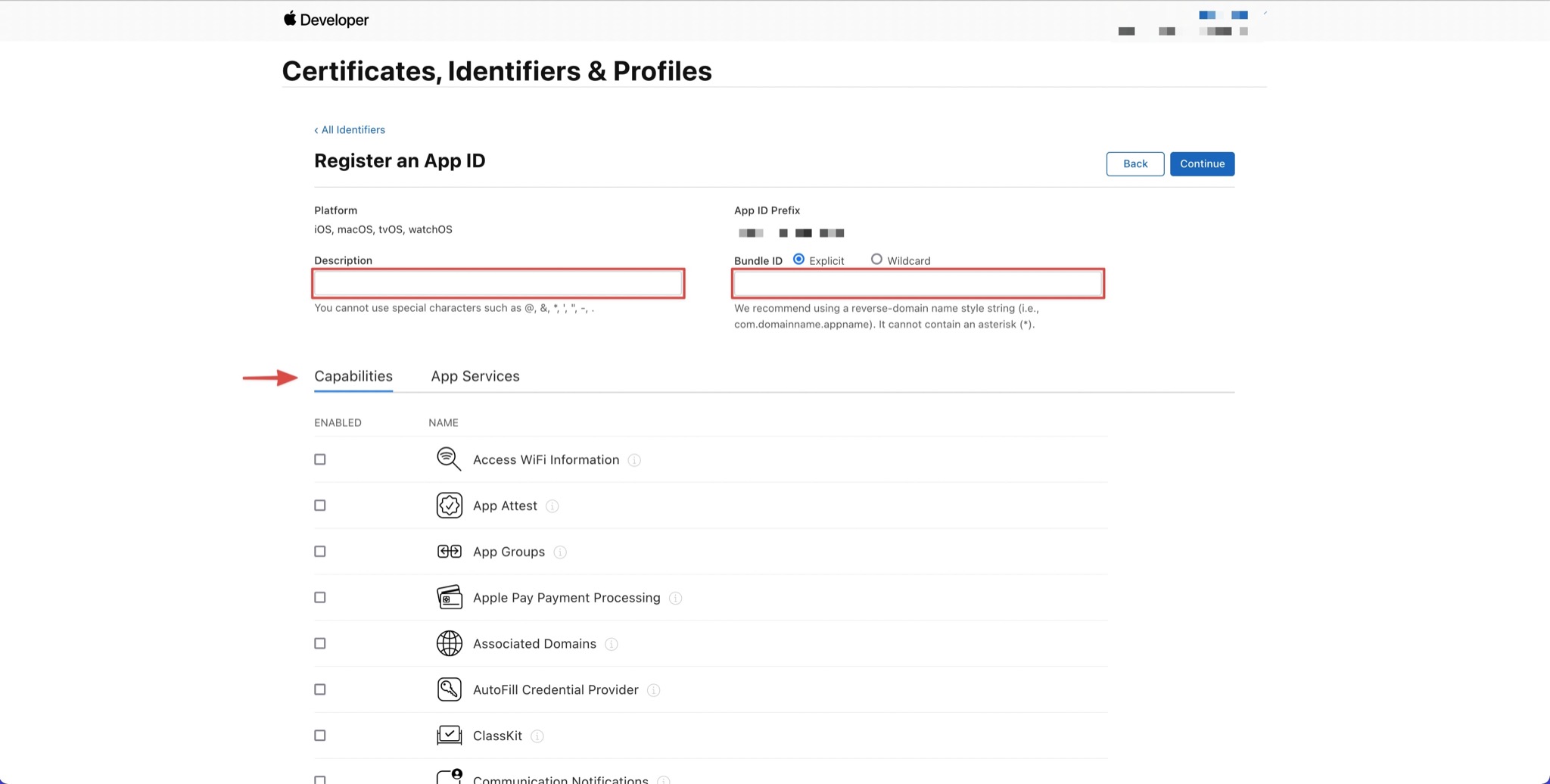
Check the boxes next to any other capabilities your app requires. For example, if your app requires Map capabilities make sure to check the box for that.
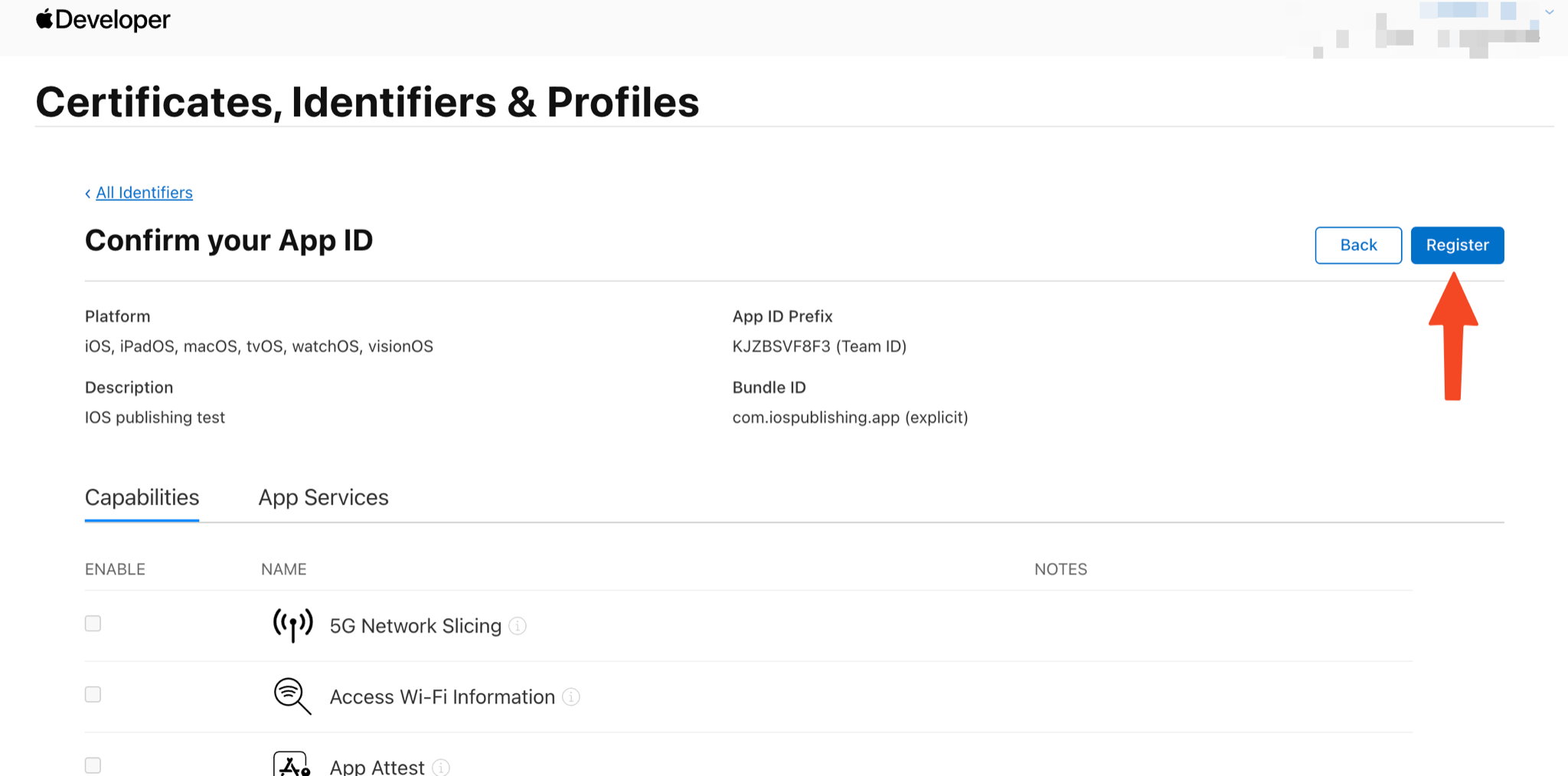
When you’re finished, select Register.
Add a New App in App Store Connect
Section titled “Add a New App in App Store Connect”Now, you need to add your app to App Store Connect which is where you will manage and submit your app to the App Store.
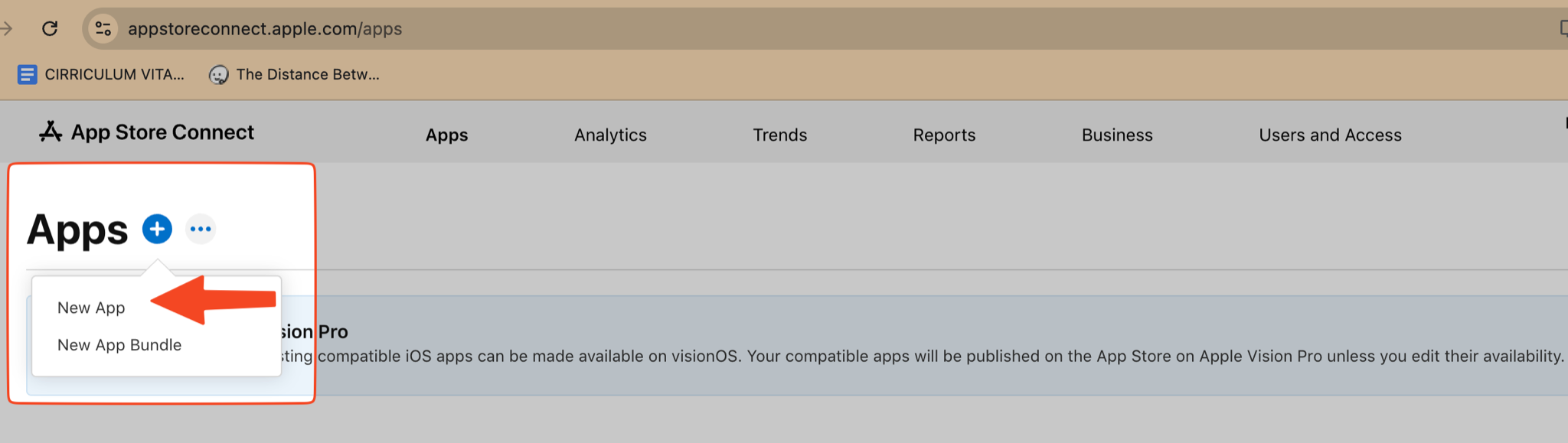
Go to App Store Connect, select Apps, then click on the Add button (+) and then select New App.
Enter your app information in the modal that appears:
- Platform: for mobile apps this will be iOS.
- Name: Enter a Name for your app (this is the name that will show in the App Store).
- Primary Language for your app.
- Bundle ID: Select the Bundle ID you created in the previous step.
- SKU: Enter a unique identifier. We recommend using your Bundle ID here, as long as it’s unique.
- User Access: You should leave this set to Full Access unless you intend to only use this app privately. If you select Limited Access, you’ll need to add the users that you would like to grant access to this app. This will only appear if you have other users included in your App Store Connect account.
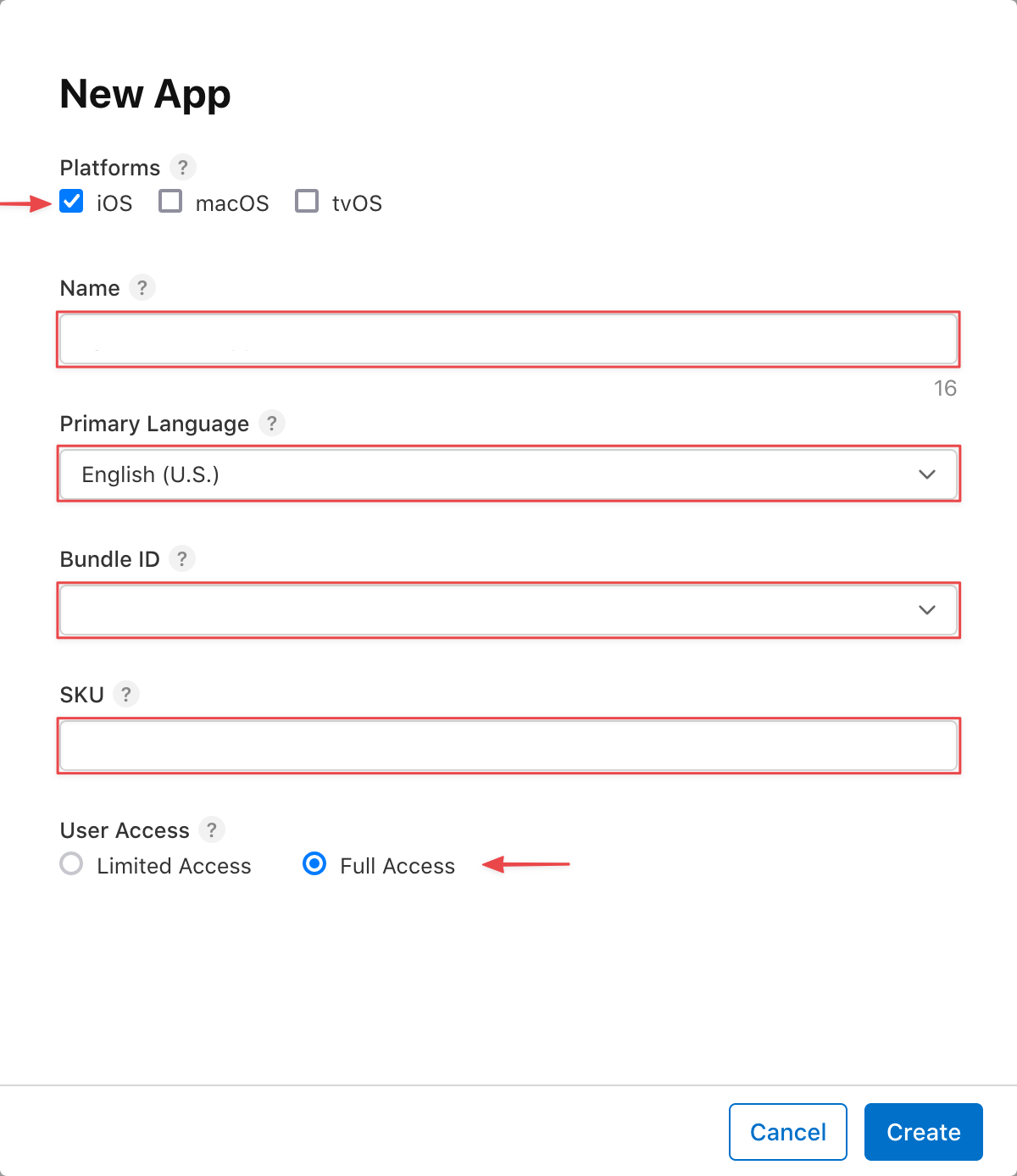
When you’re done, select Create.
Get Your Team ID
Section titled “Get Your Team ID”Next you’ll need to get your Team ID.
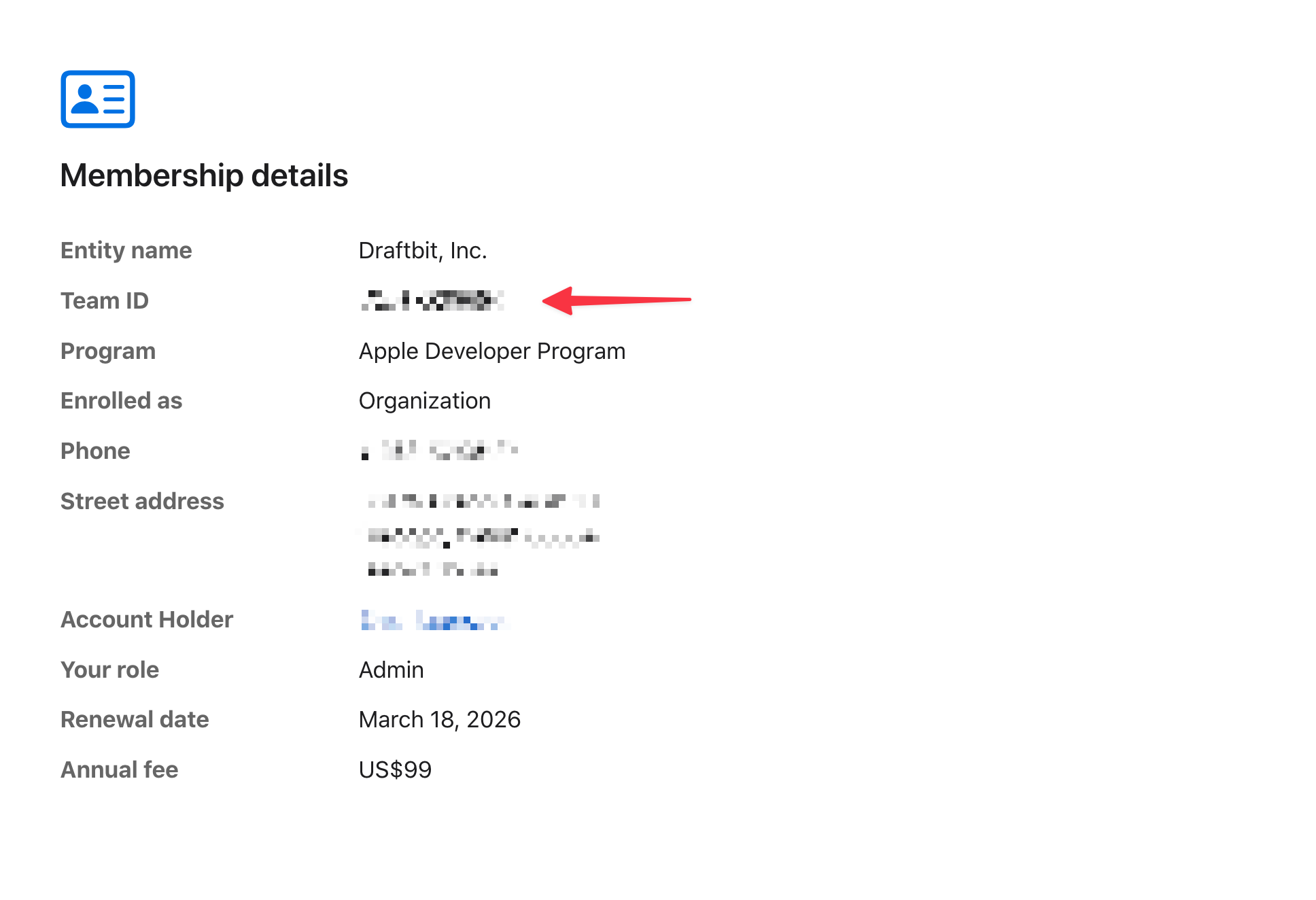
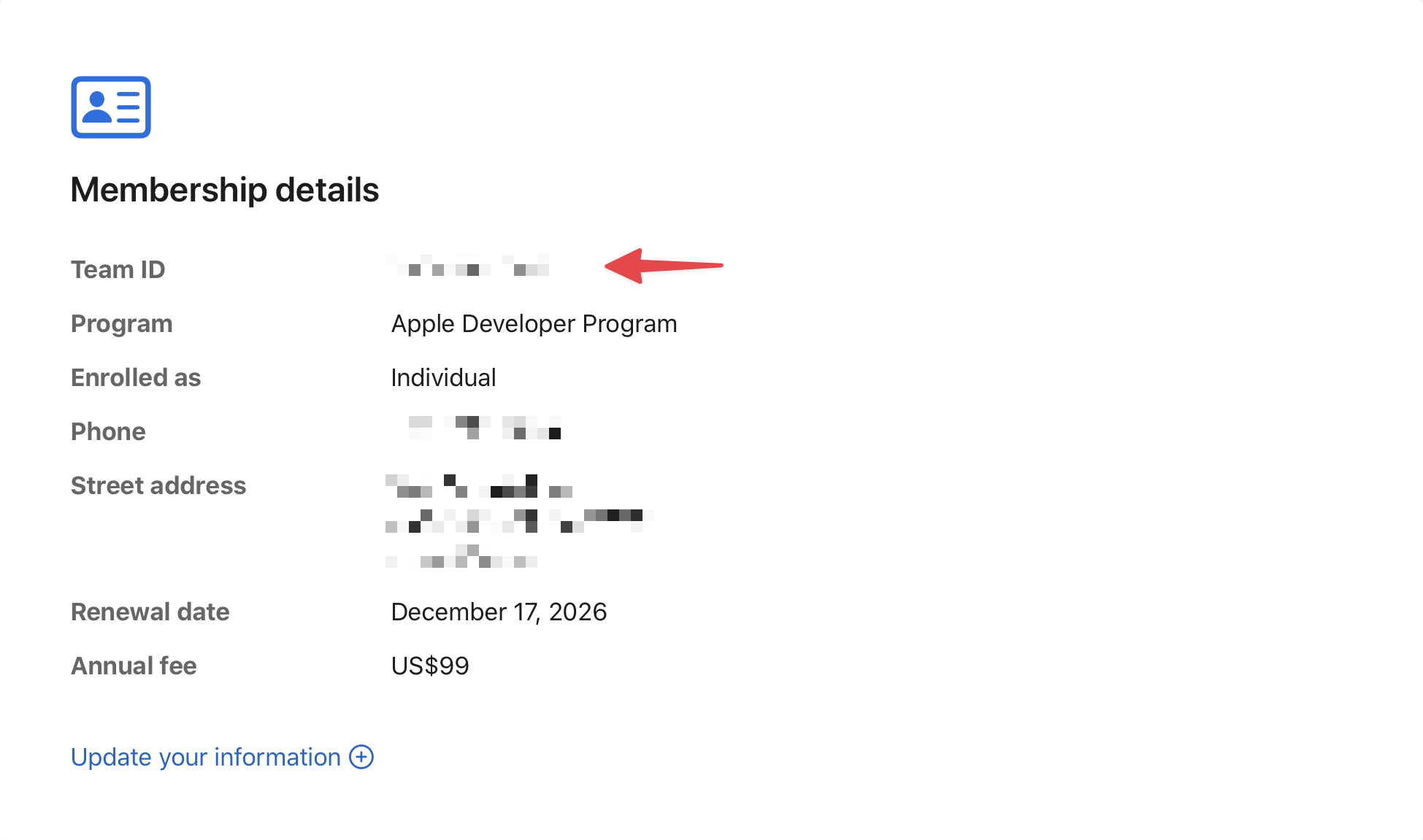
From the main page of your Apple Developer Account, select Membership Details from the top menu. Copy the Team ID associated with your Developer Account for future reference.
Organization Membership Details
Individual Membership Details
Get Your API Key
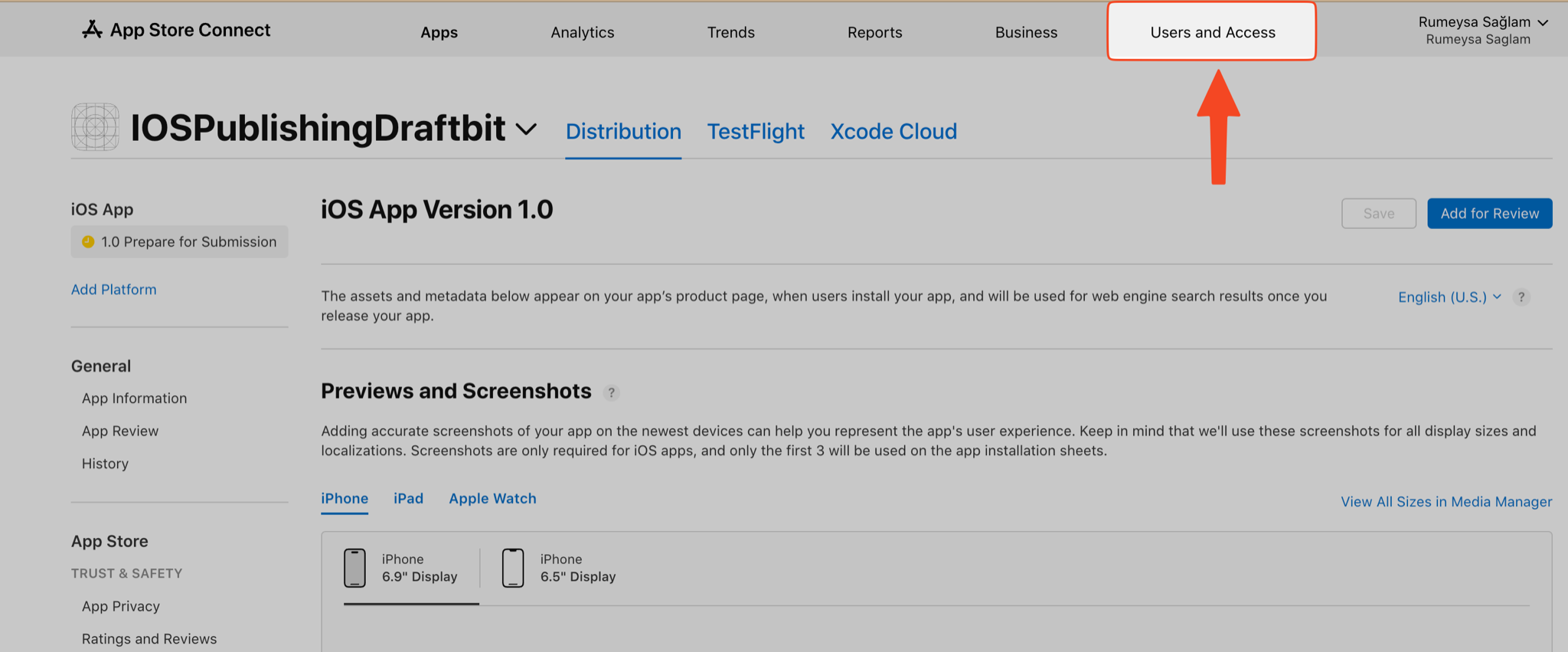
Section titled “Get Your API Key”At this point, you need to generate an API Key. On the screen that you were navigated to after creating the app, choose Users and Access.
From the Users and Access page, select Integrations tab on the top.
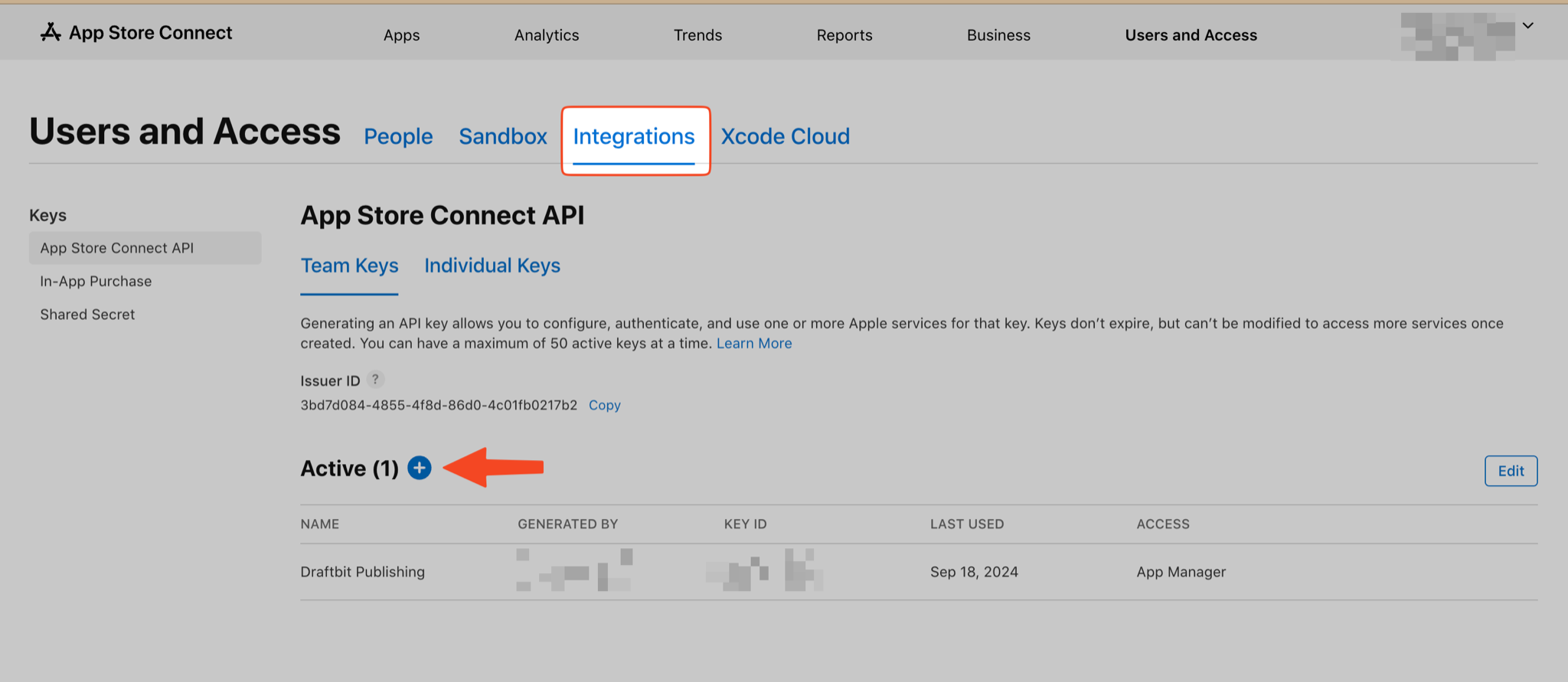
If you see the Request Access button, click on it. If you haven’t added a key before, click on the Generate API Key. Otherwise, select the Add button (+).
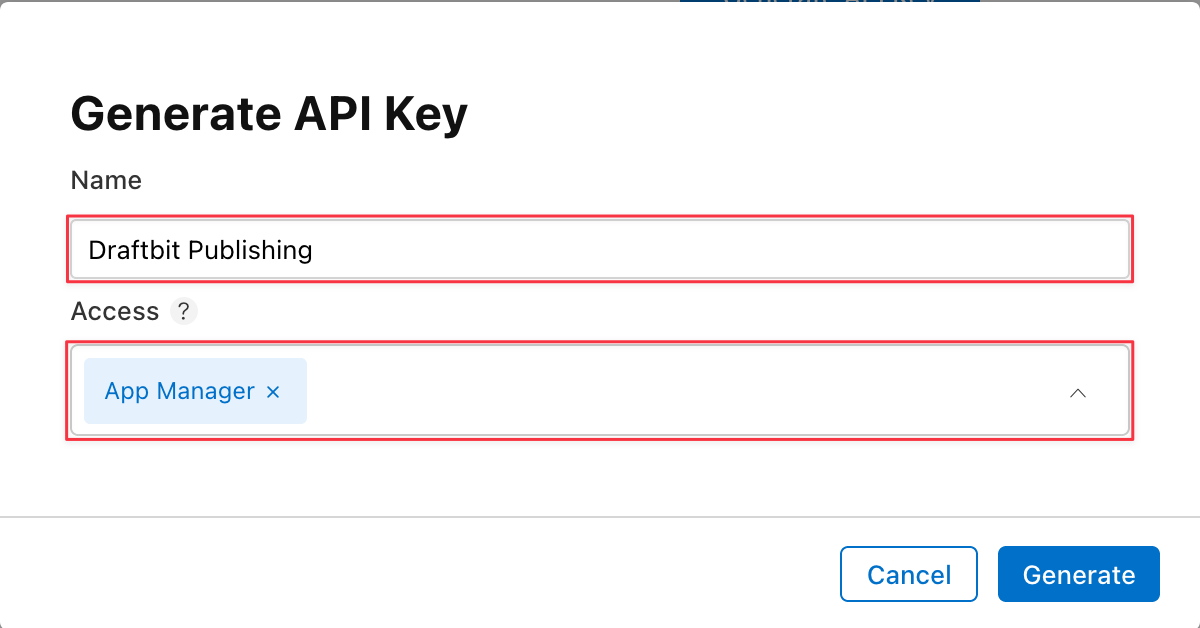
Enter your API Key Information in the modal that appears:
- Name: Enter a name for the key. This is a reference and is not part of the key itself. We recommend naming it ‘Draftbit Publishing’ so it will be easier to identify in the future.
- Access: Select App Manager as the access type. For additional information on Roles, see the docs here.
When you’re done, select Generate.
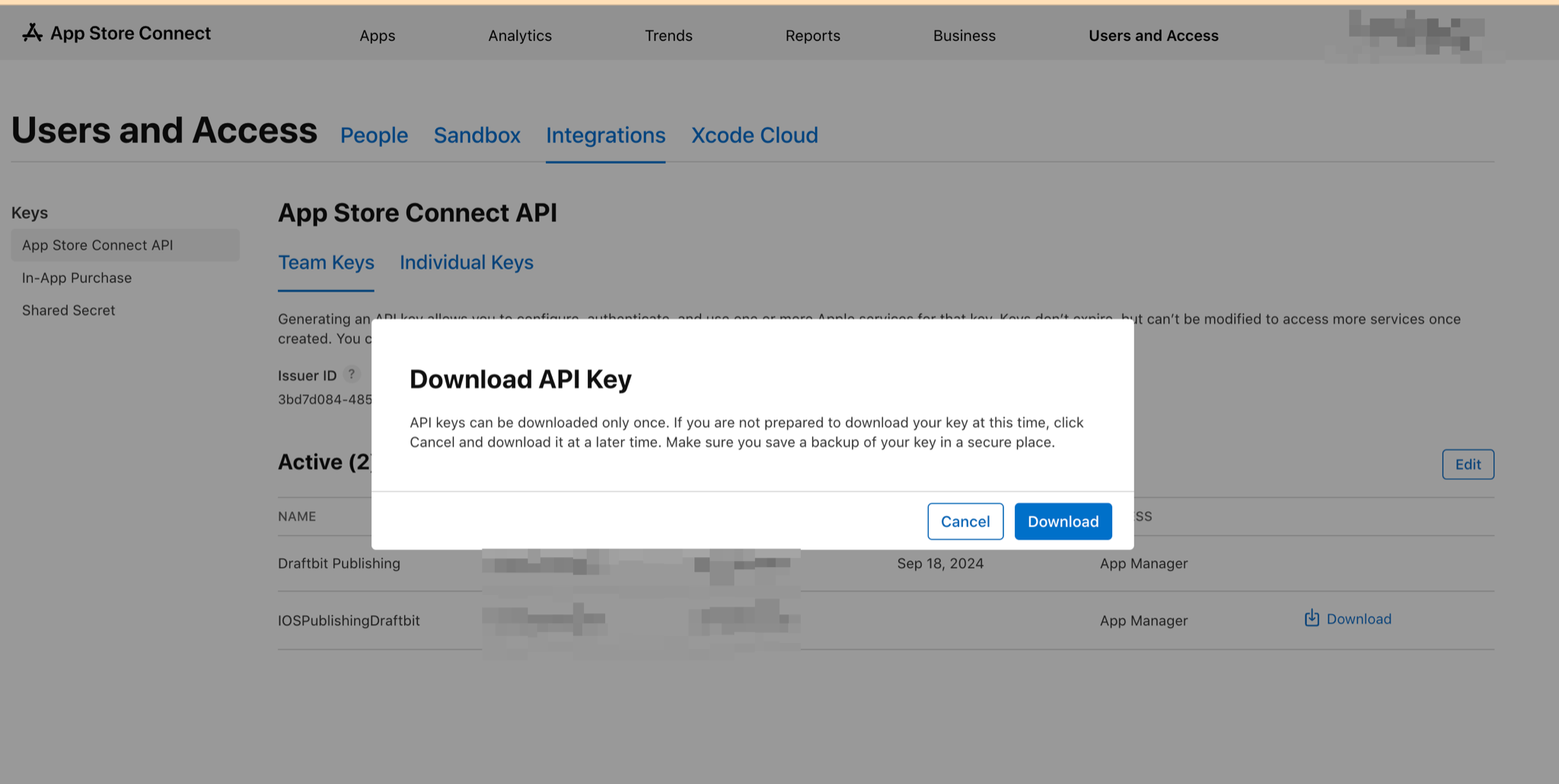
Find the row for the API Key you just generated and select Download API Key. A modal will appear, select Download. Refresh the page if the link doesn’t appear immediately.
Get Your Issuer ID
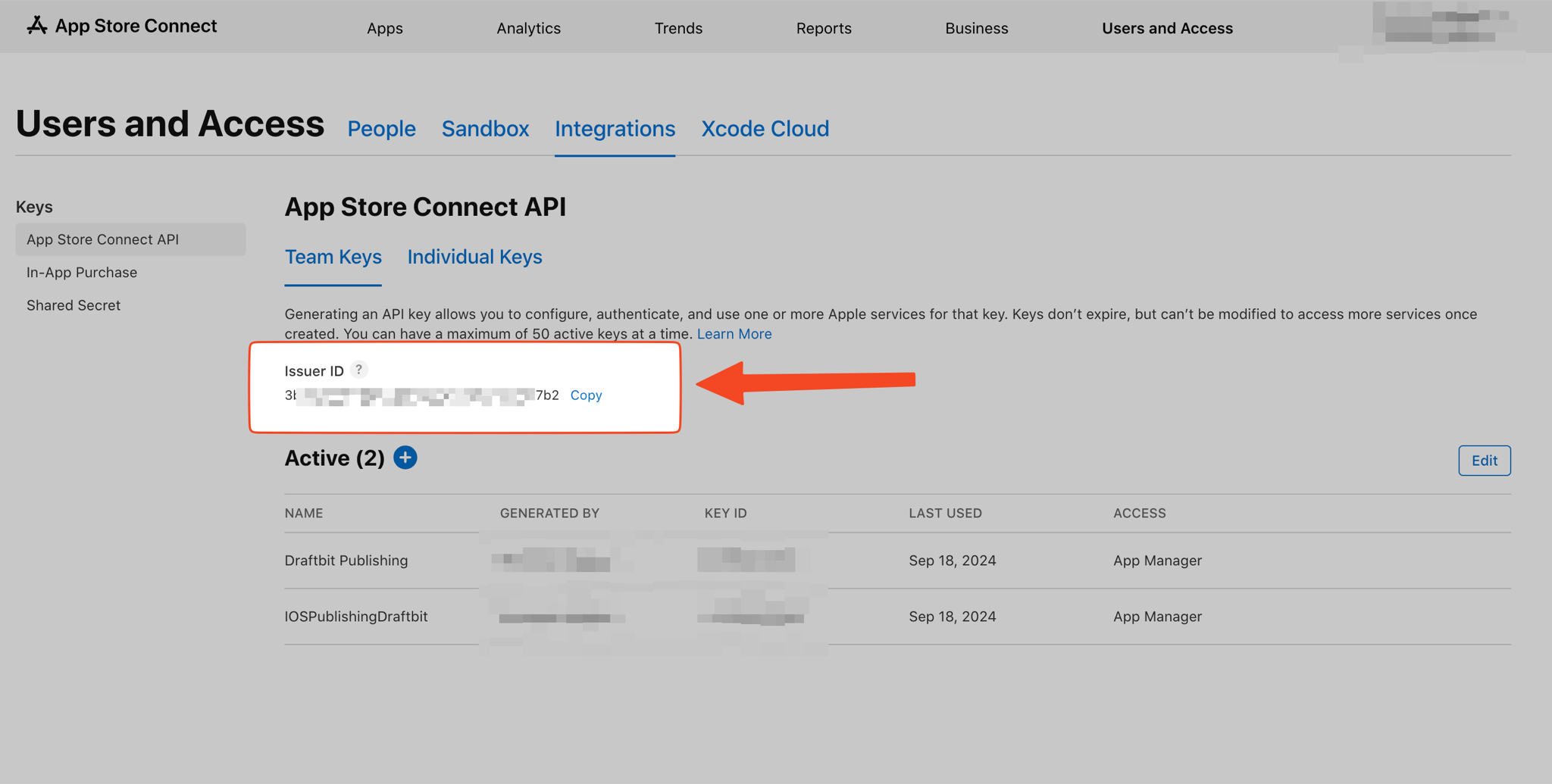
Section titled “Get Your Issuer ID”Next you’ll need to get your Issuer ID. In App Store Connect, go to Users and Access page and select Integrations tab. Find the Issuer ID and select Copy for future reference.
Get Your Key ID
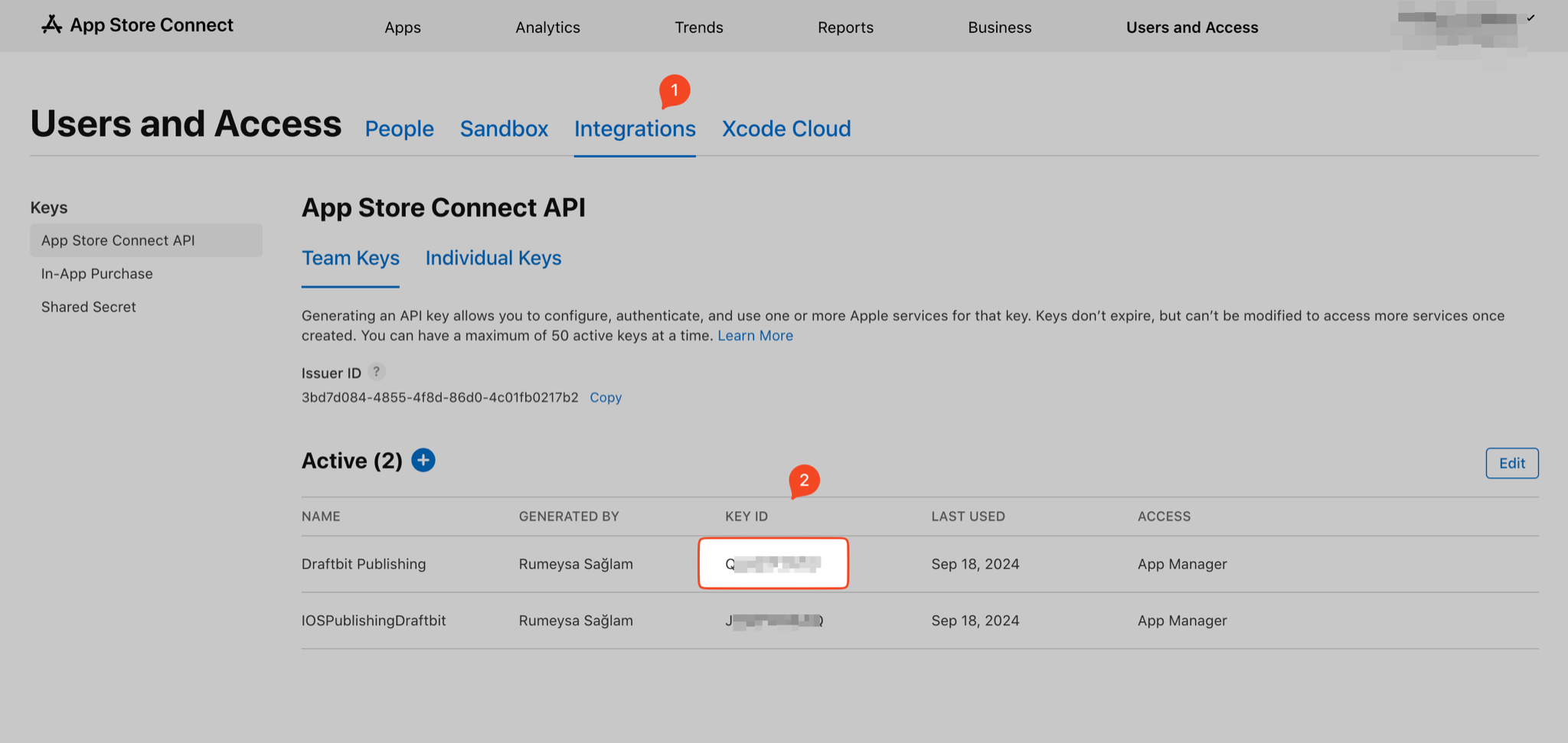
Section titled “Get Your Key ID”Now, you need to get the Key ID for the API Key you generated. In App Store Connect, go to Users and Access page and select Integrations tab. Find the row for the API Key you generated and select Copy Key ID for future reference.
Configure Your App Settings
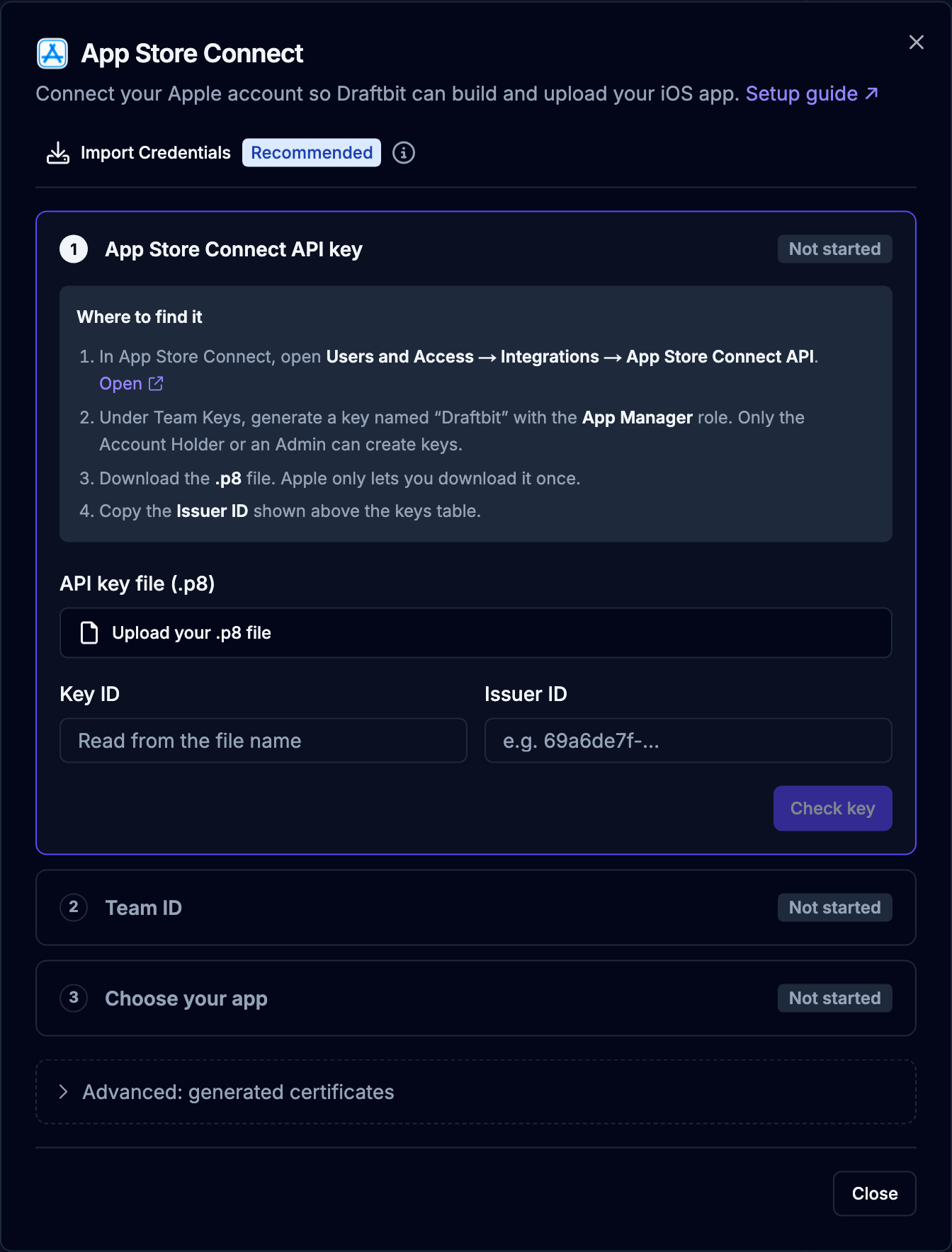
Section titled “Configure Your App Settings”Go to the Publishing page, open the Publish Destinations tab, and select the App Store Connect card. The dialog walks you through three steps and checks each one with Apple before moving on to the next.
-
App Store Connect API key
Upload the API Key file (
.p8) you downloaded earlier. Draftbit fills in the Key ID from the file name (AuthKey_<Key ID>.p8); if you renamed the file, enter the Key ID yourself. Paste the Issuer ID you copied earlier and click Check key. Draftbit checks the key with Apple before saving it. -
Team ID
Enter the Team ID you copied earlier and click Save. Apple confirms it on your first publish.
-
Choose your app
Pick your app from the list of apps your API key can see in App Store Connect, then click Use this app. You can search by app name or bundle ID, and Draftbit suggests a match for your project. If your app isn’t listed, create it in App Store Connect with your bundle ID and refresh the list, or click Enter a bundle ID instead.
If you already publish another app with the same Apple account, import its credentials instead of entering them again. See Signing Credentials.
Check Your Setup
Section titled “Check Your Setup”Each step shows its status: Verified, Saved, or Needs a fix. When a check fails, the step says what to fix and links to the page where you fix it. Once every step passes, the dialog says you’re ready to publish, and Publish to App Store starts an iOS publish. Click Check again any time to check again.
To change a setting later, click its step. Draftbit checks a new API key with Apple before saving it, so a mistake doesn’t replace a key that works, and your app is checked again with the new key.
The same check appears when you start an iOS publish, so you can fix problems before the build starts. Apple doesn’t let Draftbit see an API key’s role, so the check can pass for a key that can’t upload builds. Make sure your key has the App Manager or Admin role. The Team ID isn’t checked until your first publish.
Publish Your App
Section titled “Publish Your App”Now, you’re ready to publish your app to the Apple App Store.
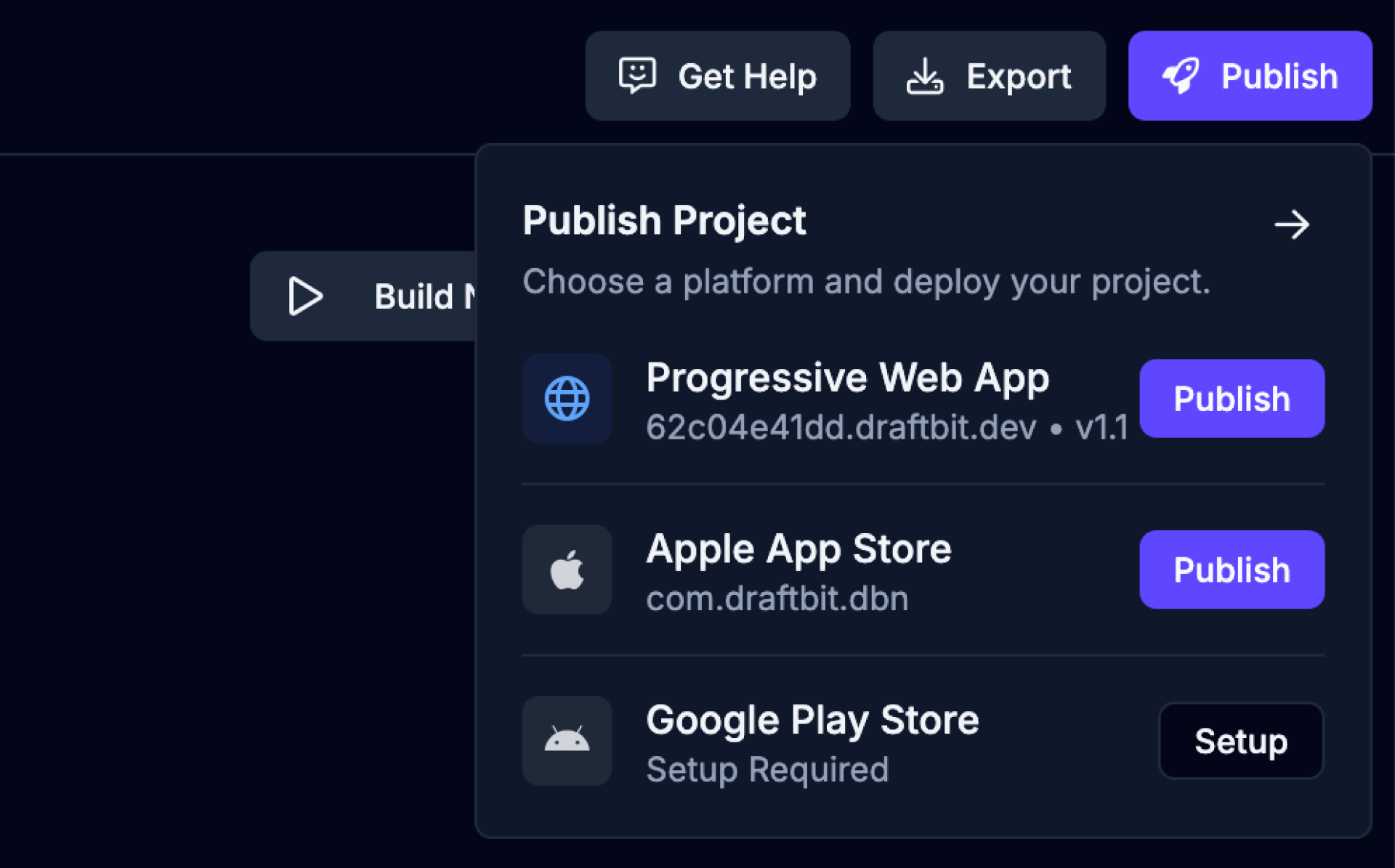
-
Open the Publish dropdown
Click the
 button from the top-right of the Builder to open the Publish dropdown.
 -
Choose Apple App Store
Click the
 button for the Apple App Store option.
 -
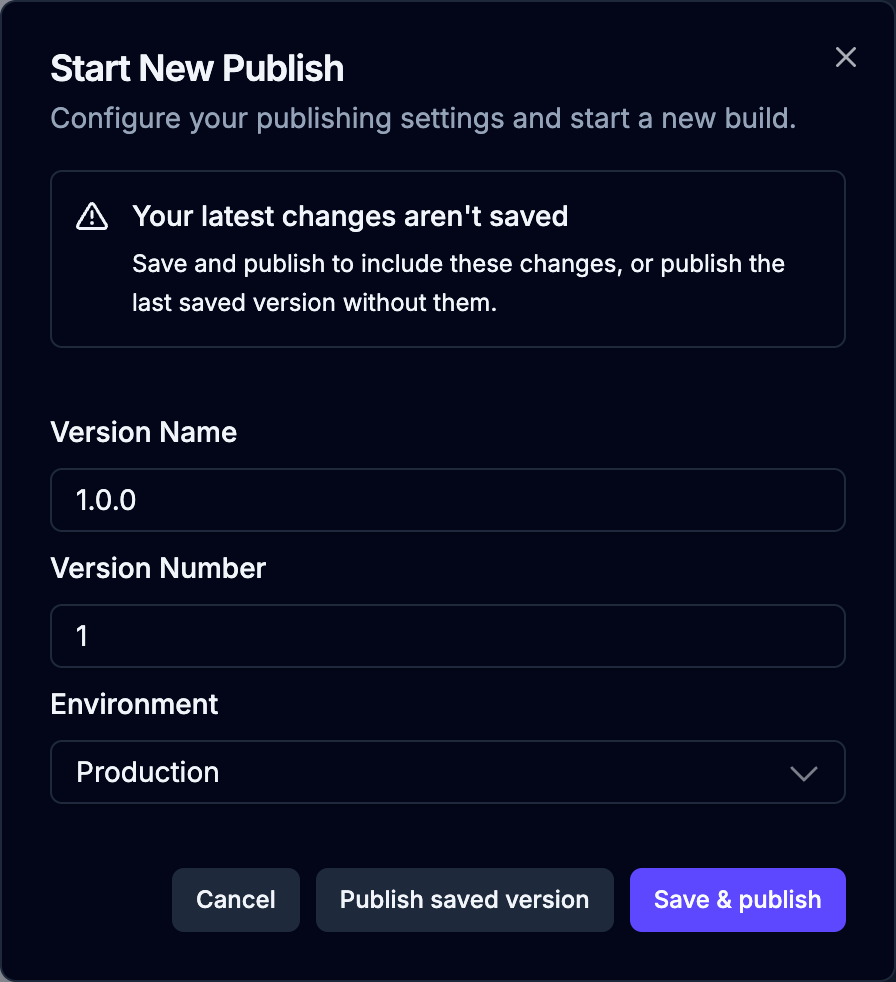
Start a new publish
Enter a version name, number, and environment for your publish and then click the
 to start the publishing process.
| Name | Description |
|---|---|
| Version Name | The version people see, such as “1.0.0”. Draftbit suggests the next patch version after your last successful publish. |
| Version Number | A whole number that goes up by one with each publish, such as “1”, “2”, or “3”. Draftbit fills in the next number for you. See Start a publish. |
| Environment | The publish environment to use. Options: Staging or Production. Environment variable values are managed in Settings. |
Ask the Agent About Your App Store App
Section titled “Ask the Agent About Your App Store App”On a paid plan, you can let the agent use the App Store Connect API key you saved for publishing to look things up for this app. It’s off until you turn it on: in Publishing, open Publish Destinations, select App Store Connect, and turn on Let the agent read App Store Connect. Turning it off, or removing the key, stops the agent’s access.
Once it’s on, you can ask the agent questions like:
- “What’s the status of my latest build?”
- “Show me this week’s App Store reviews.”
- “What’s my app’s average rating?”
- “Is my app still waiting for review?”
For now, the agent can only read from App Store Connect. It can’t reply to reviews, edit your listing, manage TestFlight testers, or submit your app for review. Make those changes in App Store Connect.