

Code Editor
Open the Code Editor using the
icon in the main menu.
The Code Editor gives you your app’s full codebase in the browser. You can browse and search every file, edit code yourself, upload images and fonts, and hand a piece of code to the agent when you want help with it. It’s handy when you know exactly what to change and typing it is faster than describing it.
Layout
Section titled “Layout”The Code Editor has three areas:
- Files on the left lists every file and folder in your app.
- The editor in the middle shows the file you selected.
- The preview sits next to the editor when your app has one. Use the preview toggle in the editor’s header to show or hide it.
The agent panel is on the right, so you can chat with the agent while you work on code. You can pin the Files panel and the agent panel open, or collapse them to the side of the screen. On a phone, switch between Files, Code, Preview, and Agent with the tabs at the bottom.
The Files panel shows your app’s folders first, then files, in alphabetical order. A colored dot next to a file shows that it has changes you haven’t saved yet.
Search files
Section titled “Search files”Type in the search box at the top of the Files panel. The two buttons next to it choose what you search:
- Search file names filters the file list to names that match.
- Search file contents looks inside your files and lists each matching line. Type at least two characters, then select a result to open the file at that line.
Show hidden files
Section titled “Show hidden files”Files and folders whose names start with a dot, such as .gitignore or .env.example, are hidden by default. Select the eye icon next to the search box to show or hide them.
Add files and folders
Section titled “Add files and folders”Select the + button (Add new) in the Files panel header to create something new:
- New File creates an empty file.
- New Route / Folder creates a folder.
- New Screen From Template adds a screen built from a design template.
To create something inside a specific folder, right-click the folder (or open its ⋮ menu) and choose New file, New directory, or New screen. API Backend apps show New route instead, CMS apps show New collection, and Supabase Backend apps don’t have this option.
Manage files
Section titled “Manage files”Right-click a file or folder, or open its ⋮ menu, to see these actions:
| Action | What it does |
|---|---|
| Duplicate file | Makes a copy in the same folder with -copy added to the name, such as Button-copy.tsx. |
| Download file | Saves the file to your computer. |
| Move | Moves the file or folder to another folder. You can also drag it onto a folder in the tree. |
| Rename file / Rename folder | Changes the name. |
| Upload files | Uploads files into that folder, or into the file’s folder. |
| Delete file | Deletes the file or folder. |
Duplicate and Download appear for files only. Right-click an empty area of the Files panel to create or upload at the top level of your app.
Upload files
Section titled “Upload files”Choose Upload files from a folder’s menu, then add your files. The upload dialog lists the rules:
- Images, fonts, and plain-text files are allowed, along with a list of other file types the dialog shows.
- Each file must be smaller than 25MB, and you can upload up to 500 files at once.
- File names can’t start with a number.
- File names are normalized with hyphens when they’re uploaded. Folder names are kept as they are.
- Folder structure is preserved.
- Files that break a rule are skipped, and the rest still upload.
For media you want to load from a URL, such as large images or videos, use Project Assets instead.
Editor
Section titled “Editor”Select a file to open it in the editor. The editor has TypeScript-aware autocomplete and hover info, inline errors (hover a red underline to see the details), formatting, and search.
The editor’s header shows the file name and type, plus these controls:
- Keyboard shortcuts & tips (the ? icon) opens a reference for the editor. See Keyboard shortcuts and tips.
- Edit, Unified Diff, and Split Diff appear when the file has unsaved changes. Use the diff views to compare your changes with the saved version.
- Enable word wrap / Disable word wrap wraps long lines to the width of the editor.
- Show preview panel / Hide preview panel toggles the preview next to the editor.
Add code to a chat
Section titled “Add code to a chat”Select some code, then right-click it:
- Add to chat attaches the selected lines to your current chat with the agent.
- Start new thread opens a new chat with the selected lines attached.
Find code from the preview
Section titled “Find code from the preview”Hold ⌘ (Mac) or Ctrl (Windows) and hover over an element in the preview. The code that renders it is highlighted in the editor.
Syntax validation on save
Section titled “Syntax validation on save”The editor checks each file for syntax errors before saving. If a file contains a syntax error, the save is blocked and the editor highlights where the error is. Fix it and save again, so the agent and the preview never see partly broken code.
Keyboard shortcuts and tips
Section titled “Keyboard shortcuts and tips”Select the ? icon next to the file name to open Keyboard Shortcuts & Tips. On Windows, use Ctrl wherever you see ⌘.
| Shortcut | What it does |
|---|---|
| ⌘ + hover in the preview | Inspect an element. The matching source code is highlighted in the editor. |
| ⌘ + click | Go to definition. Jumps to where the component you clicked is defined. |
| ⌘ F | Search and replace in the current file. |
| ⌘ G | Go to a specific line number. |
| ⌘ / | Comment or uncomment the selected lines. |
| ⌘ Z / ⌘ ⇧ Z | Undo or redo. |
The same dialog lists a few tips: right-click selected code to add it to a chat, start typing to see TypeScript suggestions, and hover a red underline to see the error.
Saving changes
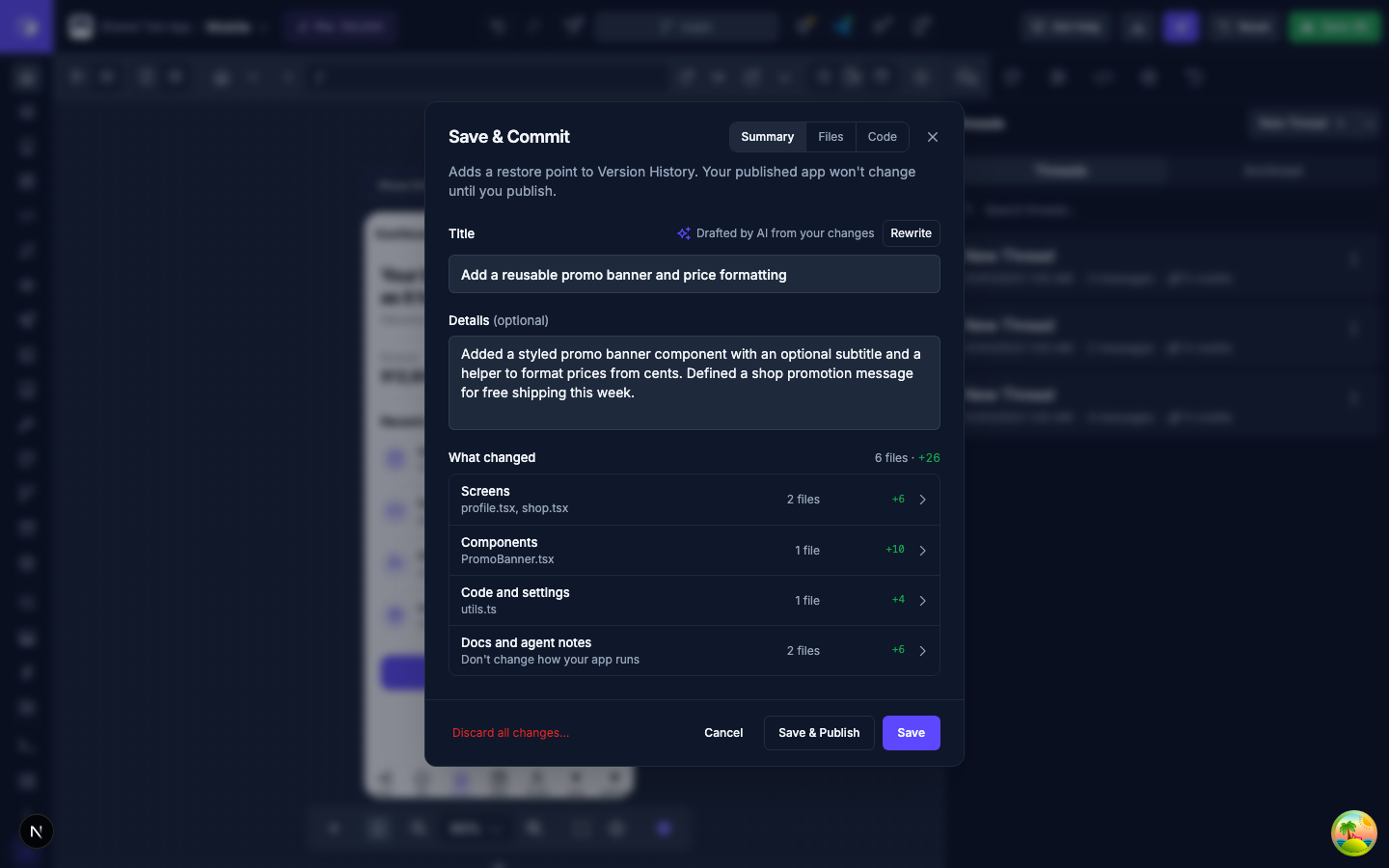
Section titled “Saving changes”Changes you make to files and folders yourself are treated the same as when the AI Agent makes changes. You can discard or commit your changes in the Save menu by clicking the  icon in the top bar of the Builder.
You can also discard the changes to a single file using the  button at the top of the code editor.
To go back to an earlier saved version of your app, use Version History.