

Publishing Overview
Switch to Publish view using the
icon in the main menu.
Need help with the store’s account checks, testing requirements, or a rejection? Our app publishing handbook walks through those steps for the Apple App Store and Google Play, with links to the official requirements.
Publish Entry Point
Section titled “Publish Entry Point”The fastest way to publish is the Publish popover in the top bar of the Builder. It lists:
- Progressive Web App — one-click web deployment
- Apple App Store — native iOS publishing
- Google Play Store — native Android publishing
- Simulators — build the iOS or Android simulators for the Simulator page
- Test Builds — start a downloadable iOS or Android test build
- Share — generate a public share page
Expo apps also get an Over-the-Air Update row, which sends changes to your published iOS and Android apps without a store review. See Over-the-Air Updates.
If your plan doesn’t include simulators or test builds, their row shows a locked Setup button instead. Click it to see the plan that includes them. To hide the options you don’t use, turn them off under Publish Menu in Settings.
If a native destination hasn’t been configured yet, choosing it routes you to the setup flow on the Publishing page first. Once configured, the popover lets you ship a build straight from the top bar.
Production vs. staging
Section titled “Production vs. staging”Native destinations support both Production and Staging publishes. Staging publishes work the same as production but ship to TestFlight (iOS) or the Internal Testing track (Android). When you choose Staging, Draftbit shows a brief warning before continuing so you don’t accidentally ship to your testers without intending to.
Imported and connected apps
Section titled “Imported and connected apps”Apps you import without migrating, and apps in a connected GitHub repository, can publish when their code matches a framework Draftbit knows how to build. Draftbit checks this when the app opens and again right before each publish. The Publish popover only lists the destinations your app can use. A destination that isn’t ready yet shows what needs to change, and the same list appears in the app checks in the top bar, where Ask Agent to Fix can make the changes for you. Publishing builds the saved version of your app, so save the agent’s changes before you publish.
| Framework | Destinations | Requirements |
|---|---|---|
| Expo | Web, Apple App Store, Google Play Store | Web publishing needs react-dom and react-native-web. Apps can use app.json or app.config. Each publish writes the version, build number, and bundle ID or package name to it and commits it to your main branch. |
| React Router on Vite | Web | React Router framework mode (react-router and @react-router/dev) with a react-router.config.ts, the reactRouter() Vite plugin, and the default build output folder. |
| Astro | Web | An astro.config file and the default dist output folder. |
Every framework also needs:
- Yarn as the package manager. A
packageManagerfield set to npm, pnpm, or Bun isn’t supported. - Node 22 support. If
package.jsonsetsengines.node, the range has to include Node 22.
Apps on other frameworks, such as Next.js or a Vite app without React Router, can’t be published from Draftbit yet.
The Publishing page
Section titled “The Publishing page”The Publishing page collects your publish history, build files, and publishing setup in one place. It has these tabs:
| Tab | What it’s for |
|---|---|
| Activity | Web, iOS, and Android publishes, with their status, logs, and files. See Publish activity. |
| Versions | Every saved version of your app, with the publishes built from it. Publish any of them again. See Publish an earlier version. |
| Files | Download the files each publish or test build produced. See Download publish files. |
| Simulators | Build history for the simulators in the Preview Panel. See Native Previews. |
| Testing Builds | Create downloadable Android and iOS test builds. See Testing Builds. |
| Sharing | Activity from your share link. You turn the share page on and off from the Publish popover. See Share page. |
| Screenshots | Capture App Store and Google Play screenshots. See App Store Screenshots. |
| Publish Destinations | Set up the Apple App Store, Google Play, a custom web domain, GitHub Export, and over-the-air updates. |
Simulators and Testing Builds only appear for Expo apps, and Versions appears for Expo, Vite, and Astro apps. Backend apps show two tabs instead: API (Environments for Supabase backends) and Activity. The API (or Environments) tab also holds the GitHub Export card. On a phone or other small screen, the tabs are a menu next to the Publishing title.
The Publishing Assistant panel on the right side of the page is an agent chat for publishing problems. Ask it things like “Why did my latest iOS build fail?” or “Help me set up Android publishing.”
Start a publish
Section titled “Start a publish”When you publish to the web, the App Store, or Google Play, or start a test build, Draftbit opens a dialog named for where the build goes, such as Publish to the App Store (Start New Test Build for test builds). It has these fields:
| Field | Description |
|---|---|
| Environment | Production or Staging. Environment variable values come from Settings. |
| Version Name | The version people see, such as 1.0.0. Draftbit fills in the next patch version after your last successful publish to that platform, so 1.0.3 becomes 1.0.4. Change it when you release a minor or major version. Staging web publishes can’t be named share, because that name is kept for your share page. |
| Version Number | A whole number that goes up with every publish, such as 1, 2, or 3. Draftbit fills in one more than the highest number you’ve successfully published to that platform, so you rarely need to change it. On iOS this is the build number, and on Android it’s the version code. |
Below the version fields, the dialog shows the version and number of your last publish to that platform.
The App Store and Google Play reject a build that reuses an earlier number. If you’ve uploaded builds outside Draftbit, enter a number above the highest one in App Store Connect or the Google Play Console.
Unsaved changes
Section titled “Unsaved changes”If you have edits that aren’t saved yet, the dialog asks what the build includes:
- Save them and include them saves your changes first, then publishes everything. The button reads Save & publish.
- Publish the last saved version publishes your last saved version and leaves the unsaved changes out. The button reads Publish saved version.
Test builds offer the same choice, with Save & build and Build saved version. Without unsaved changes, the button reads Start publish (or Start build).
One publish at a time
Section titled “One publish at a time”You can run one publish per platform and environment at a time. While a production iOS publish is running, for example, you can’t start another production iOS publish until it finishes, but you can publish to another platform. While a platform is publishing, its button in the Publish menu shows Publishing… or Queued…, and clicking it opens the Activity tab (the Testing Builds tab for test builds) so you can follow the publish.
If a publish can’t start, Draftbit shows an error and refreshes publishing activity. Attempts that fail after an activity entry is created appear as Failed, with a reason. Correct any configuration errors before retrying. A startup failure may have no build logs because the build never started.
Publish an earlier version
Section titled “Publish an earlier version”The Versions tab lists every saved version of your app, newest first. Each one shows its save message, short commit ID, when it was saved and by whom, and the publishes built from it with their platform, version, environment, and status. Saves Draftbit makes on its own, such as the app config update a publish commits, only appear when a publish was built from them, and they’re named after that publish, such as “Published to iOS (Production) v1.0.4”.
To publish a version, click Publish this version and choose where it goes: Web, iOS or Android once that store is set up, or an iOS or Android test build on Expo apps. With over-the-air updates turned on, you can also send that version as an Over-the-Air Update. Options you turned off under Publish Menu in Settings aren’t listed. The publish dialog shows the version it builds from. It builds exactly that version, so unsaved changes aren’t included and you aren’t asked to save them first. Click Load older versions at the bottom of the list to see more.
Monthly native builds
Section titled “Monthly native builds”Each month, your plan includes successful iOS and Android builds for every paid editor seat:
| Plan | Included builds each month |
|---|---|
| Standard | 15 per seat |
| Pro | 30 per seat |
| Enterprise | Unlimited |
Additional seats add to the total. A Standard plan with 2 additional seats has 3 seats, so it includes 45 builds a month. See Team and seats.
App Store and Google Play publishes, test builds, and simulator builds all count, on both platforms. Build iOS Simulators and Build Android Simulators build the saved and unsaved versions, so each counts as 2 builds. Web publishing and over-the-air updates don’t count.
Only successful builds count. Failed and cancelled builds are free and don’t use your allowance. The count resets on the first day of each month (UTC).
Once you’ve used the included builds, each additional successful build uses 500 credits. Draftbit charges the credits when the build succeeds, not when it starts. To start a build past your allowance, your organization needs at least 500 credits for it. If it doesn’t, Draftbit asks you to add credits first. On Standard you can also upgrade to Pro, which doubles the included builds.
The Simulators tab on the Publishing page and the simulator-builds dropdown in the top bar show how many included builds you’ve used this month. They and the publish dialog show the credit cost once a build would go past them. On the Billing > Usage page, build charges show the build type, such as iOS build or Android simulator build.
Publish activity
Section titled “Publish activity”The Activity tab lists your web, iOS, and Android publishes, newest first, grouped by day. Each row shows the publish’s status, platform, version name and number, the saved version it was built from (for recent versions), how long it took, and when it started. Environments other than production are added to the platform name, such as Web · Staging. A successful web publish also shows its URL under the row.
A publish that’s queued or running shows which step it’s on, with a Cancel button. iOS and Android publishes go through Queued, Building, and Submitting, and web publishes through Queued, Building, and Deploying. The step updates about once a minute.
On Expo apps, filter the list by platform: iOS, Android, Web, and Over-the-air when over-the-air updates are on. Select Failed to see only failed publishes. Activity loads in pages, so use Load more at the bottom to see older publishes. Simulator builds and test builds have their own tabs, with the same rows and filters.
Click a row to see its details:
- When the publish started and finished, its environment, and its publish ID. Select Copy to copy the ID, for example to share it with support.
- View logs opens the full build log once the publish has finished. You can search the log.
- View files opens the publish in the Files tab. It only appears when the publish produced files.
- A failed publish shows its failure reason, and View Failure Summary when Draftbit has a summary of what went wrong. Select Ask the assistant to fix it to start a new thread with the publishing assistant, with the publish ID and error filled in. Review the message, then send it.
Download publish files
Section titled “Download publish files”The Files tab lists every publish and test build that produced files you can download, with the file count, total size, and age of each. Click a row to open its files in place, then preview or download them. You can also jump straight to a publish’s files with View files in its details on the Activity or Testing Builds tab.
To get an Android .apk you can install on a device or emulator, create an Android Test Build on the Testing Builds tab, then download the .apk from its files.
Downloading test build files needs the Pro plan or above.
Native Previews
Section titled “Native Previews”Simulators are available on the Pro plan and above. Simulators covers the full feature, including when to build again.
You can create native development builds of your app and run them in real iOS and Android simulators on the Simulator page.
From the Publishing page or the simulator-builds dropdown in the top bar, choose Build iOS Simulators or Build Android Simulators. You can also click iOS or Android on the Simulators row in the Publish menu. Each platform action updates both the saved and unsaved versions of your app without rebuilding the other platform.
On the Simulator page, two build cards appear in the upper-right for the selected platform. The Saved and Unsaved cards show when their last successful simulator was built. Use a card’s rebuild icon when you only need to update that version; while it builds, the card displays its live status instead.
Imported and connected Expo apps can build simulators too. They need the same setup as publishing to the Apple App Store and Google Play Store. On iOS, the simulator asks you to confirm opening your app each time it starts.
The build process may take a few minutes to complete. Track the full build history from the Publishing page.
Testing Builds
Section titled “Testing Builds”Test builds are downloadable artifacts for running your app on a device, emulator, or simulator — they’re never published to a store. Use them to try your app outside the Preview Panel before you commit to a store publish.
From the Testing Builds tab on the Publishing page, or the Publish menu in the top bar, you can create two kinds of builds:
- Android Test Build — a downloadable
.apkfor devices and emulators - iOS Test Build — a downloadable
.tar.gzfor the iOS Simulator
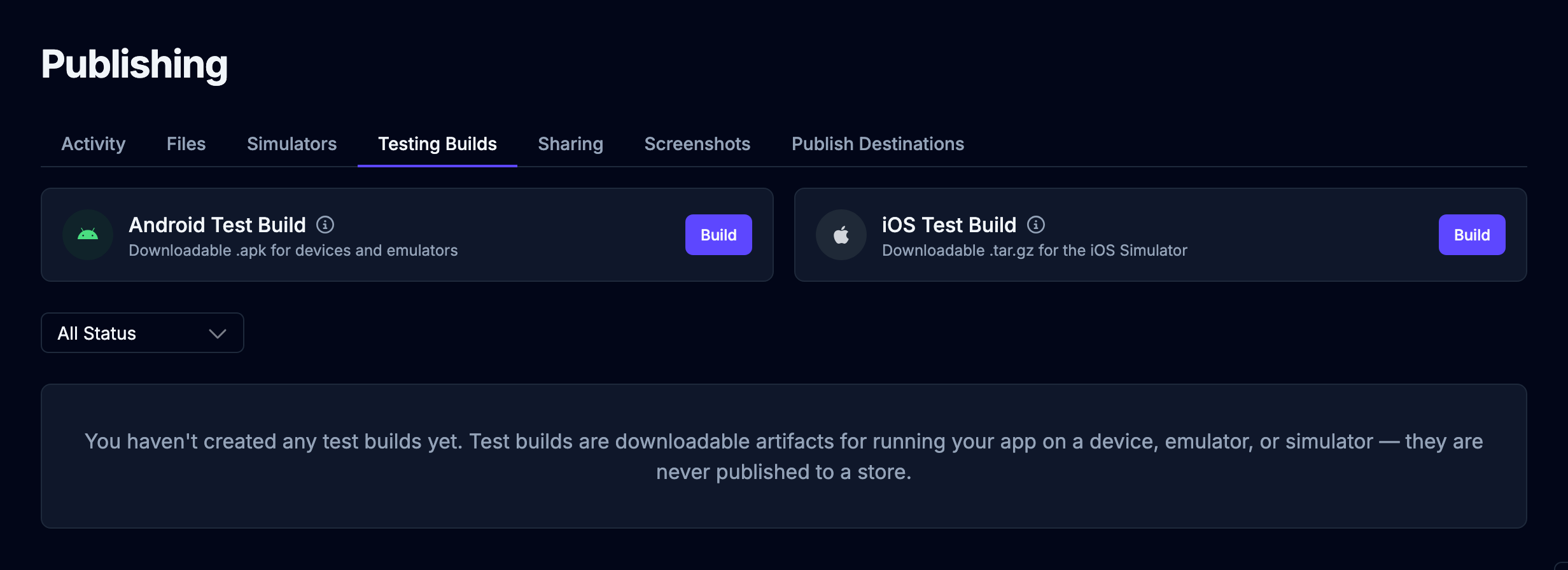
Click the Build button for the platform you want. Once a build finishes, it appears in the list below, where you can filter by status. Click View Files on a finished build to download its file.
Testing Builds are available on the Pro plan and above. If your organization moves to a lower plan, test builds you already made can’t be downloaded until you upgrade again.
Share page
Section titled “Share page”A share page is a public link where anyone can try your app in the browser, no Draftbit account needed. Use it to send a prototype to a client or get feedback from a friend.
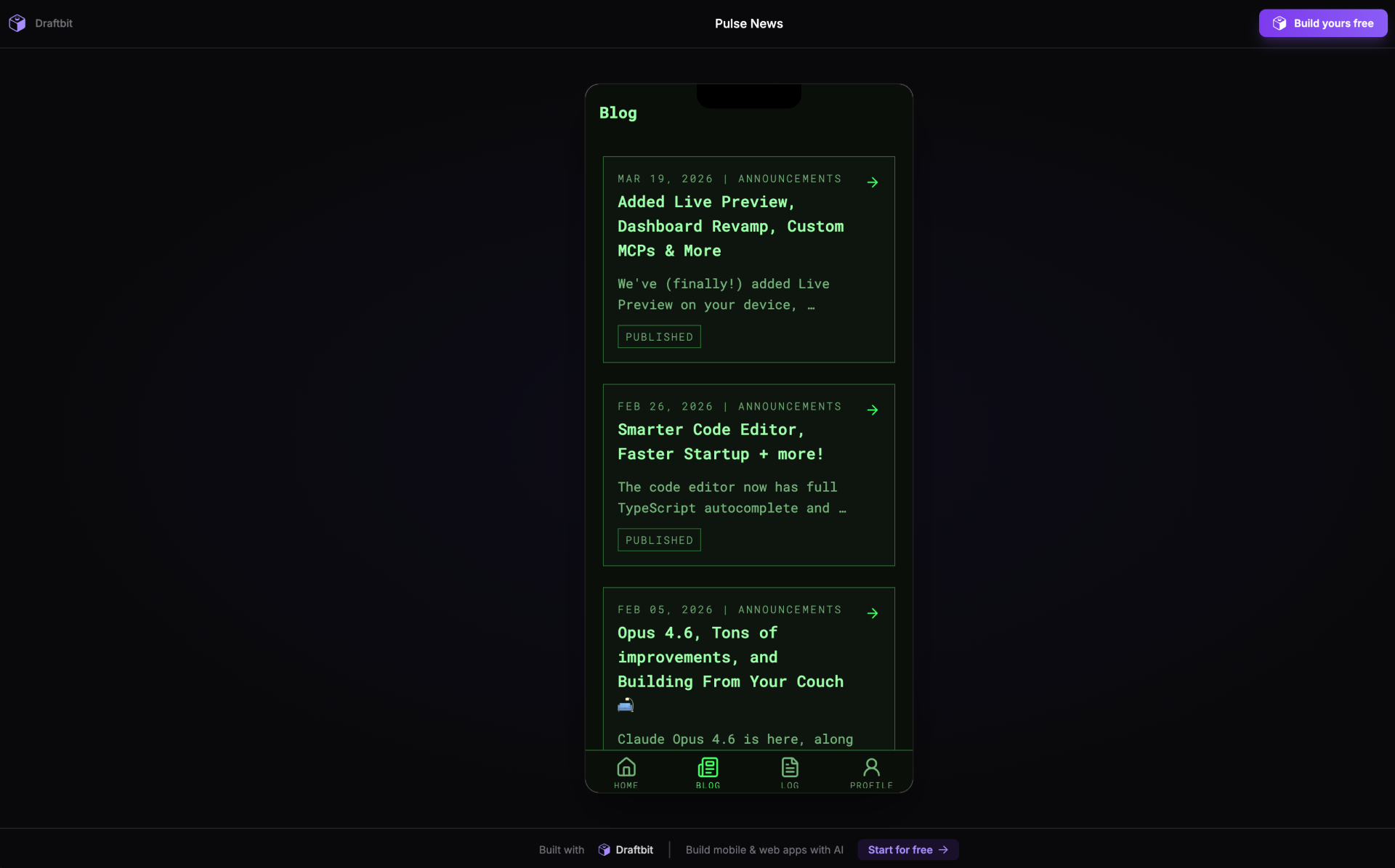
-
Click the
 button in the top right of the builder.
 -
Turn on the Share toggle. Draftbit builds a web version of your app and shows Building share preview… while it works.
-
When the build finishes, copy the link. Anyone with the link can preview your app.
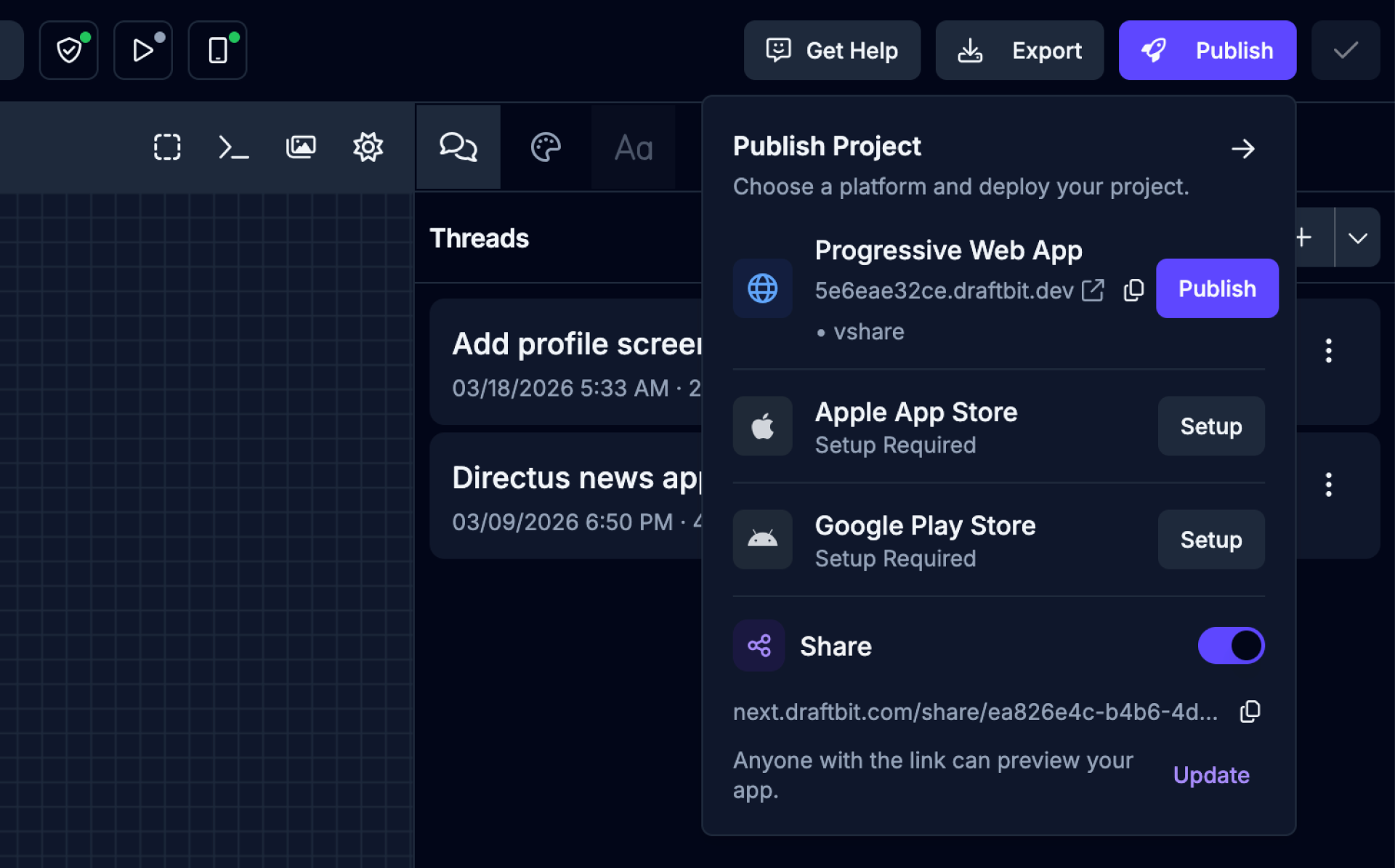
The share page is a snapshot of your last saved version, built as a web app with your Staging environment variables. It doesn’t change as you keep building. To refresh it, click Update next to the link. If the build fails or is cancelled, you’ll see Build failed. or Build cancelled. and a Retry button.
A few things to know:
- The share page runs on its own deployment, separate from your staging web deployment. Building or updating it doesn’t change your staging site, and publishing or unpublishing staging doesn’t change the share page. Share builds still show up on the Activity tab.
- Share pages created before sharing got its own deployment keep showing your staging site until you click Update once.
- Turn off the Share toggle to stop sharing. This takes the shared version offline, and visitors to a turned-off or invalid link see an unavailable page instead of your app.
- Share pages aren’t available for backend apps.
Unpublish Web Deployments
Section titled “Unpublish Web Deployments”Production and staging web deployments can be unpublished separately from the Builder publish popover. When a deployment is unpublished, its URL is inactive until you publish that environment again.
Code Export
Section titled “Code Export”You can export your app’s codebase as a ZIP file for publishing your app manually or to continue development outside of Draftbit. Code Export is available on the Standard plan and above.
To start the export process, click the  button in the top right of the Builder.
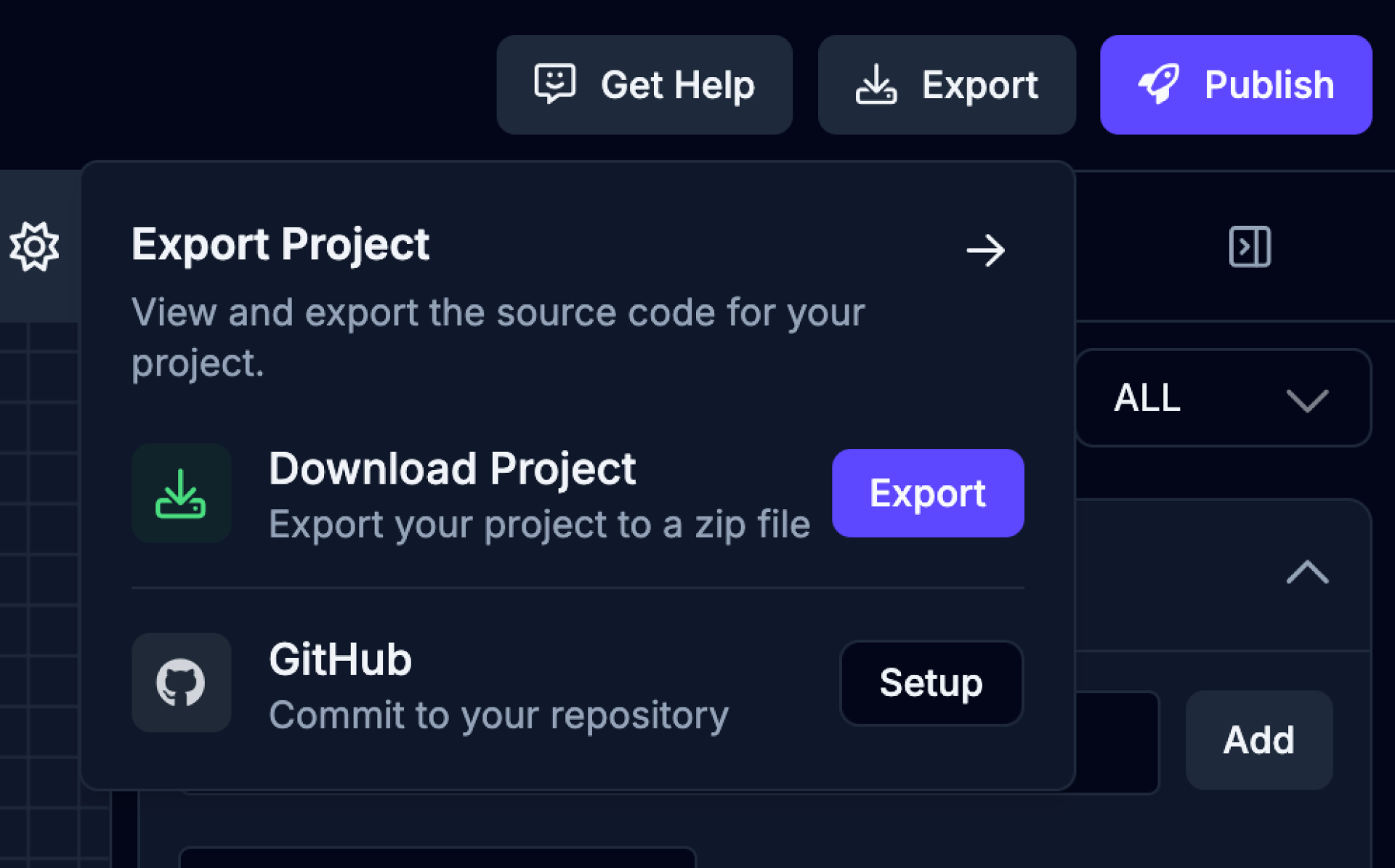
The export process may take a few minutes to complete. Track progress of the export from the export dropdown.
GitHub Export
Section titled “GitHub Export”You can export your app to a GitHub repository to continue development or collaborate with others. GitHub Export is available on the Standard plan and above.
Open the Publishing page, then select the GitHub Export option. Choose how Draftbit pushes to your repository:
- GitHub App (recommended): connect the Draftbit GitHub App and pick the repository from a list. There’s no token to create.
- Access token: enter the repository URL and a fine-grained personal access token.
Set the branch, and a subdirectory if you export into a monorepo, then click the Save Configuration button.
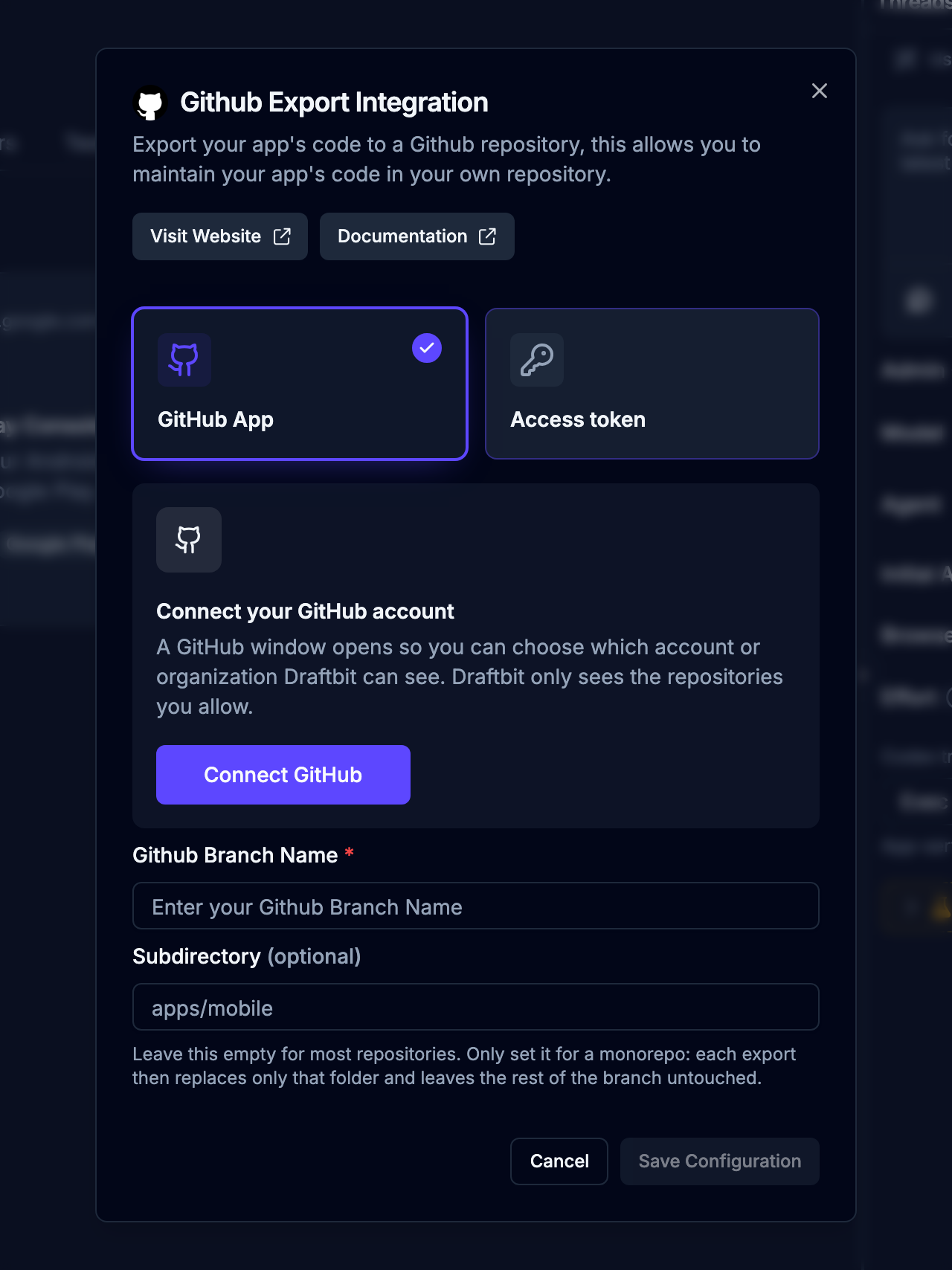
To export, open the Export menu and click Commit next to the GitHub entry. The export process may take a few minutes to complete. Connecting to GitHub covers each step, the GitHub App’s limits, and troubleshooting.
| Field | Description |
|---|---|
| GitHub Repository URL | Access token only. The HTTPS URL of the GitHub repository to which the exported code will be pushed. With the GitHub App, you pick the repository from a list. Example: https://github.com/username/repository |
| GitHub Branch Name | The branch within your repository where code will be exported. Example: main or develop |
| Subdirectory (optional) | Only for monorepos. Leave it empty for most repositories. A folder inside the repository to export into; each export replaces only this folder and leaves the rest of the branch untouched. Example: apps/mobile |
| GitHub Access Token | Access token only. A fine-grained personal access token with Contents: Read and write permission on the repository. Create a token here. For security, don’t share your token publicly. |
App Store Screenshots
Section titled “App Store Screenshots”Draftbit can capture your app’s screens at the sizes the Apple App Store and Google Play ask for, ready to upload to your store listing.
-
Open the Publishing page and switch to the Screenshots tab. Your app’s preview loads in the tab.
-
Click Create App Screenshots in the top right of the page.
-
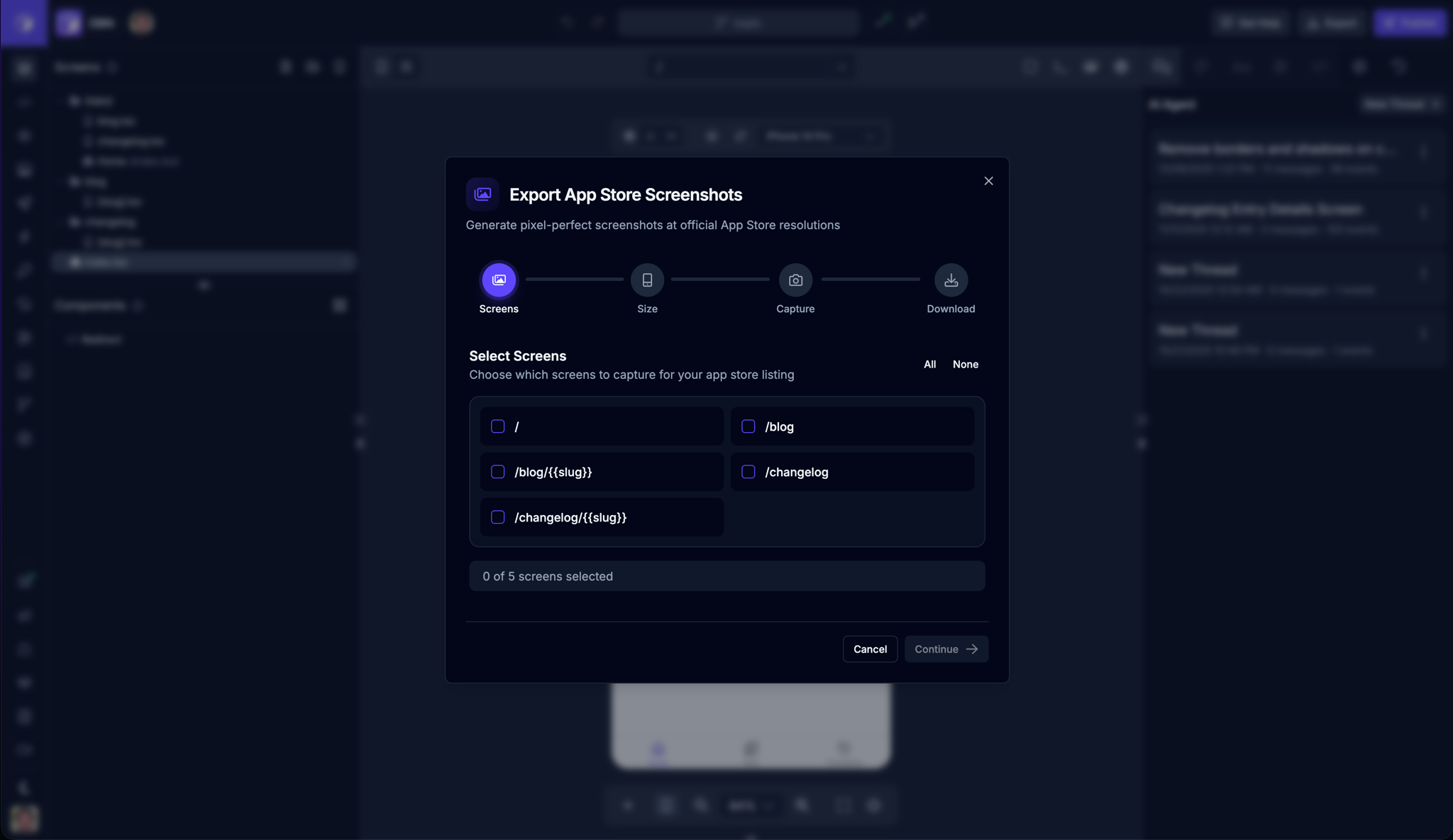
Screens: choose the screens to capture, or click All. If a screen’s route has a variable, such as
[id], enter an example id to use, such as123. Click Continue. -
Size: choose sizes on the Apple App Store and Google Play tabs. Sizes marked Required are the ones each store requires. Turn on Include Device Frame to add device bezels around each screenshot. Click Start Capture.
-
Capture: keep the dialog open while Draftbit captures each screen at each size.
-
Download: download screenshots one at a time, or click Download ZIP to get them all in a zip file.
| Store | Sizes |
|---|---|
| Apple App Store | iPhone 16 Pro Max (6.9”, required), iPhone 15/16 Plus (6.7”, required), iPhone 11-14 Pro Max (6.5”), iPhone 14/15 (6.1”), iPhone 8 Plus (5.5”), iPad Pro 12.9”, iPad Pro 11” |
| Google Play | Phone (1080×1920, required), 7” Tablet, 10” Tablet |
Each screenshot uses the store’s exact pixel dimensions, and the dialog shows them next to each size. Draftbit captures screens from your app’s web preview, so the Create App Screenshots button stays disabled until the preview has loaded.
One-Click Publishing
Section titled “One-Click Publishing”Once you’ve built your app in Draftbit, you’re ready to share it with the world! Draftbit offers two approaches to publishing: One-Click Publishing for simplicity, and Manual Publishing for more control.
The easiest way to get your app published to the web, iOS, and Android. Draftbit handles the build and submission details automatically.
You can configure publish destinations on the Publish Destinations tab of the Publishing page. Track each publish on the Activity tab.
When you build saved and unsaved simulators together, one may start while the other fails. The error identifies both outcomes. The started build continues; use the failed version’s build card to retry that version. If enabling sharing or updating its preview fails to start a build, your previous sharing settings and preview stay in place.
Manual Publishing
Section titled “Manual Publishing”For developers who want full control over the publishing process. You’ll download your app’s source code and handle the deployment yourself.
How to Choose
Section titled “How to Choose”Choose One-Click Publishing if:
- You want the fastest, simplest way to publish
- You’re new to app development
- You don’t need custom deployment configurations
Choose Manual Publishing if:
- You want full control over the build and deployment process
- You have specific technical requirements
- You want to integrate with your own CI/CD pipeline
- You need to customize app signing or certificates
Ready to publish? Start with one-click publishing for the easiest experience, or dive into manual publishing if you need more control.