

AI App Builder
Switch to Visual Editor using the
icon in the main menu.
AI is at the heart of Draftbit, allowing you to use natural language to instruct the AI what to build without needing to write a single line of code.
The Visual Editor is the full design surface where you can chat with the AI Agent, adjust component styles, preview changes in real-time, manage screens, and more. The Builder’s default Home view opens a focused workspace with the preview, agent, and editor panel; open Visual Editor when you need the Screens list and component tree. Home opens your app’s home screen, so the Styles, Properties, Code, and Config tabs are ready without switching views.
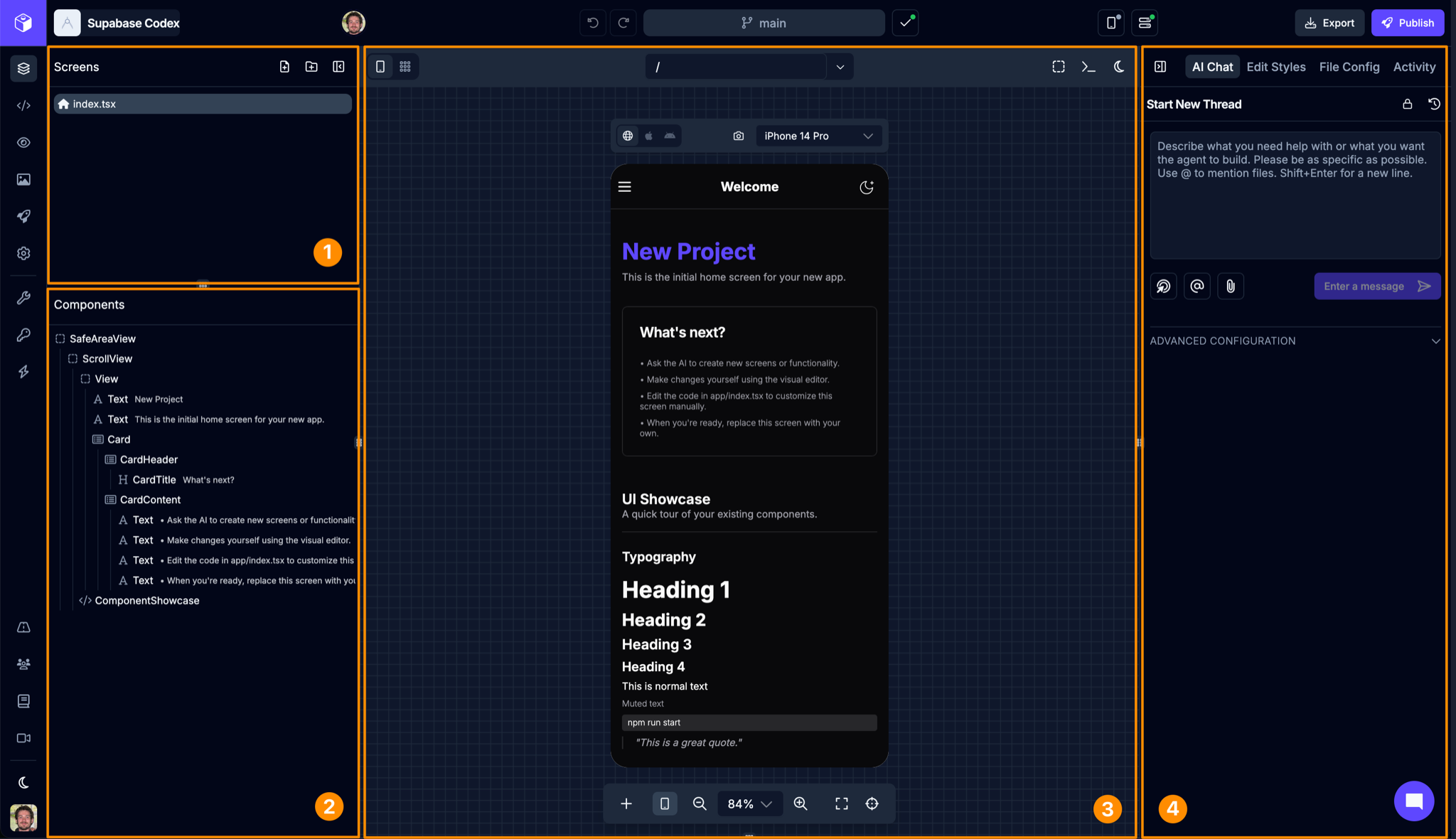
| # | Name | Description |
|---|---|---|
| 1 | Screens List | A list of all the screens in your app |
| 2 | Component Tree | The components used on the selected screen |
| 3 | Preview Panel | A canvas where you can preview your app on different devices |
| 4 | Utility Panel | Access AI chat, component styling, and other functionality |
Visual editing in imported and connected apps
Section titled “Visual editing in imported and connected apps”For apps you import without migrating, and apps in a connected GitHub repository, the Visual Editor, Design mode, and the Styles and Properties tabs need Draftbit’s preview tooling in your project. Draftbit can add it to Expo, Vite, and Astro apps. Until it’s set up, the Visual Editor is hidden from the main menu, and the app checks in the top bar show Visual Editing Unavailable:
- Expo, Vite, and Astro apps: Ask Agent to Fix adds the tooling to your project’s dependencies and its Babel, Vite, or Astro config, and imports Draftbit’s preview script from your app’s entry file.
- Other frameworks, such as Next.js: there’s no fix to apply, so you edit the app through the agent and the Code Editor.
When the agent is done, click Recheck in the app checks.
The setup only works inside Draftbit. Once saved, including to a connected repository, your project won’t install or build anywhere else, such as in CI, on your hosting provider, or in a local copy. For a connected repository, the Save dialog warns you when a save adds the setup. If you don’t want that, ask the agent to undo the visual editing setup, or discard those changes before saving. Undoing it removes the @draftbit/* dependencies, the plugin and integration in your Babel, Vite, or Astro config, and the .draftbit/init.js import in your entry file.
Screens List
Section titled “Screens List”Screens are the base element of your app and contain any number of components that make up the user interface (UI). Every app needs at least one screen. The screens in your app are listed here. You can also add more screens or folders directly. The Screens List is also where your app’s navigation structure is managed, since the way screens and folders are arranged determines the routes and flows available in your app.
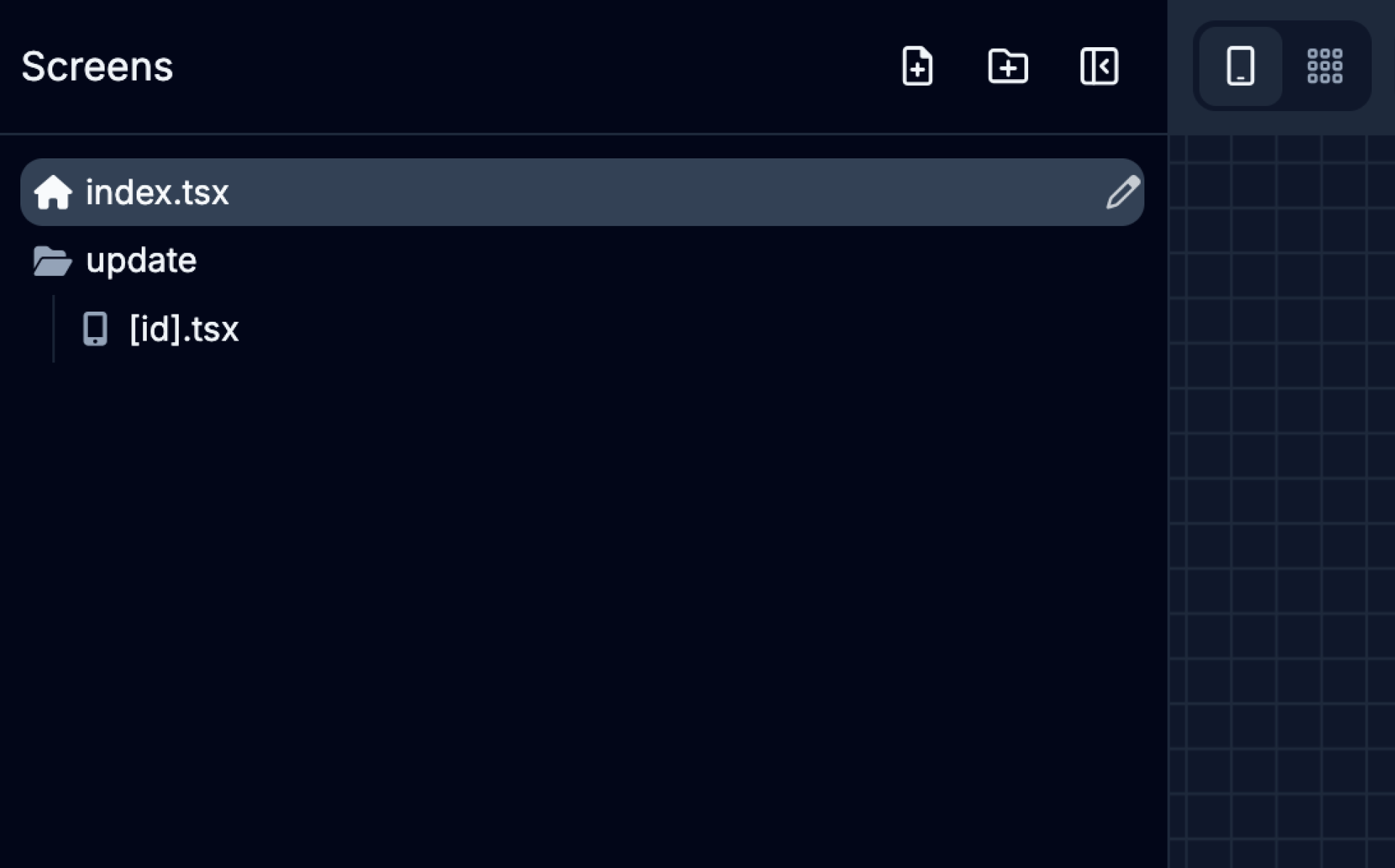
| Icon | Action | Description |
|---|---|---|
 | Add Screen | Adds a new Screen to the app |
 | Add Folder | Adds a new Screen Folder to the app |
Component Tree
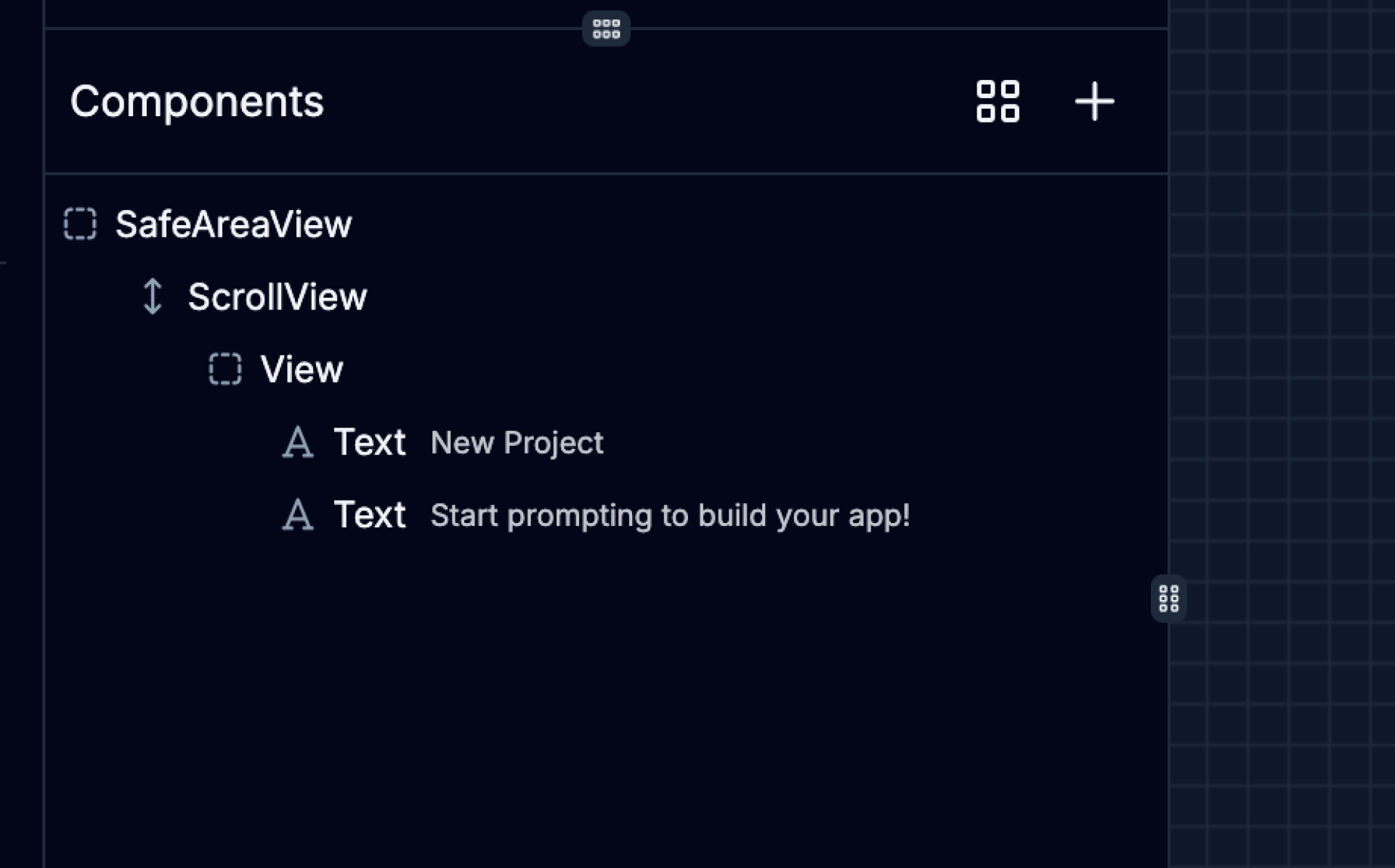
Section titled “Component Tree”Each screen is built-up out of smaller components in a hierarchy from top to bottom. Components can sometimes also be nested within/below another ‘parent’ component. The Component Tree is a visual representation of the component hierarchy on the selected screen.
From here, you can select components on the screen which will update the context of the Utility Panel on the right side of the builder - including the Styles and Properties tabs.
The tree and the preview follow each other. Hovering a row highlights its component in the preview, and hovering a component highlights its row. Selecting a component in the preview opens any collapsed rows above it and scrolls to its row. Clicking a row scrolls the preview to that component when it’s out of view. While you drag something over a collapsed row, hold it there for a moment and the row opens.
Some rows in the tree group components instead of being components themselves. A Conditional Branch holds content that only appears when a condition is met, and shows the condition next to its name. A List holds content repeated for each item, such as items.map. A row named after a prop, like renderItem or ListHeaderComponent, holds the components passed to another component through that prop. A row named after a function or variable holds the components it returns. Select a component inside any of these rows to edit it.
When a condition switches between two sets of content, its Conditional Branch has a When true row and an Otherwise row, so you can see what appears in each case. Hover over a Conditional Branch to read its full condition. To change a branch, hover over its row and click an icon, or right-click the row:
- Add else branch, on a condition that only shows content when it’s true (
condition && ...in code), adds an empty Otherwise row. Drag components into it, or drop new ones onto it from the Add Components panel, to show them when the condition is false. - Remove branch, on a When true or Otherwise row, removes that side and keeps the other one.
- Delete removes the whole Conditional Branch.
To see what a screen shows in a case you can’t easily reach, like an empty list or a signed-out user, you can force a condition in the preview without changing your code:
- On a When true or Otherwise row, click the eye icon to show that side. Click it again to go back to the real condition.
- On a condition that only shows content when it’s true, each click of the eye moves from Auto (the real condition) to always shown, then always hidden, then back to Auto.
The preview reloads with your choice. While a condition is forced, its eye stays highlighted even when you’re not hovering over the row, it’s checked in the right-click menu, and a bar above the tree shows how many conditions are forced. Click Reset in that bar to clear them all. The eye appears once the preview has run that condition, so a row inside content that isn’t showing won’t have one. Forced conditions only affect the preview, never your code or published app, and they’re cleared when you reload the builder.
Conditions that fall back to other content (written with || or ??) can’t be changed or forced from the Component Tree.
When a screen uses one of your own components from another file, such as <StatusCard /> from components/StatusCard.tsx, you can see what it renders without leaving the screen. Hover over its row and click the tag with its file name, or right-click the row and choose Show contents. A row named after the file appears underneath, marked Read-only, with that component’s contents listed below it on a teal band. These rows are read-only: selecting one highlights it in the preview, but you can’t move, delete, or restyle it from the screen. To change it, hover over the row and click its Edit in StatusCard.tsx icon, choose the same item when you right-click the row, or double-click the row. That opens the component’s own file, where changes apply everywhere the component is used.
To edit a list, select its List row, or a FlatList or SectionList. The List section at the top of the Properties tab shows the data the list repeats over, the name each item is available as, and where that data is defined in the file. Use Show in code to jump to that line in the Code Editor. To change what the list repeats over, type an expression in Data and press Apply or Enter; for a FlatList or SectionList this sets its data or sections prop. If the list’s items have no key, a warning offers Add key. It uses each item’s id when the data is an array in the same file whose items all have one, and the item’s position otherwise.
To change the structure around a component, hover over its row and click an icon, or right-click the row. Wrap in… places a layout or touch container, such as a View, ScrollView, or Pressable, around the component: pick one from the list, and the component moves inside it with its props and styles unchanged. The list only shows containers that can hold the component and also fit where it sits, so a Text inside another Text can’t be wrapped, and neither can a screen in a navigator, like Stack.Screen. Wrapping also works for a component inside a Conditional Branch, a List, or a renderItem row. Unwrap does the reverse and replaces a component with the components inside it, so it only appears on a component that contains other components. It’s unavailable when removing the component would also remove something it does: a key, a ref, an event handler like onPress, props passed through with {...}, or text that would end up outside a text element. It’s also unavailable when a component inside can’t be placed in the surrounding element, such as a BottomSheetView, which only works inside a BottomSheet. To see why Unwrap is unavailable, hover over its icon or right-click the row. Wrap and Unwrap aren’t available in Astro files.
Duplicate, copy, and paste
Section titled “Duplicate, copy, and paste”To duplicate a component, hover over its row and click the Duplicate icon. Right-click the row for Duplicate, Copy, and Paste after. Paste after stays unavailable until you’ve copied a component. You can also select a component in the tree or the preview and use the keyboard: ⌘D duplicates, ⌘C copies, and ⌘V pastes (Ctrl+D, Ctrl+C, and Ctrl+V on Windows). The shortcuts do nothing when no component is selected, and they don’t apply while you’re typing in a text field.
- Duplicate adds a copy of the component, children included, right after it. If the component has a text
key, the copy’s key gets a number on the end, such as-2, so each key stays unique. - Copy keeps the component so you can paste it on this screen or another one.
- Paste after adds the copied component right after the selected one. If the selected component is the outermost one on the screen, the copy goes inside it instead. When you paste onto another screen, Draftbit adds the imports the component needs and updates relative image paths, such as
require("../assets/logo.png"), for the new screen’s folder. If it uses something only its original screen defines, such as a state variable, a warning names it so you can add it to the new screen.
Duplicating and pasting next to a component works when it sits directly inside another component. A component that makes up a whole condition or list item can be copied, but not duplicated in place.
When you drag a component from the Add Component panel onto the tree, drop it on the middle of a row to place it inside that component, or near the top or bottom edge of a row to place it before or after.
You can also drag it straight onto the preview. The screen makes room for it as you drag, showing a faded copy when the screen already shows one, such as a Text or an Image, or a labeled space otherwise. The space stays until the new component appears. Text, icons, images, and other components that show their own content take the drop before or after them instead. Drops go into the file that’s open, so to add something inside one of your own components, open that component in Components mode first. The new component is selected once it’s added, so you can style it right away.
Moving a component follows the same placement rules, whether you drag its row in the tree or the component itself in the preview. In the preview, dropping a View on a Text puts it before or after the Text, since a Text can’t hold it. In the tree, a move like that is refused, and a message says why. A component inside a list, a condition, or a prop can only move within it, because moving it out would leave that part of the screen empty or break the values it uses, like the list’s current item.
| Icon | Action | Description |
|---|---|---|
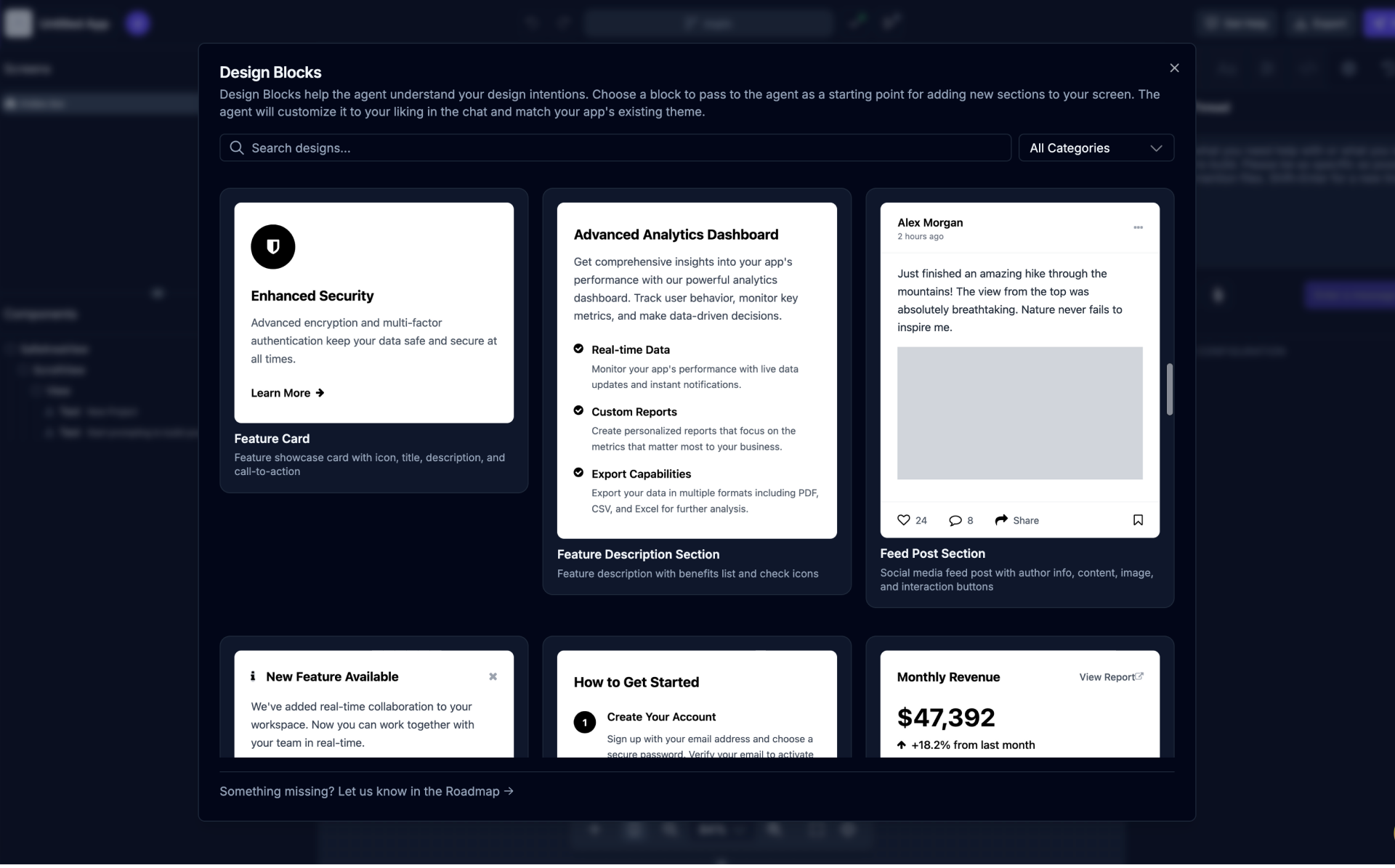
 | Design Blocks | Open and browse the Design Blocks gallery |
You can also open and browse the Design Blocks gallery using the button. Design Blocks help the agent understand your design intentions. Choose a block to pass to the agent as a starting point for adding new sections to your screen. The agent will customize it to your liking in the chat and match your app’s existing theme.
App Previews
Section titled “App Previews”App Previews are a powerful way to preview your app as you build it. You can preview your app on different devices and screen sizes, and see how your app looks and behaves on different devices.
Draftbit offers both in-browser device previews via web and native iOS and Android simulators as well as the ability to preview your app on real iOS and Android devices using the Draftbit Preview app for iOS and Android.
In-Browser Previews
Section titled “In-Browser Previews”Draftbit offers a powerful app preview mode that lets you see and interact with all the screens in your app at the same time on an infinite canvas.
Within the Preview Panel in the center of the Builder, you can add one or more preview devices so that you can see changes being made as they happen in real-time on different types of devices. Pan and zoom to get a better view, choose between web (laptop/desktop) and native (iOS/Android) devices, change the device orientation (landscape/portrait), and switch device sizes.
Preview toolbar
Section titled “Preview toolbar”The toolbar across the top of the Preview Panel controls what the preview shows and how you interact with it.

| Icon | Name | Description |
|---|---|---|
 | Preview / Design |
Press ⌘I (Ctrl+I on Windows) to switch between them. Editors and above only. |
 | Route View |
|
 | Browser bar | Navigate the preview like a browser. See the list below. |
 | Show Preview Logs | View build output and errors while working in preview |
 | Build selector | Switch between your Saved and Unsaved builds, or show Both. Appears once you have unsaved changes. See Comparing Builds. |
 | Light/dark mode | Toggle the preview between your app’s light and dark themes. It’s unavailable until your app has compatible themes, which you can set up from Themes & Design. |
The browser bar works on the preview you last interacted with:
- Home goes to
/, and Back and Forward move through the pages you’ve visited in the preview. - The address bar shows the current path. Type a path and press Enter to go there, or press Escape to cancel.
- Reload page reloads the current page, and changes to Stop loading while a page loads.
- Reset page returns to the page the preview started on.
- Open preview in new window opens the current page in a separate browser window.
- Routes lists your app’s routes. Type to filter them and pick one to open it. For a route with dynamic segments, such as
/posts/[id], fill in a value for each segment and click Open route.
If Navigation tracking unavailable appears under the address bar, the Builder can’t follow page changes inside that preview, so Back and Forward stay unavailable. Try Reload page to reconnect it.
On narrower screens, the toolbar moves some controls, such as the route view, build selector, light/dark mode, logs, Restart preview server, and Undo / Redo, into the More preview controls (…) menu at the end of the browser bar.
If the live preview runs into an error, a warning icon appears above the device. Click it, then View static preview to keep previewing your app’s last successful build while you fix the problem. A Previewing last successful static build label shows while it’s on. Click the warning icon again and choose Back to live preview to return. If the live preview fails completely and a successful build is available, the Builder shows that build on its own.
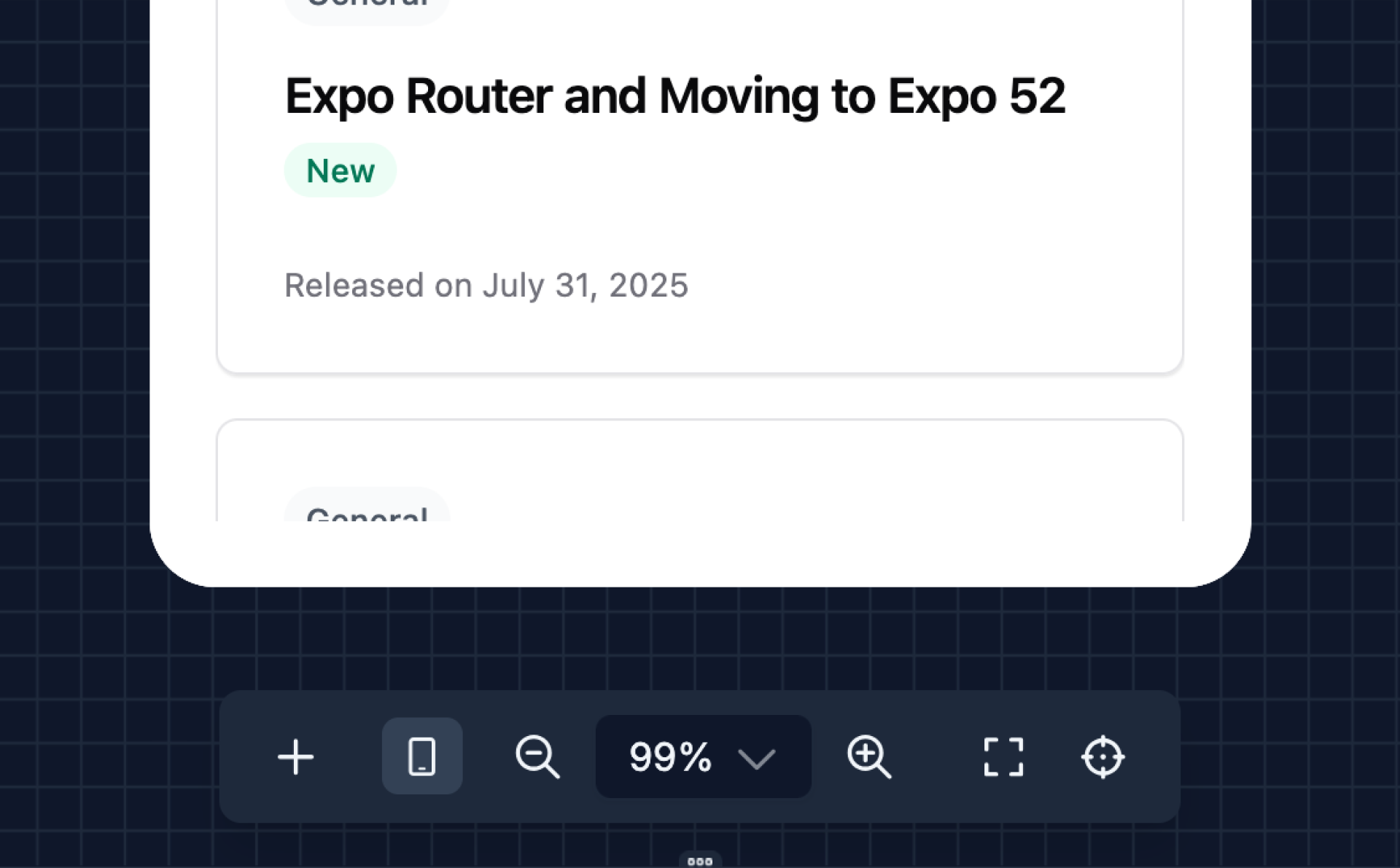
| Icon | Name | Description |
|---|---|---|
 | Add Device | Adds a new preview device to the preview canvas. |
 | Zoom Out | Reduces the level of zoom in the preview area |
 | Zoom In | Increases the level of zoom in the preview area |
 | Fit All Devices | Adjusts the zoom level so that all preview devices fit within the visible preview area. On a phone, it fits the devices to the width of the screen instead, and you can drag the canvas to see the rest |
 | Reset Zoom | Resets the preview zoom level to 100% |
Routes in imported and connected apps
Section titled “Routes in imported and connected apps”The routes list and the All Routes view come from your app’s route files. For apps you import without migrating, and apps in a connected GitHub repository, Draftbit can read routes when the app uses one of these routers:
| Framework | Router | Route files |
|---|---|---|
| Expo | Expo Router | app/ |
| React Router on Vite | Framework mode with file-based routes (@react-router/fs-routes) | src/app/routes/ |
| TanStack Router on Vite | File-based routing, through the TanStack Router Vite plugin or TanStack Start | src/routes/ |
| Astro | Astro pages | src/pages/ |
If your app uses a different router, the routes list and the All Routes view are hidden. The preview still works, and you can type any path into the address bar. The app checks in the top bar explain why routes aren’t shown:
- Expo apps without Expo Router: Ask Agent to Fix moves your screens to Expo Router.
- React apps on Vite: Ask Agent to Fix moves your pages to React Router file-based routes in
src/app/routes/. If your React Router app keeps its routes inapp/, the agent moves them tosrc/app/. - Other frameworks, such as Next.js, or Vue and Svelte on Vite: there’s no fix to apply, so the preview stays on a single route.
When the agent is done, click Recheck in the app checks. Routes appear without saving first.
Preview Screenshots
Section titled “Preview Screenshots”You can take screenshots of your app previews by clicking the  button. This will attach a screenshot of the screen in the preview to the current chat thread.
Useful for referencing specific design changes or UI elements to change on the screen or when debugging issues.
The agent can also take a screenshot of your web preview while it works. It captures what your open tab shows, including the screen you navigated to and the account you’re signed in with, and a notice appears each time it does. This only works while you have that thread and the web preview open.
When you ask how to do something in Draftbit, the agent can ask to see your whole Draftbit screen. It asks in the chat, and you can choose Allow Once, Allow For This Thread, or Deny. When you allow it, the agent gets one screenshot of the tab and a list of the buttons on it, with passwords and secret fields hidden, and uses them with the docs to tell you where to go. Allow For This Thread lets the agent take more screenshots in the same thread without asking again; a new thread asks again. If you deny it or don’t answer within about a minute, the agent gets nothing.
Editing Text in the Preview
Section titled “Editing Text in the Preview”Double-click any text in a preview to edit it inline. Your change is staged like any other edit, so you can save or discard it from the top bar.
On-Device Previews
Section titled “On-Device Previews”Using the Draftbit Preview app for iOS and Android, you can preview your app on real iOS and Android devices. Simply click the  button and scan the QR code to open the app and preview on your device.
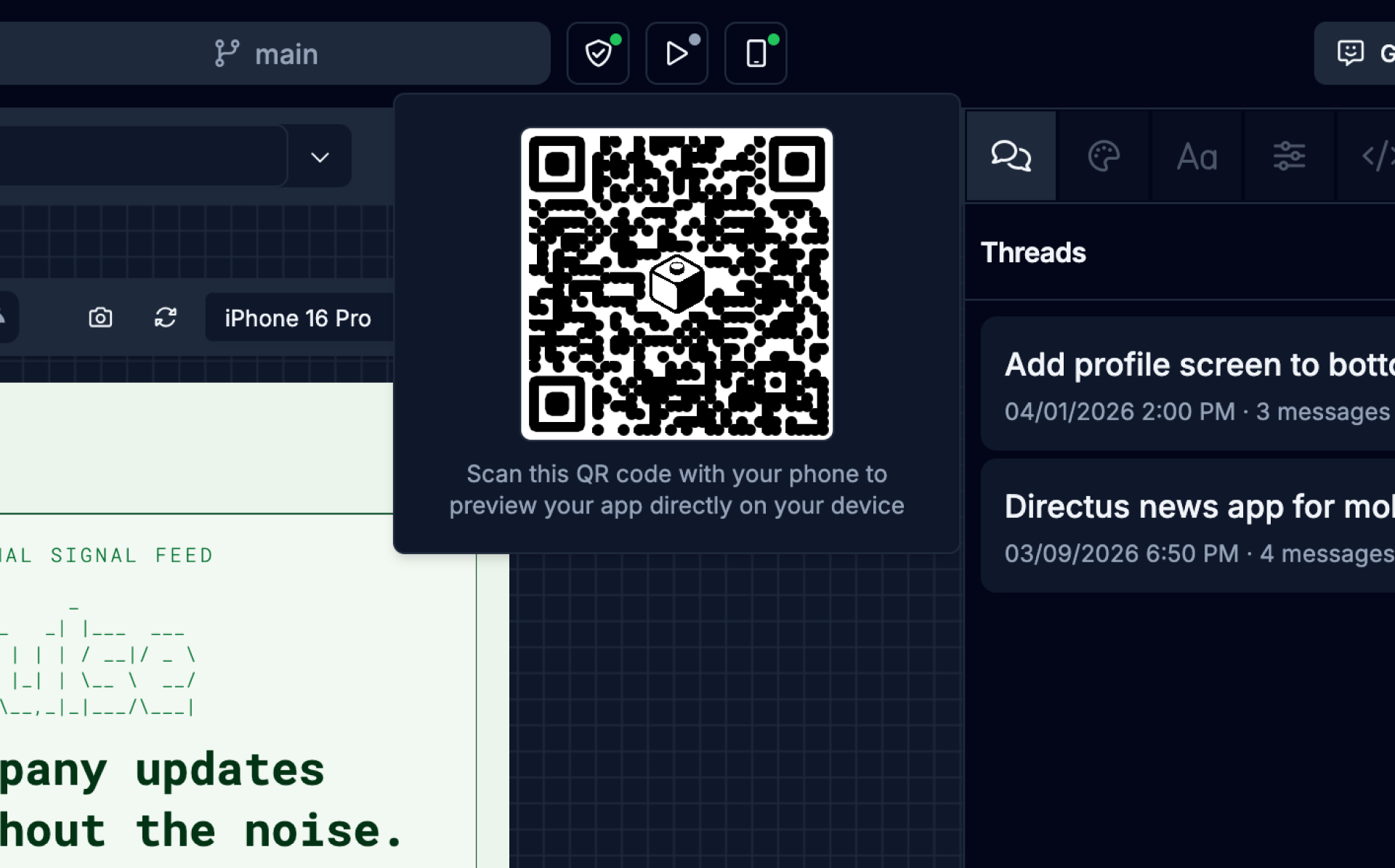
Imported and connected Expo apps get the QR code too. The Draftbit Preview app runs your code with its own built-in set of native libraries, so a screen that needs a native library it doesn’t include won’t load there. Build a simulator to test those screens.
Utility Panel
Section titled “Utility Panel”Within the Utility Panel on the right side of the Builder, you can access these tabs. Which tabs appear depends on the view: the Code Editor shows Agent, Styles, Config, and History, and the API console shows Agent, Code, and History. Tabs that act on a component stay unavailable until you select one.
| Icon | Name | Description |
|---|---|---|
 | Agent | Interact with the AI Agent to build your app. |
 | Styles | Edit the content, visual appearance, and layout of the selected component. |
 | Properties | Set the props of the selected component. |
 | Code | Edit the code of the selected component. |
 | Config | Configure the selected screen or component. |
 | History | View the save history and unsaved activity for the app or the selected file. |
Switch to the Agent tab using the
The Agent tab in the Utility Panel is where you can interact with the AI Agent, giving it instructions on what to build in your app.
Create a new thread using the  button. You can provide additional context to the agent in your chat messages by including a specific component selection, file reference, image attachment, pasted image, or supported file.
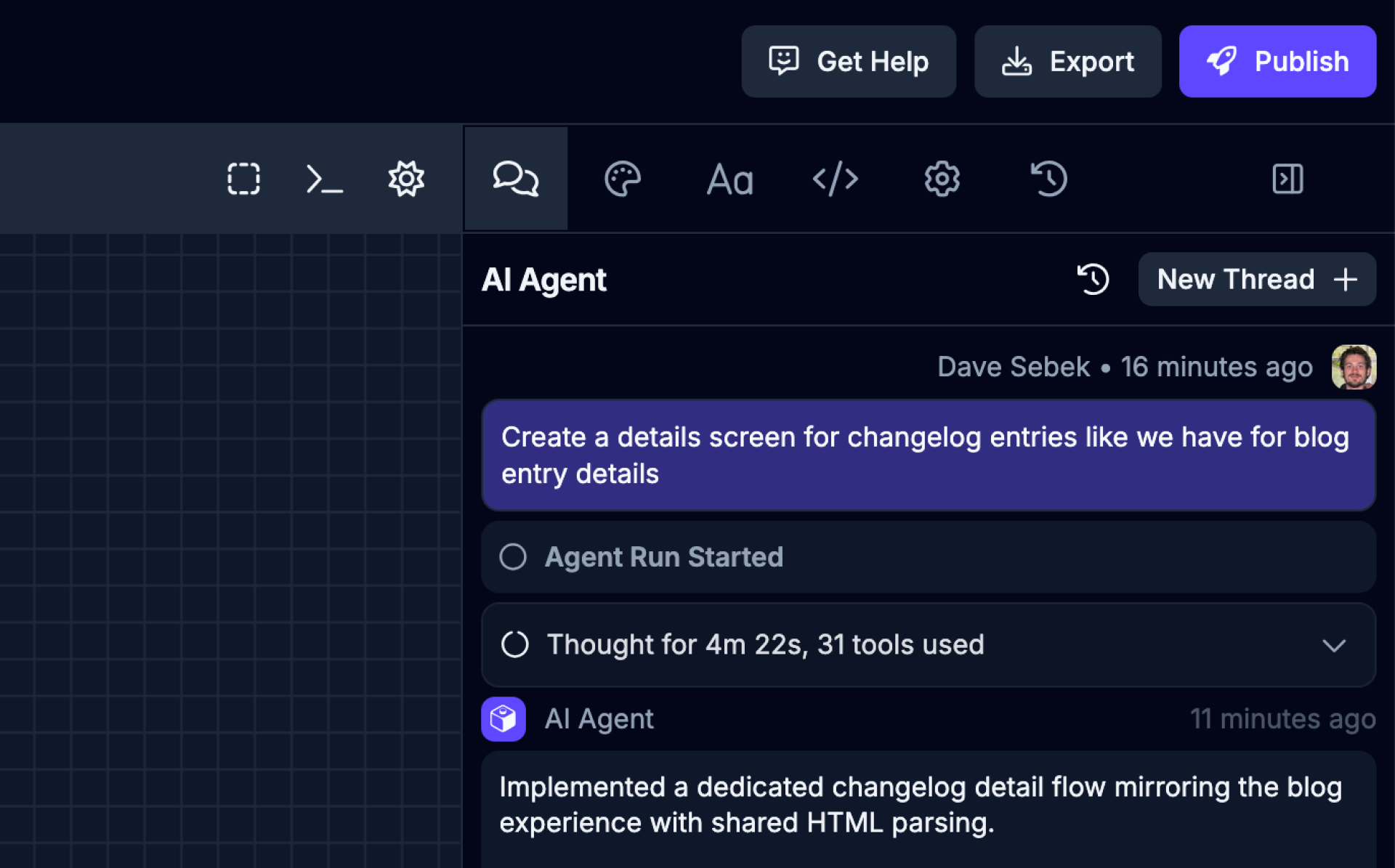
| Icon | Name | Description |
|---|---|---|
 | Add component | Select a component from the canvas to add it to your message. If its file changes before you send and the component is moved or removed, Draftbit asks you to add it again. |
 | Add reference | Reference files and assets from your project in your message. |
 | Add attachment | Attach an image or supported file to provide context for your message. See Attachments and prompt limits. |
 | Add saved prompt | Use a saved prompt from the Saved Prompts section of Settings. |
| | Thread history | View, search, and manage your previous AI chat threads. See Managing threads. |
Thread settings
Section titled “Thread settings”When you start a new thread, the settings below the message box choose how the agent works on it. They start from the defaults you set in Settings → Agents & Models, so you only need to change them for a thread that needs something different.
| Name | Description |
|---|---|
| AI Gateway | Appears once you’ve connected your own provider key or subscription. Choose whether the thread uses Draftbit credits or your own key or plan. See Bring Your Own Key or Subscription. |
| Model | The model to use for the task. Options depend on the Agent selected. Claude Code threads start on Claude Opus 5.5 and Codex threads start on GPT-6.1 Sol, whether you use Draftbit credits, your Claude or ChatGPT plan, or your own API key. Some ChatGPT plans don’t include every Codex model. When ChatGPT rejects a model, the error explains that your subscription may not support it. Choose another model, or select View ChatGPT plans to review the available plans on ChatGPT’s website. Retired models no longer appear in the list. On the Free plan, models that use Draftbit credits are limited to OpenAI models other than GPT-6 Astra. |
| Agent | The AI Agent to use for the task. Anthropic Claude Code (default), OpenAI Codex, Google Gemini (upcoming). On the Free plan, threads that use Draftbit credits run Codex; Claude Code needs a paid plan or your own Claude subscription or API key. |
| Initial Agent Mode | Auto, Read-Only, or Plan. See Agent modes. |
| Browser Inspection Tools | Lets the agent connect to the running preview in the browser and look at it while it works. It’s off by default. Turn it on for a thread when the agent needs to see what’s on screen, for example to track down a layout bug. These tools can consume significant amounts of credits. |
| Effort | How much work the agent puts into each response. See Effort. |
| Subagent model | For Claude Code threads, choose the model used by helper subagents. Automatic preserves Claude Code’s route-specific helper defaults; selecting a model pins that choice for the thread. |
Agent modes
Section titled “Agent modes”The mode decides what the agent is allowed to do with your next message.
| Mode | What the agent does |
|---|---|
| Auto | Reads and changes your app’s code to do what you asked. This is the default. |
| Read-Only | Reads your project and answers questions without changing any files. Use it to ask how something works. |
| Plan | Looks through your project and writes an implementation plan for you to review before it changes any code. |
Pick the starting mode under Initial Agent Mode when you create a thread. In an open thread, the mode button above the message box shows the current mode. Click it to move through all three modes. Press Tab in the message box to switch between Auto and Plan. While Plan is on, the message box has a yellow border.
Reviewing a plan
Section titled “Reviewing a plan”In Plan mode, the agent ends its run with a Plan card in the chat. The card shows the start of the plan. Use the icons in its header to copy the plan to your clipboard or to hide and show the preview.
Click the plan to open Implementation Plan Ready, which shows the whole plan. From there you can:
- Select Implement the plan. to have the agent build it. That run uses Auto mode, so the agent can change your code. The button then reads Implemented.
- Ask for a revision with one click: Make it simpler., Add more detail., or Show me an alternative approach.
- Type your own feedback in the box and select Send.
A revision keeps the thread in Plan mode, and the agent replies with a new plan card. If you send a normal message instead of answering a plan, that plan can no longer be implemented or revised from its card.
Effort
Section titled “Effort”Effort sets how many tokens the agent is willing to spend on its response, tool use, and thinking. Higher levels can help with complex work but may consume more credits. The levels are Default, Minimal, Low, Medium, High, XHigh, Max, and Ultra.
Not every model supports every level, so the list only shows the levels the selected model accepts. Default uses the model’s own setting, or the default effort you saved for that model in Settings → Agents & Models, where the effort picker sits next to Default Claude Model and Default Codex Model. When a default is set, the menu shows it, such as Default (High).
Ultra combines maximum reasoning with parallel agents. Only some models offer it, and it can use far more tokens and credits than the other levels, so save it for the hardest problems.
Attachments and prompt limits
Section titled “Attachments and prompt limits”Attach files with the button, or drag and drop or paste them into the chat tab.
- Attachments: up to 10 images and files per message.
- Images: up to 5 MB each. Supported formats are .png, .jpg, .jpeg, .gif, .svg, and .webp.
- Files: up to 32 MB each. Supported files include text, Markdown, CSV, JSON, XML, YAML, JavaScript and TypeScript, Word documents (.docx), fonts, and native iOS and Android project files. PDFs aren’t supported. To share a PDF’s content, paste the relevant text into your message or save it as a .txt or .md file.
- Prompt length: up to 16,000 characters for the first message in a new thread and 20,000 characters for follow-up messages. A counter appears as you get close to the limit, and Send turns off until the message is short enough.
Queued prompts
Section titled “Queued prompts”If the agent is already running, you can keep sending follow-up messages. The button reads Queue instead of Send, and your messages wait in an Up next list above the message box. Draftbit runs them in order after the current agent run finishes.
Hover over a queued message to change it before it runs. Click the pencil to edit it, then save with ⌘↵ (Ctrl+Enter on Windows) or discard your edits with Esc. Click Remove from queue to delete it.
If you stop the agent, or the next message can’t start, the queue pauses and shows paused. Select Resume to continue. Agents in other threads count toward your plan’s limit on agents running at the same time (one on Free and Standard). A message you send while that limit is reached is queued and starts automatically when the other thread’s agent finishes. If it’s still waiting after that agent is done, select Start now. See Known Limitations.
Long threads
Section titled “Long threads”Every message in a thread adds to the context the agent reads, so long threads get slower and cost more. When a thread passes 100 messages or 1,000 events, or gets close to the model’s context limit, a warning bar appears at the top of the chat.
To carry the work into a fresh thread:
- Select Create Summary in the warning bar. The agent writes a summary of the goal, the work done, the current state, key decisions, next steps, and anything to avoid.
- Select Start New Thread From Here under the summary. A new thread opens with the summary already in the message box.
- Edit the summary if you like, then send it.
Managing threads
Section titled “Managing threads”Open your threads with the button in the chat tab.
- Search: type in the search box to filter threads. Search matches thread names and the text of the conversation, and shows an excerpt where a conversation matched.
- Thread menu: click the ⋮ menu on a thread to Download Thread as a Markdown file, Rename Thread, or Archive Thread. The download is a snapshot of the conversation; attachments are listed but not included. The menu is hidden while that thread’s agent is running.
- Archived: switch to the Archived tab to see archived threads. Search works there too. Select Restore to move a thread back to your active list, or choose Delete Thread from its menu to remove it for good. Deleting can’t be undone, and only archived threads can be deleted.
When the agent needs your input
Section titled “When the agent needs your input”If the agent needs more information to keep going, it pauses the run and surfaces a “Draftbit needs your input” panel inline in the chat. The panel can ask one or more questions at a time. Pick an answer for each, then submit to resume the run — your selected answers are persisted with the thread, so you can refer back to them later.
Styles
Section titled “Styles”Switch to Styles tab using the
Use the Styles tab to control the visual appearance and layout of the selected component. In apps styled with Tailwind CSS or NativeWind, values map to utility classes. In React Native apps, the same controls also edit style props; see Style props in React Native apps.
The top of the tab has a Content section for everything the selected component shows. A chip next to the section title names the kind of content — Text, Image, Video, Audio, Lottie, WebView, Link, Icon, Input, Button, Section, or the component’s own name — and the section lists a field for each thing the component displays:
- Text for the text between the component’s tags, including on elements like paragraphs and buttons.
- Words such as Title, Subtitle, Label, Description, Placeholder, Helper text, and Starting value.
- The destination or media it shows: an image, video, audio file, or Lottie animation; a link; an icon; a web view’s Page URL; or a Video ID.
- Leading icon, Alt text, Poster image, Screen reader label, Name for initials, and Open in new tab.
A text field grows up to eight lines as you type. Fields the Builder recognizes for a component show up even when they’re not set yet; for any other component, a field appears for each property it already uses. A component with nothing to show has no Content section at all.
Each kind of field works a little differently:
- Image, video, audio, and Lottie fields show a thumbnail, the file name, and where it comes from — Project Assets, a file in your repo, or the web. Select Change to choose a different file from Project Assets, upload one, or paste a URL. An unset field shows “No image” (or the matching label) with Add.
- Link fields name the screen a link points to and its path, or the domain for a web link, or
the raw value for another kind of link, such as
../,#,?,mailto:, ortel:. The field shows “Unknown screen” when the path doesn’t match a screen in your app, or “Matches N screens” when more than one screen shares that path. Select Change to search for and pick a screen, enter a URL, open the screen in preview, or, for web links, open it in a new tab. Only screens without dynamic segments are listed. - Icon fields show the icon, its name, and its library. Select Change to search the icon set the component uses; a Recent row remembers icons you’ve picked recently on this browser. A name that isn’t in that set shows “Not in the icon set”. If the Builder doesn’t recognize the component’s icon library, the field is a plain text box for the icon’s name instead.
- Open in new tab is a switch, for web links (
<a>tags and links in web apps). If the link’s target is set to something other than a new tab, the switch shows that instead, read-only.
Select ↺ next to a field’s label to remove that property, for properties the panel can still show once they’re empty. Clearing all the text in a text field keeps the property with empty text — the field shows “Empty” rather than “Not set”. Image, link, and icon fields ignore an empty value, so use ↺ to remove them instead.
Text that mixes words with values from code, such as {count} {count === 1 ? "task" : "tasks"} left,
stays editable. Type the words around each value in place. Click a value that picks between two
words to change either word. Click any other value to swap it for something else on the screen,
such as a prop, state, or data from a hook. Select Insert variable (the { } button) next to the field to
add a value at the end, or type { to add one where you’re typing. Your edit shows in the preview once it’s saved, and this text
can’t be edited directly in the preview.
Plain text can show a value too: select Insert variable (the { } button) next to the Text field,
or type { where it should go. Pick a prop, state, data from a hook, or another value on the screen.
When a value comes from code — for example it depends on a condition, calls a function, contains other components, or is set (or could be overridden) by props passed into the component — the field shows the value as read-only, with the reason, and an Edit in code button that opens it in the Code tab. If an edit to a field can’t be saved, a message under it explains why; fix the problem and send the same value again.
On a phone, pickers and menus like these open as a bottom sheet with a Done button instead of a popover.
Below Content, a Breakpoint section holds the breakpoint toggle, for apps styled with Tailwind CSS (v3 or v4) or NativeWind. All applies everywhere, and each device icon applies from that width up (hover an icon to see its width) — a dot on an icon means that breakpoint already has overrides. A hint under the toggle names which screen sizes the current choice applies to.
Some styles live in code the Styles tab can’t edit: styles imported from another file, theme
objects, conditional styles such as isActive && styles.active, spread objects, Pressable style
functions, CSS module classes, CSS files, and styled-components or Emotion components. When the
selected component uses any of these, a Read-only styles section below Content lists each one
with the file it comes from, such as theme.card from ../theme, and the values it sets where the
Builder can read them. Select Edit with AI to start a new agent thread with a prompt that names
the component, its file and line, and those styles. Add what you want to change, then send it.
Apps imported from Draftbit Classic keep the styles Classic generated, which the Styles tab can’t edit either. For those components, the Read-only styles section says the styles come from Draftbit Classic and adds Migrate styles with AI. It starts a new agent thread with a prompt to migrate the whole app to NativeWind classes, one screen at a time, starting with the open screen. See Styles from Draftbit Classic.
If the selected file has a syntax error, the Styles tab shows a message with Open in code editor instead of its sections.
Sections are ordered for the component you select. For example, Typography comes first for text, and Layout comes first for views. The most useful sections for that component start open, along with any section that already has styles. A dot on a section header means it has styles set.
A highlighted label means a value is set on the current breakpoint. An outlined label means the value is inherited from another breakpoint. Click a highlighted label to see where it’s set or reset it, or ⌘-click it to reset it right away.
A blue label with a branch icon means the style depends on a condition in your code. The value next to it shows what each side of the condition uses; click it to change either side with the usual control.
Opening the Styles tab switches the preview into Design mode. In Design mode, clicking an element in the preview selects it instead of interacting with your app, and the panel header shows the selected element after the components it sits inside. Click one of those parents to select it. When there are more than two, the outer ones are under …. Switch the preview back to Preview to use your app normally. Press ⌘I (Ctrl+I on Windows) to switch between Preview and Design, including while you’re using your app in the preview.
The selected element has handles in the preview. Drag a corner or an edge to resize it, or drag the
bands along its edges to change its padding (inside) or margin (outside). These changes are saved
the same way as changes in the Styles tab: as classes at the selected breakpoint in apps styled
with Tailwind CSS or NativeWind, or in the element’s style prop, in the scope chosen under
Apply changes to, in React Native apps (see
Style props in React Native apps). When an element’s styles
can’t be changed from the preview, a message says so and nothing is saved.
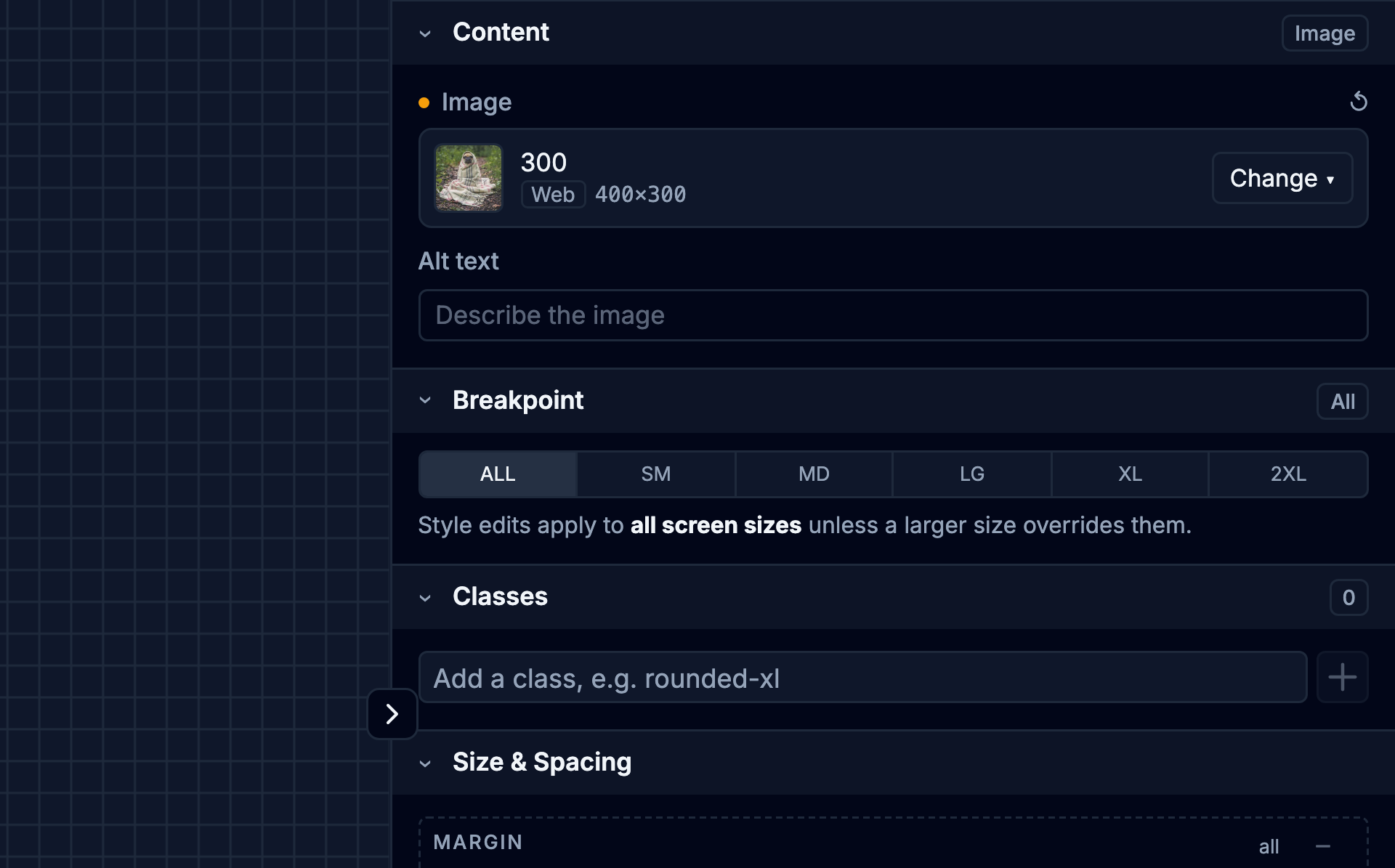
| Section | Description |
|---|---|
| Classes | View, add, and remove the utility classes applied to the component. Press Enter to add a
class, and hover a class to remove it. Classes written as text inside a class helper such as
|
| Style | In React Native apps, shows where the component’s |
| Layout | Set display, and for flex containers the direction, alignment, justification, gap, and grow/shrink. |
| Size & Spacing | Edit margin, padding, width, and height in one box model, plus min and max width and height. |
| Background | Set the background color. |
| Border | Adjust border width, radius, style, and color. |
| Position | Control relative or absolute positioning, offsets, z-index, and overflow. |
| Effects | Set opacity. |
| Typography | Change the font, weight, size, color, alignment, transform, and decoration. |
Style props in React Native apps
Section titled “Style props in React Native apps”In a React Native app, the Styles tab edits a component’s style prop: an inline object such as
style={{ padding: 16 }}, an entry from a StyleSheet.create in the same file such as
style={styles.title}, or a list of these such as style={[styles.title, { color: "red" }]}. In
apps that don’t use NativeWind, every component is edited this way, and the first change adds a
style prop to a component that doesn’t have one.
The controls show the values the component ends up with, where later entries in a list win, the
same way React Native applies them. A label shows where each value comes from: this element, or a
shared style such as styles.title.
Under Apply changes to in the Style section, choose what your changes edit:
- This element (the default) changes only the selected component. A value the component sets itself is changed in place. Anything else is added to the component’s own style, last, so it wins over the shared style without changing it.
- A shared style such as styles.title changes that
StyleSheet.createentry, so every component that uses it changes too. The controls then show that style’s own values. A font you pick is still set on the selected component.
Your choice stays while your changes save, and goes back to This element when you select another component.
A component with both a className and a style prop keeps each value where it’s set: values the
style prop sets are changed there, and others go to the classes.
Style values don’t have breakpoints. A component styled only by its style prop has no
Breakpoint section, and its values apply at every screen size. Theme and palette colors are
saved as their hex value.
Some values can only be changed in code, and the Style section lists them under Set in
code: values written as code, such as theme.accent or width / 2, lists and objects such as
transform, and properties the controls don’t cover, such as letterSpacing. The Styles tab never
replaces or removes them. Styles it can’t read, such as imported styles or
isActive && styles.active, are listed under Read-only styles and may override the values
shown. A style that depends on the component’s state, such as a Pressable’s
style={({ pressed }) => ...}, can only be edited in code.
Properties
Section titled “Properties”Switch to the Properties tab from the Utility Panel. It’s next to Styles.
The Properties tab lists the props the selected component accepts, read from its TypeScript types, so you can set them without asking the AI Agent or opening the code. The header shows the selected component and its parents, the same as on the Styles tab.
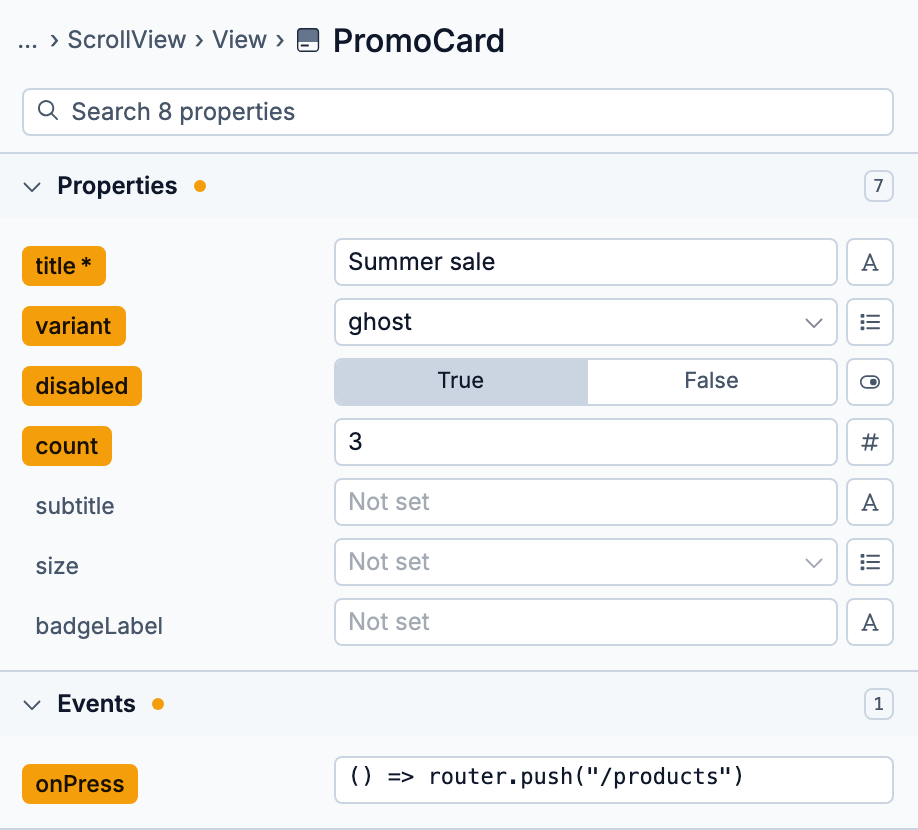
Props are grouped into collapsible sections. Properties holds the component’s own props and starts open. Events (onPress and other handlers), Styling (style, className), Accessibility, and Advanced (Android, iOS, and TV-only props, plus internal ones like ref) start collapsed unless one of their props is set. Each section shows how many props it has, and a dot marks sections with props set on this component. Within a section, props that are set come first, then required ones.
A prop’s name is highlighted when it’s set on the component, and required props are marked with *. Click the name to see its full type or remove the prop from your code. You can also ⌘-click (Ctrl-click on Windows) a highlighted name to remove it.
Each prop gets an input that fits its type:
| Input | Used for |
|---|---|
| Text | string props. Changes are saved when you pause typing, press Enter, or leave the field. |
| Number | number props. |
| Toggle | boolean props. Choose True or False. |
| Select | Props that accept a fixed list of values, such as "primary" | "secondary". |
| Code | Any JavaScript expression, such as a variable or a function. Press Esc or Done to close. |
When a prop accepts more than one kind of value, use the button at the end of its row to switch inputs. Every prop can use Code.
Use the search field at the top to filter props by name. Press Esc to clear it.
To add an event handler such as onPress, or to use state in a prop, see Adding Logic and State.
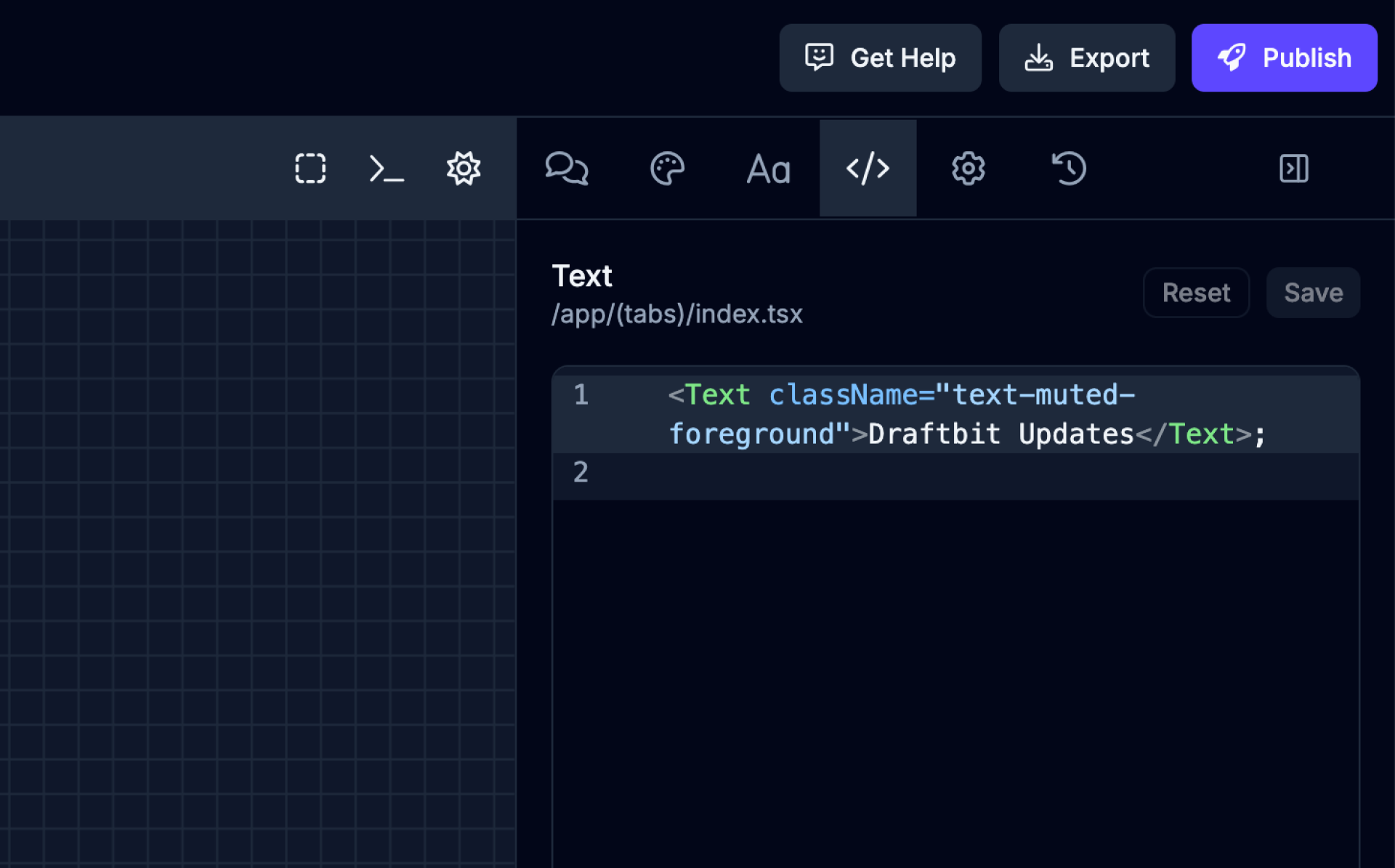
Switch to Code tab using the
The Code tab allows you to edit the code of the selected component directly in the browser. This is a quick way for you to make changes without needing to ask the AI Agent or manually edit the file in the Code Editor.
Config
Section titled “Config”Switch to Config tab using the
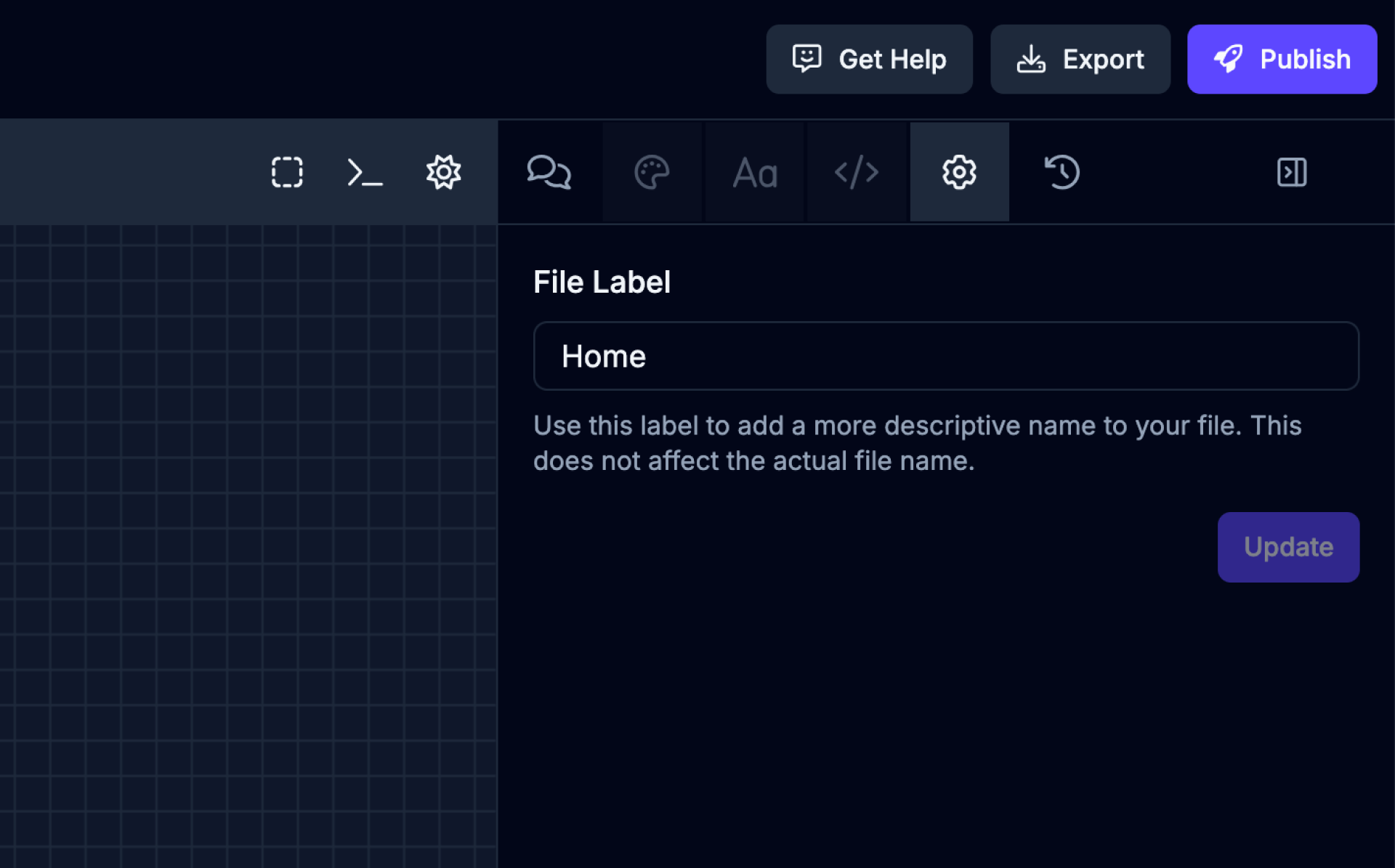
The Config tab has additional configuration options depending on the selected screen or component.
| Name | Description |
|---|---|
| File Label | Use this label to add a more descriptive name to your file. This does not affect the actual file name. |
History
Section titled “History”Switch to the History tab using the
The History tab lists the saves and changes made to your app, including the agent’s work and your own edits, with the time, the number of files changed, and the lines added and removed. Use it to see what changed and when.
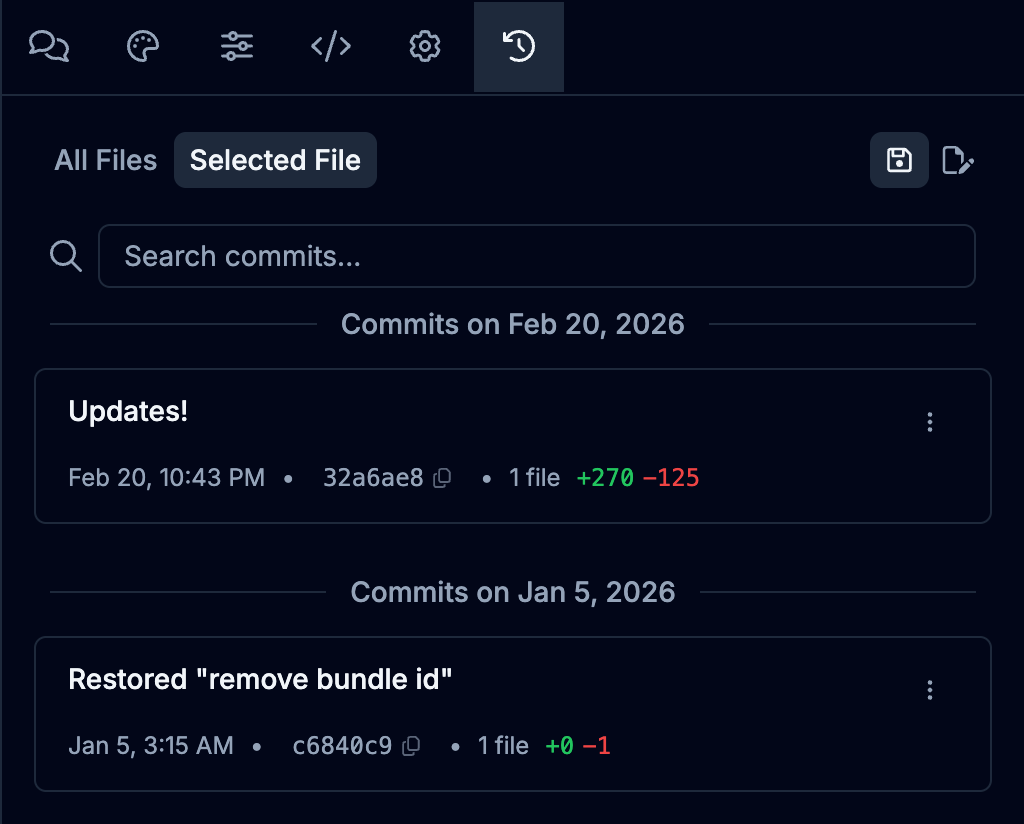
- Saved shows the history of your saved app. Unsaved shows activity in your current unsaved changes.
- When a file is selected, choose Selected File to see only changes to that file, or All Files to see everything.
- Search the list to find a change by its description.
To restore an earlier save, use Version History.
Collapse Panels
Section titled “Collapse Panels”On desktop, you can collapse the side panels to give the preview more room. Click the chevron on the edge of a panel to collapse it. The panel becomes a narrow rail labeled with the panel’s name and what it currently holds:
- Screens & Components shows the selected screen or component file.
- Agent & Editing shows the active tab, such as Agent or Styles.
- In the Code Editor, Project Files shows the open file.
- In the API console, Endpoints shows the selected endpoint.
Hover over a rail to see its full label. Click the rail to open the panel over the canvas, and press Escape or click outside it to close it. Rails on the left close on their own after you pick a file, screen, or endpoint. To dock a panel again, click the chevron at the top of its rail.
Saving Changes
Section titled “Saving Changes”Your edits and the agent’s changes are kept as you work, but they don’t become part of your app’s history until you save them. When you have unsaved changes, the Save button in the top bar of the Builder shows how many files changed. Each save creates a save point you can roll back to later. To check your changes in the preview before saving, see Comparing Builds.
Click Save to open the Save & Commit dialog. It opens on a short summary, and you can widen it to see more:
- Describe the save. Enter a Title that summarizes your changes, and add Details if you want more context. The dialog drafts both with AI from your changes and marks them Drafted by AI from your changes. Click Rewrite for a new draft, or Draft with AI once you’ve edited them.
- Review your changes. What changed sorts the changed files into groups such as screens, components, code and settings, and docs and agent notes, with the lines added and removed. Click Files at the top of the dialog, or a group, to list every changed file. Docs and agent notes are folded away until you open them. Click Code, or a file, to see its diff in a Unified or Split view, filter the file list, and step through files with the arrows next to the file name. Changed images appear as Previous and Current versions side by side. On a phone, tap a group to see the list, then tap a file to see its diff.
- Save. Click Save to create the save point. To publish right after, click Save & Publish instead. It saves your changes, then opens the Publish menu so you can choose where to publish.
Saving keeps a version in Draftbit. It doesn’t push your code to GitHub; see Connecting to GitHub for that.
If you’d like to discard your changes and go back to your last save point, click Discard all changes… at the bottom of the same dialog, then confirm with Discard & Revert.
Reverting Changes
Section titled “Reverting Changes”To go back to an earlier save, open Version History from the main menu, select a version, and select Restore this version. Save or discard any unsaved changes first: you can’t restore while your app has unsaved changes. Restoring adds a new version to the top of your history, so nothing is lost and you can undo a restore the same way.