

Mockups
Open Mockups in the app editor’s left sidebar. To get your first mockups, ask the agent for them in chat.
Mockups show you what the agent has in mind before it touches your app. When you ask for mockups, the agent designs a few different takes on the screens you described. You compare them side by side, pick one, and the agent builds it into your app. Making mockups never changes your app’s code.
Mockups work for mobile apps, web apps, and websites. API backends don’t have screens to mock up. You need the Editor role or higher to use them.
Asking for mockups
Section titled “Asking for mockups”Ask the agent in chat, for example “Show me some designs before we begin” or “Mock up a few options for the home screen.” The agent can also offer to show you mockups before a bigger change. If you say yes, it makes them.
The agent designs at the right size for your app:
- Mobile apps: phone screens by default. Ask if you want tablet, Android, or desktop web screens.
- Web apps and websites: desktop pages.
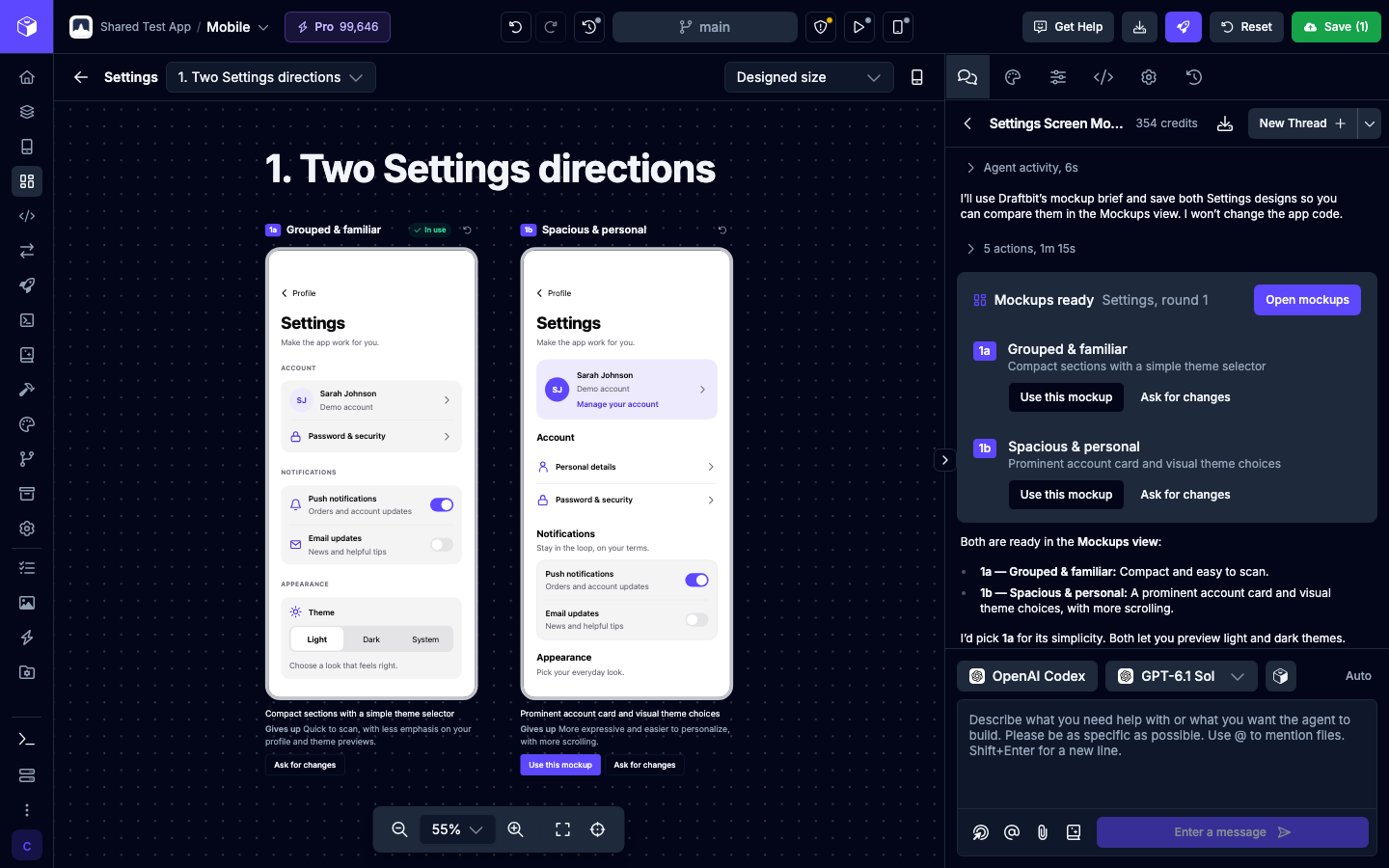
While the agent works, the Mockups view opens and fills in as each mockup is saved. When the agent is done, a Mockups ready card appears in the chat with each option’s label and name, and an Open mockups button.
Comparing mockups
Section titled “Comparing mockups”Each request becomes a set of mockups. Mockups lists every set with its number of rounds, when it last changed, and which option you used. Click Open mockups to view a set, or Open thread to go back to the chat that made it.
A set shows its mockups side by side on a canvas you can pan and zoom. Each option has a label, such as 1a or 1b, and a name. Under each one, the agent explains what the option tries and what it Gives up compared with the others.
- Page: each round of options the agent presents gets its own page. Mockups the agent has saved but not presented yet are on the In progress page.
- Device: show each mockup at the size it was designed for (Designed size) or on a device you pick.
- Rotate devices: switch phone and tablet mockups between portrait and landscape.
Mockups are interactive, so you can tap buttons and scroll. They can’t open other pages: a mockup that tries is reloaded, and after three tries it’s paused. Click the reset button next to a mockup’s name to put it back to its saved state.
Using a mockup
Section titled “Using a mockup”Click Use this mockup on the option you want, in the Mockups view or on the chat card. Draftbit sends the agent a message asking it to build that option into your app with your app’s own components. The mockup itself is only a reference. The option is then marked In use, and the set’s entry in the list shows which one you used.
If the agent is still working, your message waits its turn. If the message can’t be sent, for example because you’re out of credits, the option isn’t marked as used.
Asking for changes
Section titled “Asking for changes”Click Ask for changes to start a chat message about that option, such as Mockup 1b ("Card grid"):. Finish it with what you’d like changed and send it. The agent’s new options appear as the next round in the same set, so you can still compare them with earlier rounds.
Limits
Section titled “Limits”- Asking for mockups is a message to the agent, so it uses credits like any other message.
- Each round can show up to 50 options.
- An app can hold up to 100 sets of mockups.