

Logs
Logs show the output of your app’s preview and development server: build messages, warnings, and runtime errors. Check them when the preview won’t start, a screen is blank, or something behaves differently than you expect. Runtime errors from the web preview can also appear as Builder toasts and update the preview status.
You can read logs in two places: the Logs page, or the Preview Logs panel next to your preview. Both show the same output and have the same controls.
The Logs page
Section titled “The Logs page”Open the More menu at the bottom of the main menu and select Logs to open logs as a full page. On a phone, Logs is in the navigation menu. The agent panel stays open on the right, so you can paste an error into a chat and ask the agent to fix it without leaving the page. You can pin the agent panel open or collapse it to the side of the screen.
On a phone, switch between Logs and Agent with the tabs at the bottom.
The Preview Logs panel
Section titled “The Preview Logs panel”To keep logs in view while you work on your app, open the Preview Logs panel:
- Select the
 icon (Show preview logs) near the bottom of the main menu, or
 - Use the logs toggle in the toolbar above the preview.
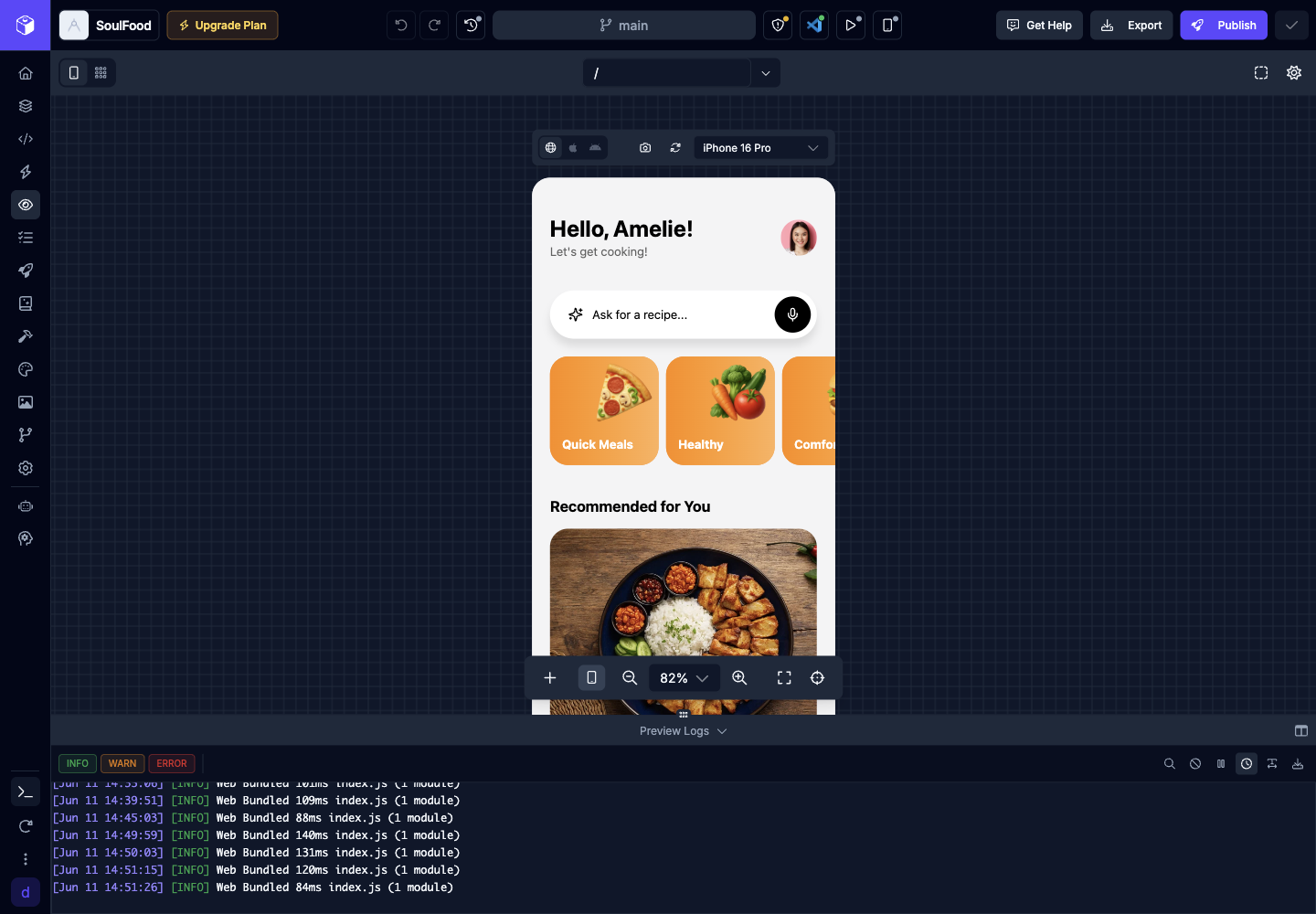
Select the Preview Logs header to collapse or expand the panel. To move it, select the layout icon at the right of the header (Change logs panel position) and choose Top, Bottom, Left, or Right. Draftbit remembers the position in your browser, and it remembers whether the panel was open for each app.
The Preview Logs panel isn’t available on small screens. Use the Logs page instead.
Log controls
Section titled “Log controls”The toolbar at the top of the logs works the same on the Logs page and in the panel.
| Control | Name | Description |
|---|---|---|
 | INFO | Show or hide info messages. |
 | WARN | Show or hide warnings. |
 | ERROR | Show or hide errors. |
 | Show search | Open a search bar and highlight matching text. Search isn’t case-sensitive. |
 | Clear logs | Clear the lines on screen so you only see new output. This only clears your view. |
 | Pause logs / Resume logs | Freeze the view so you can read without new lines arriving. Resume to catch up. |
 | Toggle timestamps | Show or hide the time at the start of each line. Timestamps are on by default. |
 | Enable word wrap | Wrap long lines to the width of the panel instead of scrolling sideways. |
 | Download logs | Save the lines you’re viewing as a |
Reading the output
Section titled “Reading the output”Each line starts with its time and level, such as [INFO], [WARN], or [ERROR]. Warnings are yellow and errors are red.
Lines from an earlier run of the preview are marked (outdated), so you can tell old errors from new ones after a restart.
New lines appear at the bottom, and the view follows them. If you scroll up to read, the view stays where you are. Select the arrow in the bottom-right corner to jump back to the newest line.
Restart the preview
Section titled “Restart the preview”Select Restart preview in the main menu when you need to reload the running preview after a dependency, configuration, or runtime change. Watch the logs while it starts to catch any errors.