

App Configuration
Open Settings with the
icon in the main menu, choose General, then pick one of the tabs after Basic.
Your Expo app’s configuration lives in app.config.js (or app.config.ts) at the root of your app. It holds what the app stores and devices see: the app’s name, version and build number, icon, splash screen, bundle identifier, package name, permissions, plugins, and more. Preview builds, one-click publishing, and code export all read it. The tabs in Settings edit this file for you, so you don’t have to touch the code. They’re only shown for Expo apps.
This page lists every field. For how changes save, commit, and reset, and for the App Config Agent, see Settings.
How the tabs are organized
Section titled “How the tabs are organized”Each tab has its everyday fields first. Some tabs group related fields in their own card, like Plugins or Permissions. Then come up to two collapsed sections:
- Advanced: rarely changed fields, and fields that Draftbit Publishing sets for you. Those show “This value may be overridden during Draftbit Publishing” under the input.
- Dangerous: changing these properties may break your ability to preview the app in Draftbit. Leave them at their defaults unless you have a specific reason to change them.
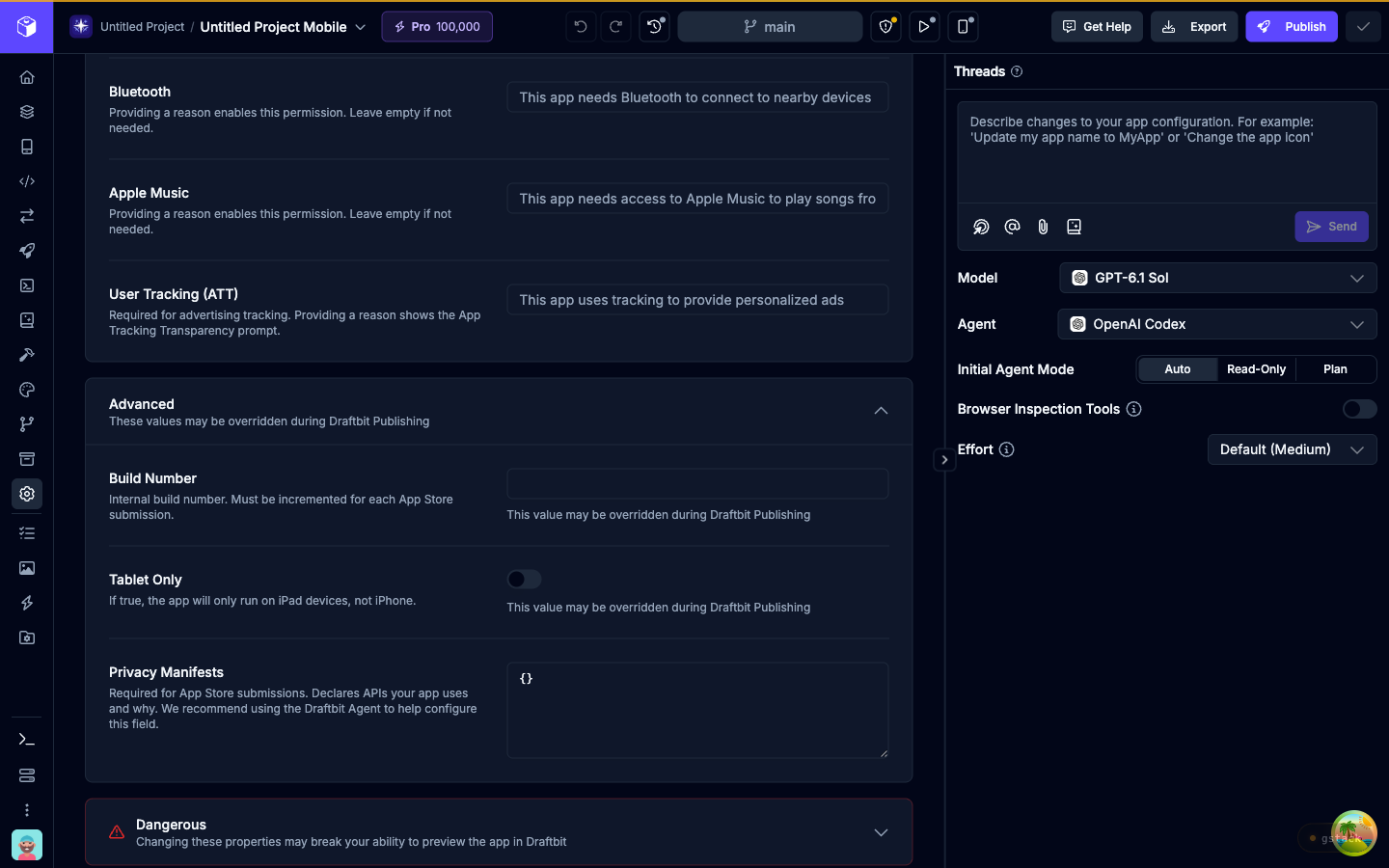
Fields marked with a red asterisk are required. If a value doesn’t pass a check (for example, a version that isn’t in 1.0.0 format), the field shows an error and you can’t commit until you fix it.
Fields marked (dynamic)
Section titled “Fields marked (dynamic)”Not every value in app.config.js is a plain value. If a field is set by code, such as process.env.APP_NAME or a function call, its label shows (dynamic) and you’ll see the JavaScript instead of the usual input, with the note “This value contains dynamic code and must be edited as JavaScript”. Your edit is saved as code, so a plain value needs quotes, like "1.0.0". If the code isn’t a valid JavaScript expression, the change isn’t saved and you’ll see Save failed until you fix it. For bigger changes to dynamic values, use Open in Code Editor or ask the App Config Agent.
Versions and build numbers
Section titled “Versions and build numbers”Each store submission needs a higher build number than the last one, so this is the part of the configuration you’ll touch most.
| Field | Where | What it is |
|---|---|---|
| Version | General, Advanced | The version people see in the app stores, in 1.0.0 format. Written to version. |
| Build Number | iOS, Advanced | The internal iOS build number, a whole number. Written to ios.buildNumber. |
| Version Code | Android, Advanced | The internal Android version number, a whole number. Written to android.versionCode. |
When you publish with one-click publishing, the publish dialog suggests the next version for you. It starts from your most recent publish to that platform and adds one to the last part of Version Name (1.0.3 becomes 1.0.4) and one to Version Number. You can change either value before you start the publish.
When the publish starts, Draftbit writes Version Name to Version and Version Number to both Build Number and Version Code, along with the bundle identifier or package name from your publishing settings. It then commits the updated file to your app. That’s why these fields say “This value may be overridden during Draftbit Publishing”.
General
Section titled “General”| Field | Description |
|---|---|
| App Name | The name of your app as it appears on the home screen when installed. Required, up to 50 characters. |
| Description | A short description of what your app is and why it is great. Up to 1,000 characters. |
| Slug | A URL-friendly identifier for your app, used in publishing and build processes. Required. Lowercase letters, numbers, and single hyphens only, starting with a letter or number. |
| URL Scheme | URL scheme for deep linking into your app (for example, myapp:// would use myapp). Must start with a letter. |
| Orientation | Lock your app to portrait or landscape, or choose default to allow rotation. |
| Interface Style | Force light or dark mode, or choose automatic to follow the device setting. |
Plugins
Section titled “Plugins”Plugins lists the Expo config plugins your app uses, as JSON. Config plugins make native changes at build time. Many packages with native code, including iOS extensions, need one before they work in a published build. Each entry is either a package name, like "expo-camera", or a [name, options] pair:
["expo-font", ["expo-camera", { "cameraPermission": "Allow $(PRODUCT_NAME) to use your camera." }]]Your edits only take effect while the box holds valid JSON. If a feature works in preview but not in a published build, check that its package’s plugin is in this list.
Advanced
Section titled “Advanced”| Field | Description |
|---|---|
| Version | See Versions and build numbers. |
| Locales | Localization settings, as JSON. Keys are locale codes (for example, en or ja) and values are paths to JSON files. |
| Asset Bundle Patterns | Glob patterns for assets to include in the bundle, as JSON. For example, ["**/*"] includes all assets. |
| Extra | Custom data, as JSON, that your app can read at runtime through Constants.expoConfig.extra. Don’t put secrets here, since it ships inside your app. |
Dangerous
Section titled “Dangerous”| Field | Description |
|---|---|
| Platforms | The platforms your app supports: ios, android, and web. Expo uses this to decide which native projects to generate. |
| JavaScript Engine | hermes (recommended, for better performance and a smaller bundle) or jsc. |
| Field | Description |
|---|---|
| App Icon | The icon people see on their home screen. Pick an image from your app, upload one to its assets folder, or enter a path or URL. Use a square 1024×1024 PNG. |
| Use Project Icon | Use the icon set for the whole project in Settings › Project Settings. Only shown when the project has an icon. |
View icon configuration on Expo Docs →
Splash Screen
Section titled “Splash Screen”The splash screen shows briefly while your app loads.
| Field | Description |
|---|---|
| Splash Image | Local path or remote URL to an image for the splash screen. Use a 1284×2778 PNG for best results. |
| Background Color | Background color for the splash screen, as a hex color like #ffffff. |
| Resize Mode | How the splash image fits the screen: contain, cover, or native. |
View splash screen configuration on Expo Docs →
Notifications
Section titled “Notifications”These settings control how push notifications look. To set up push notifications end to end, see the iOS and Android guides.
| Field | Description |
|---|---|
| Notification Icon | Local path or URL to an image for the Android notification icon. Must be a 96×96 PNG with transparency. |
| Notification Color | Tint color for the notification icon on Android. |
| iOS Display in Foreground | Show notifications when the app is in the foreground on iOS. |
| Android Mode | How notifications are displayed on Android: default or collapse. |
| Android Collapsed Title | Title shown when multiple notifications are collapsed on Android. |
View notifications configuration on Expo Docs →
| Field | Description |
|---|---|
| Bundle Identifier | Unique identifier for your iOS app, in reverse domain format (for example, com.company.appname). Required for the App Store. Learn more → |
| Supports Tablet | Whether your app supports iPad. |
| Uses Apple Sign In | Enable the Sign in with Apple capability for your app. Learn more → |
| Require Full Screen | Require the app to run full screen on iPad, which turns off Split View and Slide Over. |
| Associated Domains | Domains for Universal Links and other app-to-web connections, as JSON. For example, ["applinks:example.com"]. Learn more → |
| App Store URL | URL to your app on the App Store, used for rate prompts and sharing. |
| Uses Non-Exempt Encryption | Your export compliance answer for App Store Connect. Choose False if your app only uses standard encryption such as HTTPS, and TestFlight builds skip the encryption question. Choose True if your app uses proprietary or non-standard cryptography. Leave both unselected to answer in App Store Connect for each build. Learn more → |
View iOS configuration reference on Expo Docs →
Permissions
Section titled “Permissions”iOS requires a reason for each permission your app asks for. The reason is the text iOS shows in the permission prompt. The prompt itself appears only when your app’s code requests access, usually through the Expo package for that feature, which the agent adds when it builds the feature. Leave the field empty for permissions you don’t need. Each field is written to the matching key under ios.infoPlist.
Apple’s App Review reads these too, so say plainly what your app does with the access.
| Field | Info.plist key | Example reason |
|---|---|---|
| Camera | NSCameraUsageDescription | This app needs camera access to take photos and scan barcodes |
| Microphone | NSMicrophoneUsageDescription | This app needs microphone access to record audio |
| Photo Library (Read) | NSPhotoLibraryUsageDescription | This app needs access to your photos to let you select images |
| Photo Library (Write) | NSPhotoLibraryAddUsageDescription | This app needs permission to save photos to your library |
| Location (When In Use) | NSLocationWhenInUseUsageDescription | This app needs your location to show nearby places |
| Location (Always) | NSLocationAlwaysUsageDescription | This app needs background location access to track your route |
| Contacts | NSContactsUsageDescription | This app needs access to your contacts to help you connect with friends |
| Calendar | NSCalendarsUsageDescription | This app needs calendar access to create and manage events |
| Reminders | NSRemindersUsageDescription | This app needs access to your reminders to sync tasks |
| Motion & Fitness | NSMotionUsageDescription | This app needs motion data to track your steps and activity |
| Face ID | NSFaceIDUsageDescription | This app uses Face ID for secure authentication |
| Speech Recognition | NSSpeechRecognitionUsageDescription | This app needs speech recognition to convert your voice to text |
| Bluetooth | NSBluetoothPeripheralUsageDescription | This app needs Bluetooth to connect to nearby devices |
| Apple Music | NSAppleMusicUsageDescription | This app needs access to Apple Music to play songs from your library |
| User Tracking (ATT) | NSUserTrackingUsageDescription | This app uses tracking to provide personalized ads |
User Tracking (ATT) is required if your app tracks users for advertising. The reason sets the text of the App Tracking Transparency prompt, but the prompt appears only when your app requests it, for example with requestTrackingPermissionsAsync() from expo-tracking-transparency. If your app doesn’t request it yet, ask the agent to add the request. Apple can reject apps that track users without asking.
Advanced
Section titled “Advanced”| Field | Description |
|---|---|
| Build Number | See Versions and build numbers. |
| Tablet Only | Run the app only on iPad, not iPhone. |
| Privacy Manifests | Declares, as JSON, which Apple APIs your app uses and why. Required for App Store submissions. We recommend asking the App Config Agent to fill this in. Learn more → |
Dangerous
Section titled “Dangerous”| Field | Description |
|---|---|
| Bitcode | Enable Bitcode for iOS builds. Apple has deprecated Bitcode, and newer Expo SDKs turn it off by default. |
Android
Section titled “Android”| Field | Description |
|---|---|
| Package Name | Unique identifier for your Android app, in lowercase reverse domain format (for example, com.company.appname). Required for the Play Store. Learn more → |
| Adaptive Icon Foreground | Foreground image for Android adaptive icons. Use a 1024×1024 PNG with transparency. Learn more → |
| Adaptive Icon Background | Background color for Android adaptive icons. |
View Android configuration reference on Expo Docs →
Permissions
Section titled “Permissions”| Field | Description |
|---|---|
| Permissions | Android permissions to include in your app. They’re added to AndroidManifest.xml. |
| Blocked Permissions | Android permissions to explicitly remove. Use this to block permissions that libraries add. |
Both fields offer these permissions:
- ACCESS_BACKGROUND_LOCATION
- ACCESS_COARSE_LOCATION
- ACCESS_FINE_LOCATION
- BLUETOOTH_CONNECT
- BLUETOOTH_SCAN
- CALL_PHONE
- CAMERA
- FOREGROUND_SERVICE
- POST_NOTIFICATIONS
- READ_CALENDAR
- READ_CONTACTS
- READ_EXTERNAL_STORAGE
- READ_MEDIA_AUDIO
- READ_MEDIA_IMAGES
- READ_MEDIA_VIDEO
- READ_PHONE_STATE
- RECEIVE_BOOT_COMPLETED
- RECEIVE_SMS
- RECORD_AUDIO
- SEND_SMS
- USE_BIOMETRIC
- VIBRATE
- WRITE_CALENDAR
- WRITE_CONTACTS
- WRITE_EXTERNAL_STORAGE
View Android permissions reference →
Advanced
Section titled “Advanced”| Field | Description |
|---|---|
| Version Code | See Versions and build numbers. |
| Allow Backup | Allow the app’s data to be backed up to Google Drive. Turn off for apps with sensitive data. |
When you publish your app to the web, it can work like a Progressive Web App (PWA) that people can install on their devices. These settings control how your web app looks in browsers and when installed.
| Field | Description |
|---|---|
| Favicon | Local path or URL to an image for the web favicon. Recommended: 48×48 PNG. Learn more → |
| Theme Color | Theme color for the web app, used in the browser toolbar and PWA splash screen. Learn more → |
| Name | Full name of the web app, shown in the browser tab and PWA install prompt. Learn more → |
| Short Name | Short name for the PWA (about 12 characters at most), shown on the home screen when installed. Learn more → |
| Language | Language code for the web app (for example, en, en-US, or ja). Learn more → |
| Background Color | Background color for the PWA splash screen and while the app loads. Learn more → |
| Description | Description for the PWA manifest, shown in browser install prompts. Learn more → |
| Orientation | Default orientation for the web app when installed as a PWA. Learn more → |
| Start URL | URL that loads when the PWA is launched from the home screen. Defaults to /. Learn more → |
Dangerous
Section titled “Dangerous”| Field | Description |
|---|---|
| Output | Output format for web builds: single for a single-page app, static for static site generation, or server for server-side rendering. |
| Bundler | Bundler for web builds: metro (recommended) or webpack. |